
The Anti-malware Policy Settings Overview
We need to understand the settings before we can build custom policies. With that in mind in we will present an overview of the various policy settings available to us in Endpoint Protection.
Open the SCCM console
- From the Workspace click Assets and Compliance , from the navigation pane click Endpoint Protection, then click Antimalware Policies. Displayed are two policies, the SCEP Standard Desktop custom policy and the Default Antimalware Policy.

From the List View, right-click on Default Client Antimalware Policy, then select properties.
We see the categories on the left and the options or settings for each category on the right.
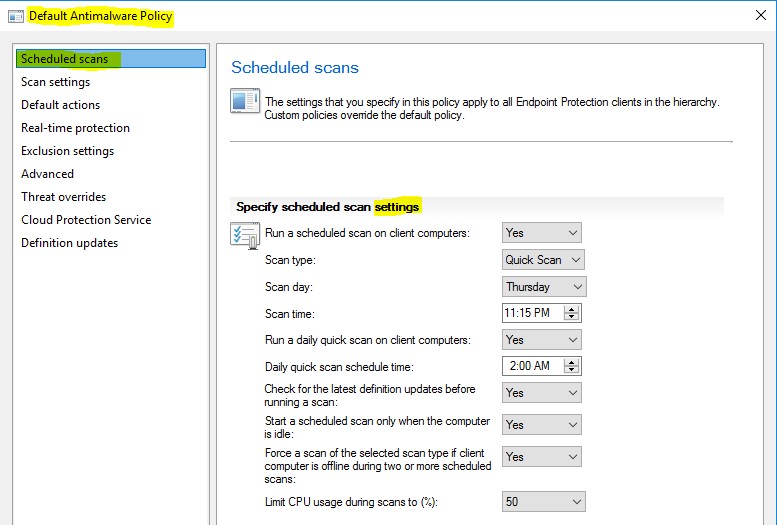
Scheduled Scans – These settings customize the schedule that you will utilize in your organization
- Run a scheduled scan – the choices are Yes or no
- Scan type – The choices are Quick Scan or Full Scan
- Scan day – Select Daily or select one of the days Sunday through Saturday • Set the Scan Time
- Check for the latest definition updates before running a scan
- You can Limit the amount of CPU utilization that should be used during the scan so that the system is still usable.
**Scan Settings **\- These settings determine what will be scanned
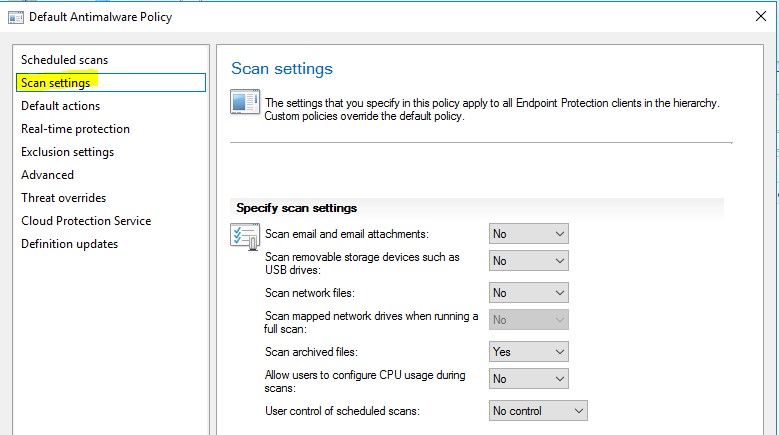
- Scan email and attachments
- Scan USB thumb drives
- Scan network files
- Scan mapped network drives
- Allow users to configure CPU usage during scans
- Allow users control of scheduled scans – Normally set to no control
**Default Actions **\- Specifies how Endpoint Protection responds based upon the rated severity Levels
- Severe – We can choose remove, which will remove the…
No comments yet. Add the first comment to start the discussion.