
Installing SCCM Dependent Server Roles
Now we are going to install the Windows Server Roles that SCCM requires before installation. Log in to your SCCM server and open Server Manager.
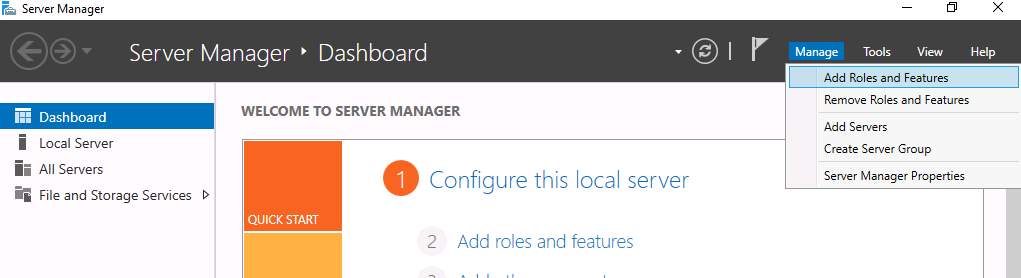
Click Manage > Add Roles and Features:
Click Next until you get to the Server Roles page, then select Web Server IIS and Windows Server Update Services.
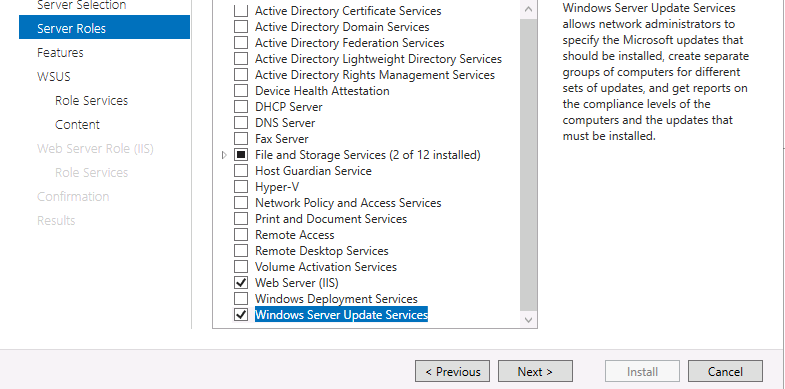
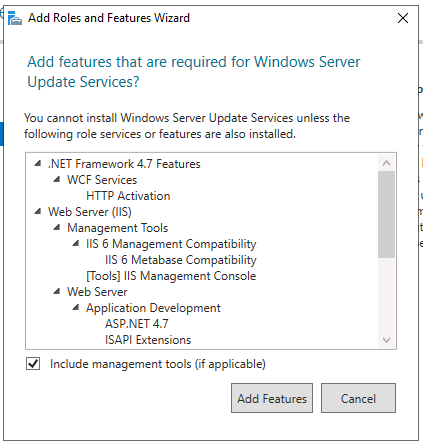
Select Web Service (IIS) and Windows Server Update Services roles. Be sure to click Add Features when you get the popup:
Click Next. On the Features page, enable the following features:
- Net Framework 3.5/4.5 Features (all sub-features)
- BITS (all sub-features)
- Remote Differential Compression
Now click Next. Depending on which Role you selected first, you might get to the IIS or WSUS page first. When on the Web Server (IIS) Role Services page, be sure the following role services are enabled:
Application Development
- ASP.NET 3.5 / 4.5 / 4.7
Management Tools > IIS 6 Management Compatibility
- IIS 6 Metabase Compatibility
- IIS 6 Management Console
- IIS 6 Scripting Tools
- IIS 6 WMI Compatibility
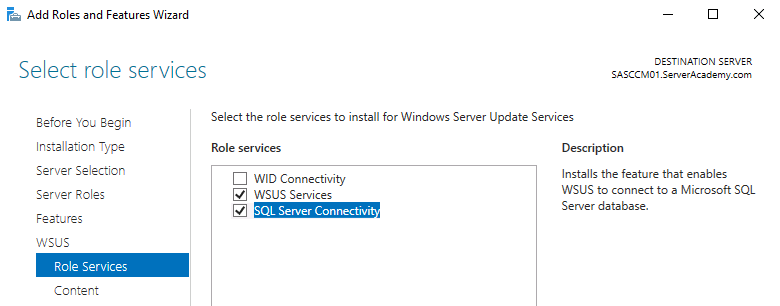
Click Next until you get to the WSUS Role Services page. Uncheck the WID Connectivity and select the SQL Server Connectivity and click Next:
Place the WSUS content in the “C:\wsus_content” folder and click Next:

For the DB Instance enter the name of your SQL server (mine is the localhost, SASCCM01) and click Check connection:
No comments yet. Add the first comment to start the discussion.