
Creating and Managing Administrative Users
In this lecture you are going to learn how to create and manage your SCCM administrative users and groups.
In the SCCM console, navigate to Administration > Security > Administrative Users:
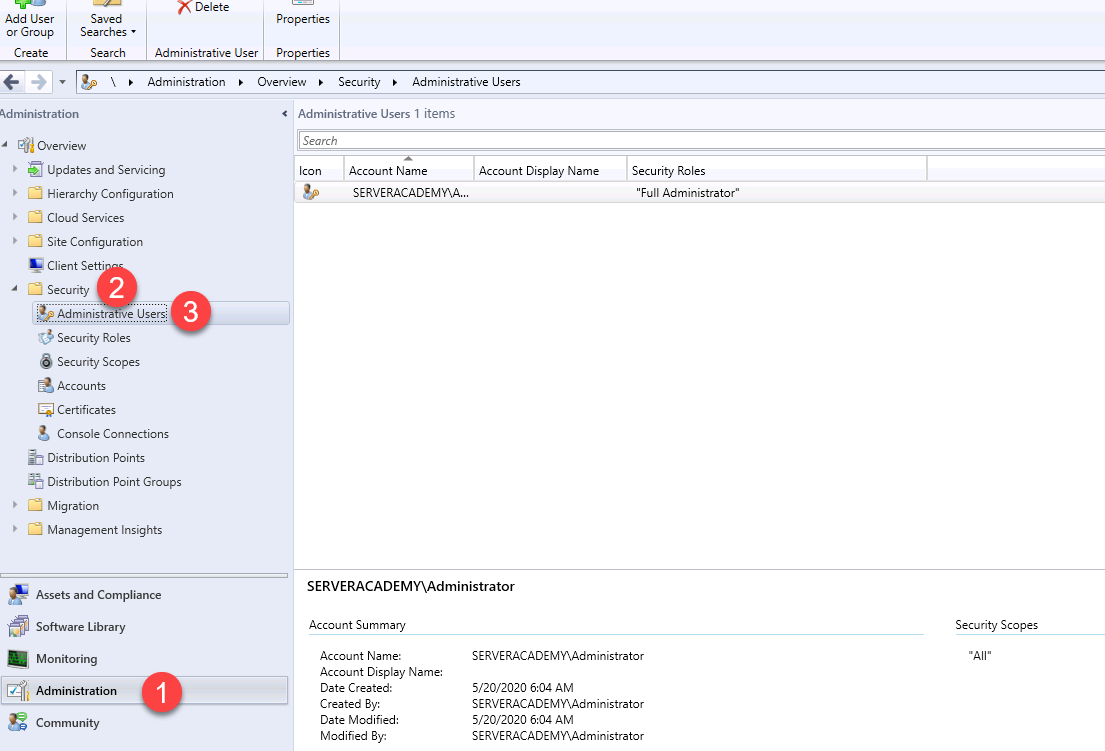
Inside the right pane you will see your administrative users and groups. Here you can right-click existing users to edit, refresh or remove them:
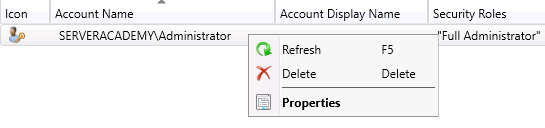
Right-click the default Administrator account and select Properties:
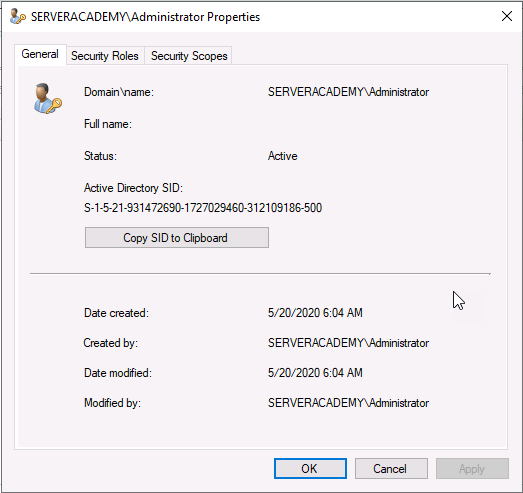
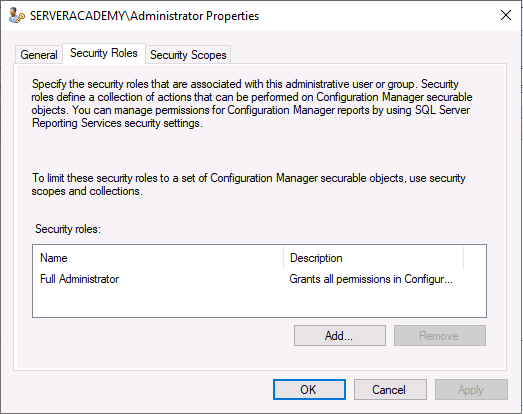
Here you will see three tabs; General, Security Roles and Security Scopes. General simply lists basic identifiable information about the user account. Security Roles allows you to define how much control you want the user or group to have. In this case, we can see that this user is a Full Administrator.
The Security Scopes tab allows you to define what objects the user will have “Full Administrator” permissions.
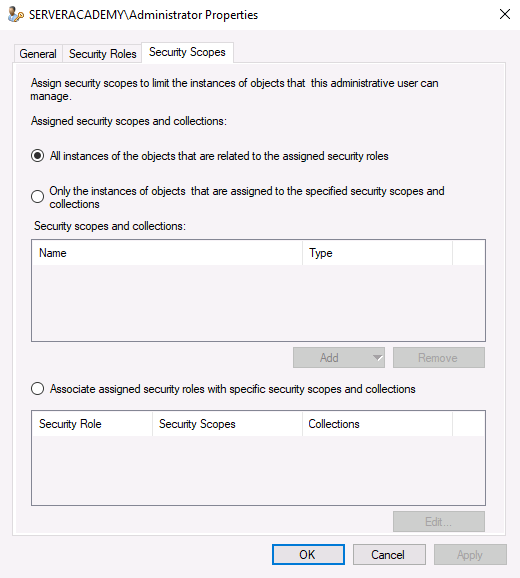
In small networks you would probably just go with the first option of All instances of the objects that are related to the assigned security roles. This associates the user with the All security scope as well as the All Systems and All Users and User Groups collections.
Selecting Only the instances of objects that are assigned to the specified security scopes and collections will associate the user with the Default security scope as well as the All Systems and All Users and User Groups collections. The main difference here is that this time the security scopes will be limited to that of the user account yo…
No comments yet. Add the first comment to start the discussion.