
Configuration Manager Update Overview
In this section, I will show you how to:
- Analyze our Current SCCM Configuration
- Then we will Update Configuration Manager
- Then we will Analyze the Configuration Changes in the CM Console
First, let’s Analyze our Current Configuration.
- Let’s go out and check for the CM update – From Administration, Updates and Servicing verify that version 1910 is ready to be installed. If you installed SCCM version 1902, you should see version 1910 ready to be downloaded or ready to be installed. If not, click the check for updates button. Click refresh, once the update appears, then click download.
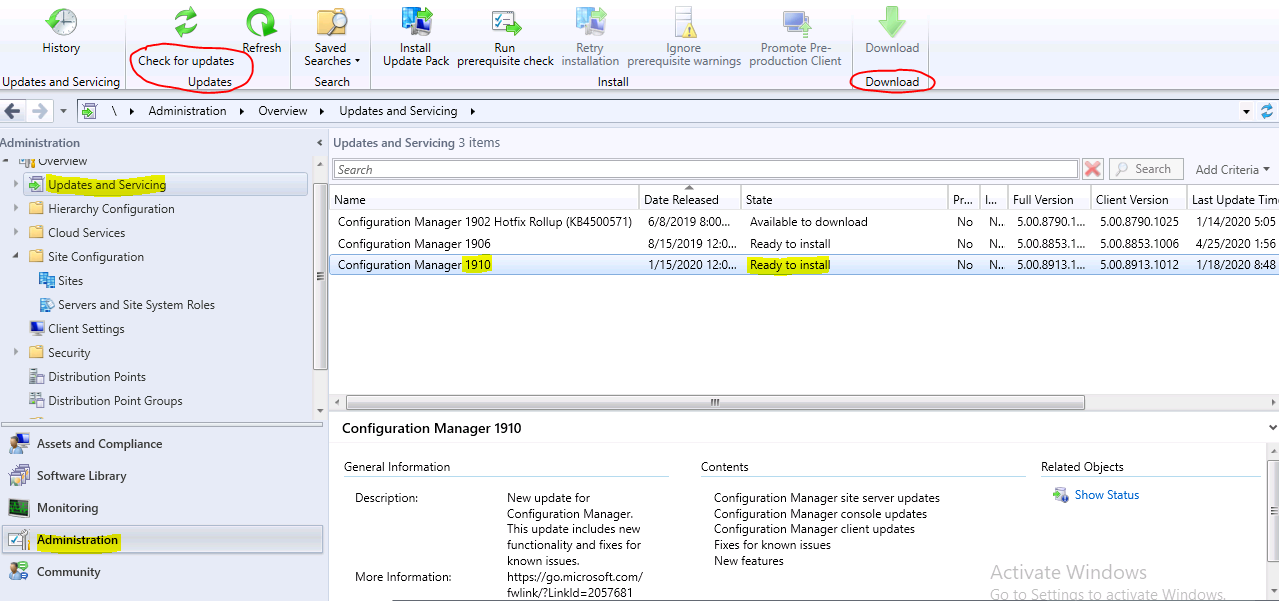
- Analyze the Current Configuration
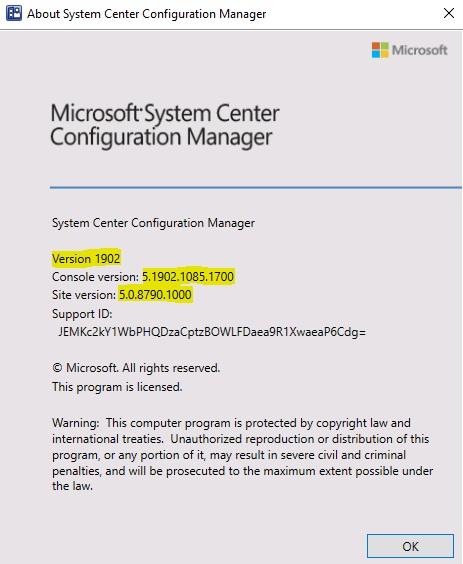
- First, we will Verify the current version of SCCM.
From the console, above the ribbon click the down arrow,
- Then click about Configuration Manager. In this case, we have SCCM Version 1902, Console Version 5.1902.1085.1700, Site Version 5.0.8790.1000
After the update, these version numbers will change.
- Now let’s Verify the ADK version.
- From the Windows search icon, type con, double click the control panel, click Programs, and Features. Scroll down until you see Windows Assessment and Deployment kit. Here we have ADK version 17763.1 which is ADK Version 1809
And PE version 17763.1, which is version 1809. Your versions may be different.
- Now let’s check our** **ADK compatibility chart. Here we see that ADK version 1809 is compatible with Configuration Manager 1902, and “should be” BC with 1906 and 1910.
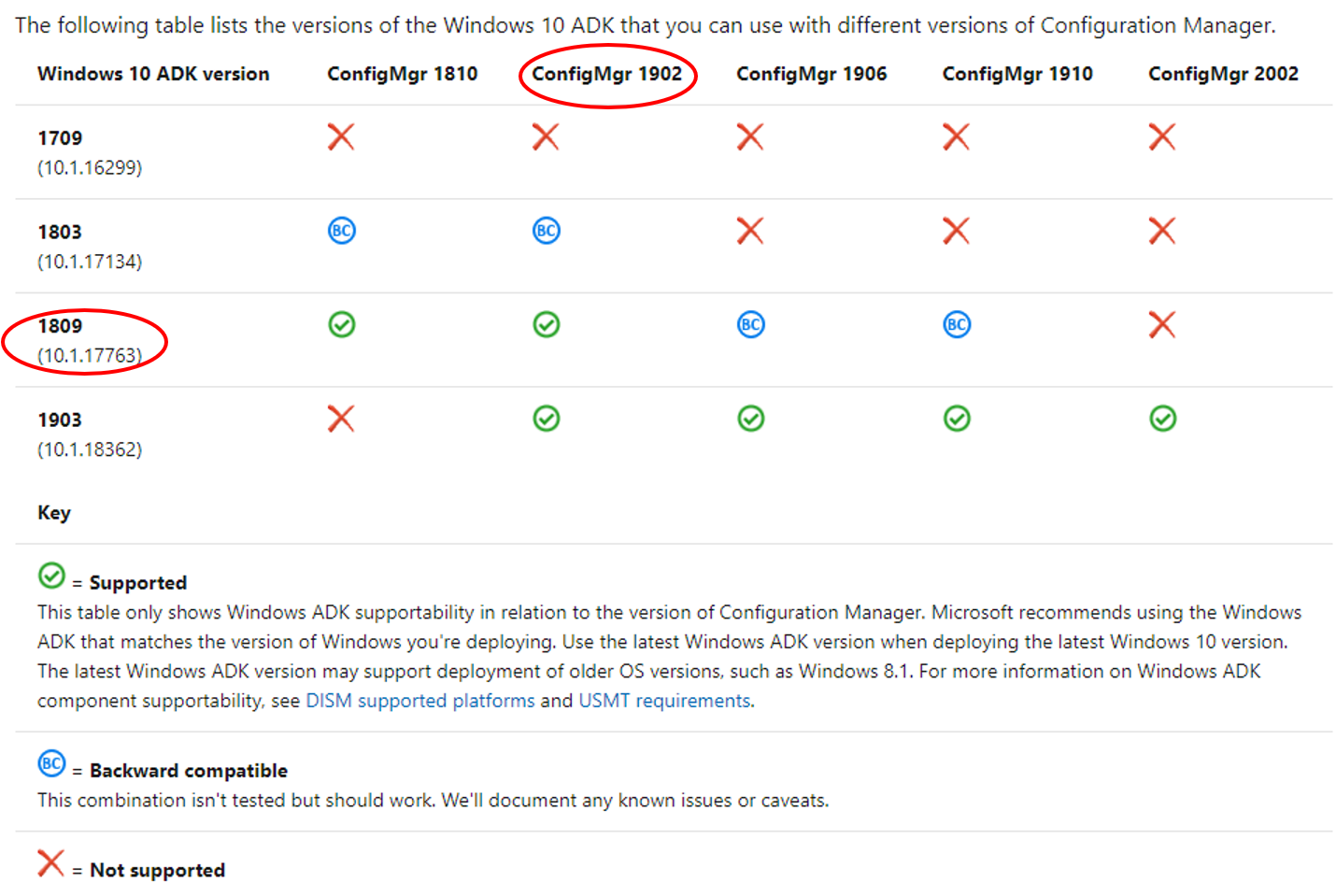
- Even though the compatibility chart says, ADK 1809 is backward compatible, but not tested. It would be better to uninsta…
No comments yet. Add the first comment to start the discussion.