
Installing Windows Server 2019 Part 1
In this lecture, we will be installing Windows Server 2019 on our SADC01 server and our SASCCM01 server.
Now, keep in mind that the process of installing Windows Server is going to be identical for both of these VMs. So I’ll just be walking you through the steps on SADC01. Once the lecture is complete you can repeat the steps for SASCCM01.
Of course, if your computer is fast enough feel free to start both of these at the same time and just run through the installation simultaneously.
Now, what I am going to do is right-click on the VM SADC01 and select Settings.
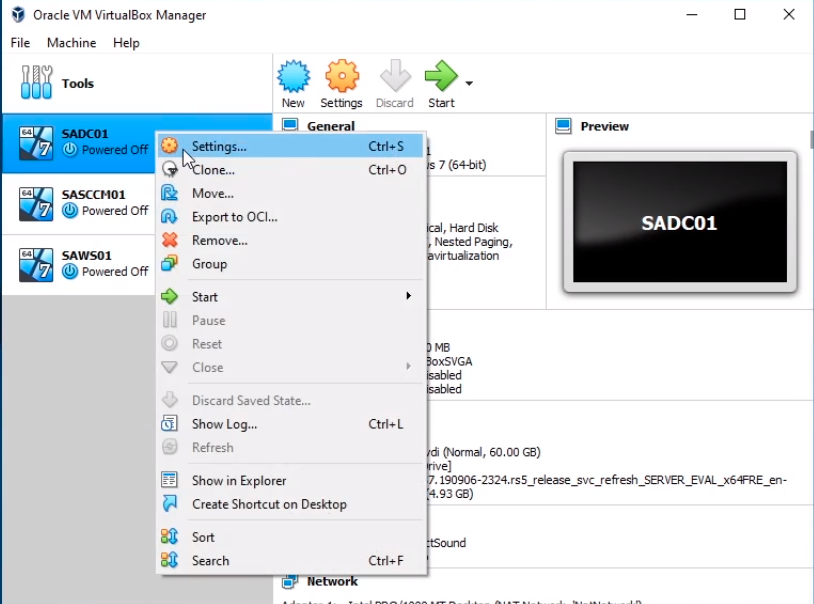
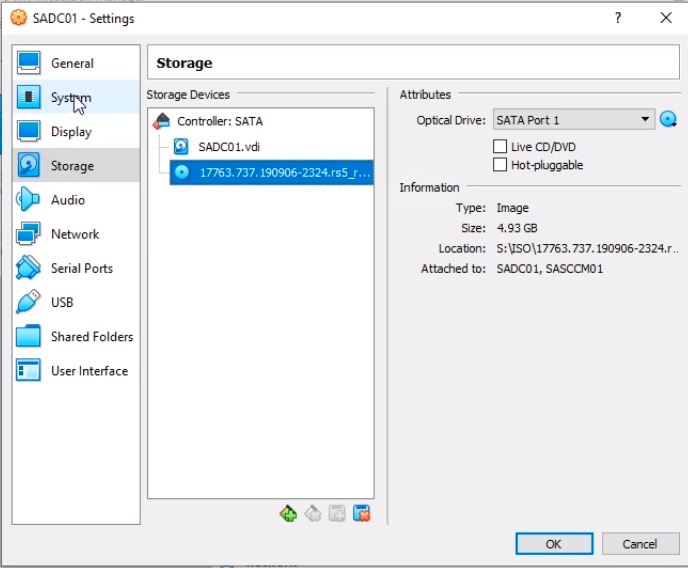
We want to make sure we have the ISO mounted here.
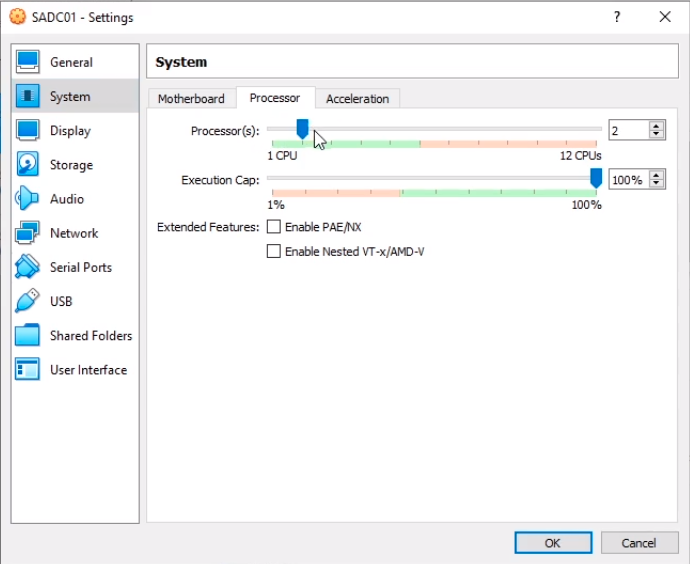
Another quick tip is that if you want to speed up the processing power of your VM you can add more CPUs from the System tab. So, I’ll change it from 1 to 2 and click OK.
And, I am going to repeat the process for SASCCM01. This really enhances the performance of your Virtual Machine.
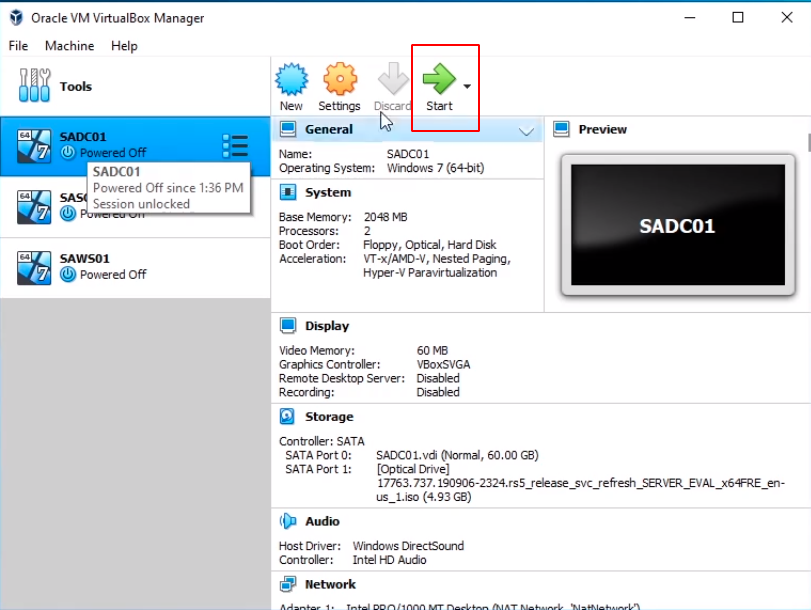
So, the next thing I am going to do is go to SADC01 and I am going to click on Start.
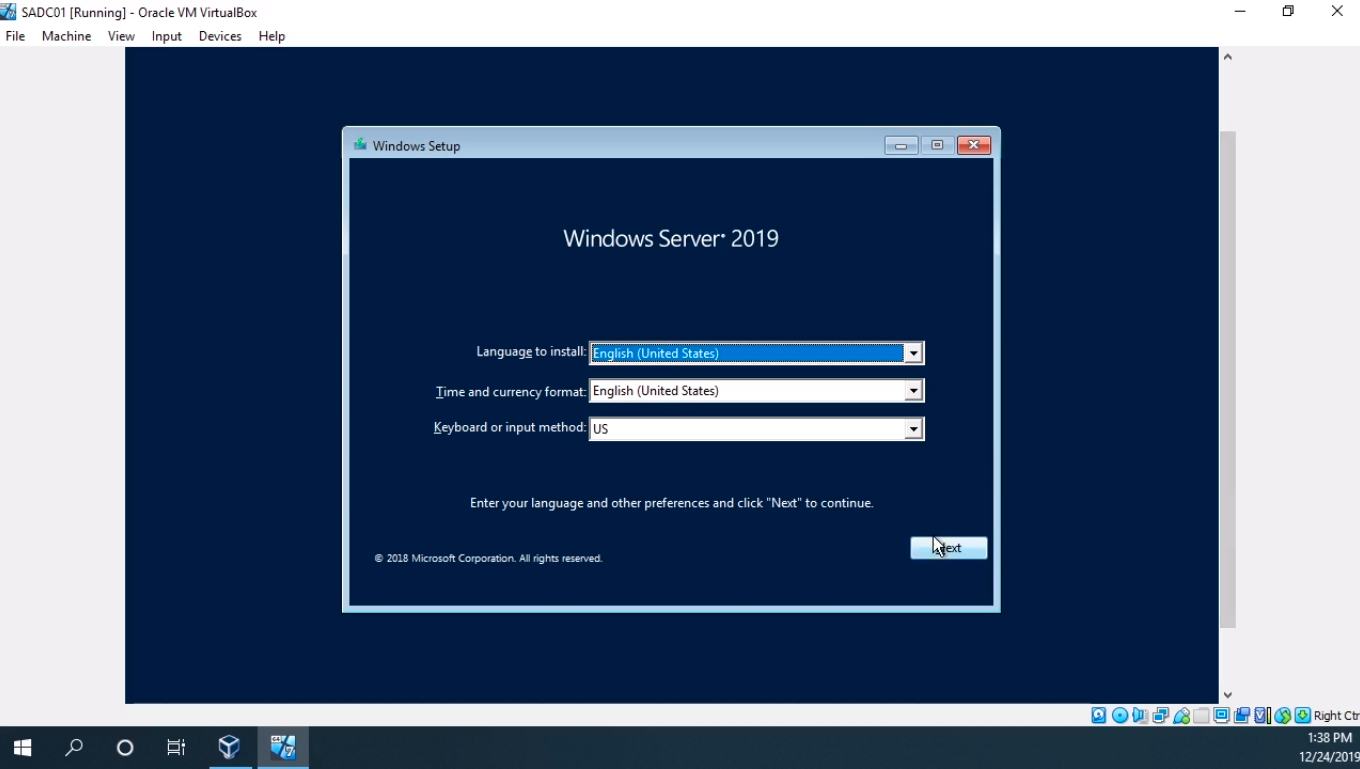
OK, so now the VM is powering ON. I am going to click on Next.
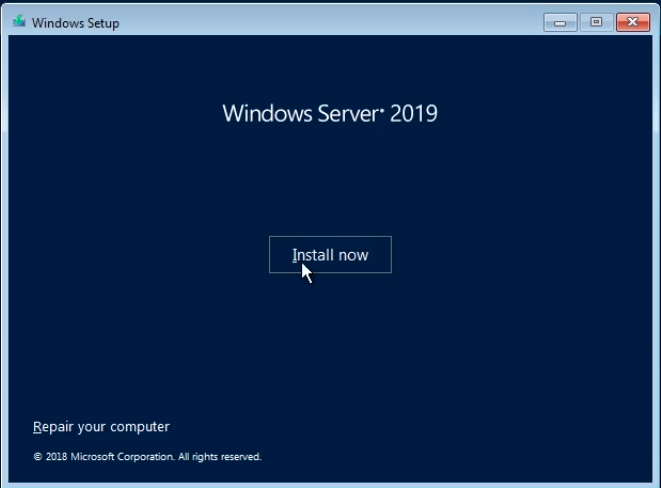
Click Install Now.
I am going to click on Windows Server 2019 Datacenter Evaluation (Desktop Experience). It doesn’t matter if you choose Datacenter or Standard either one would work just fine. Click Next.
No comments yet. Add the first comment to start the discussion.