
SCCM Troubleshooting Overview
SCCM is a complex management system. So, when things go wrong, where do you start to troubleshoot problems? For trouble shooting SCCM problems we will cover three steps that should help you to determine a solution.
**#1 The Monitoring Workspace \- Microsoft provides us with the monitoring workspace which should give you a good starting place to troubleshoot most issues you may be having. **
**#2 Log Files – **There is much that can be learned by looking at log files. I have provided an up to date log file list from Technet. Use this list to determine which log files to check. Open the log files in CMTrace.exe and determine the problem and if available lookup the error codes.
**#3 And finally, find a solution (not always easy) and fix your problem. **
From the SCCM server open server manager, from the workspace open **Monitoring **
• The Monitoring Workspace – Will provide you with the status of content on distribution points or overall system status. A Distribution Point functions as a distribution center for the files that a package uses, allowing users to download these files, programs and scripts when a package is advertised.
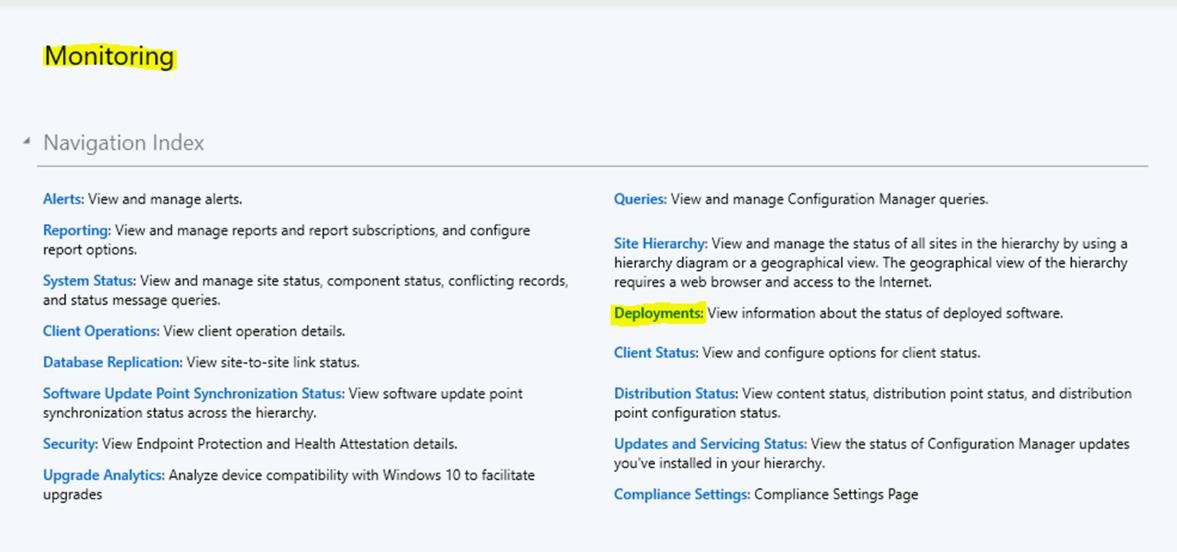
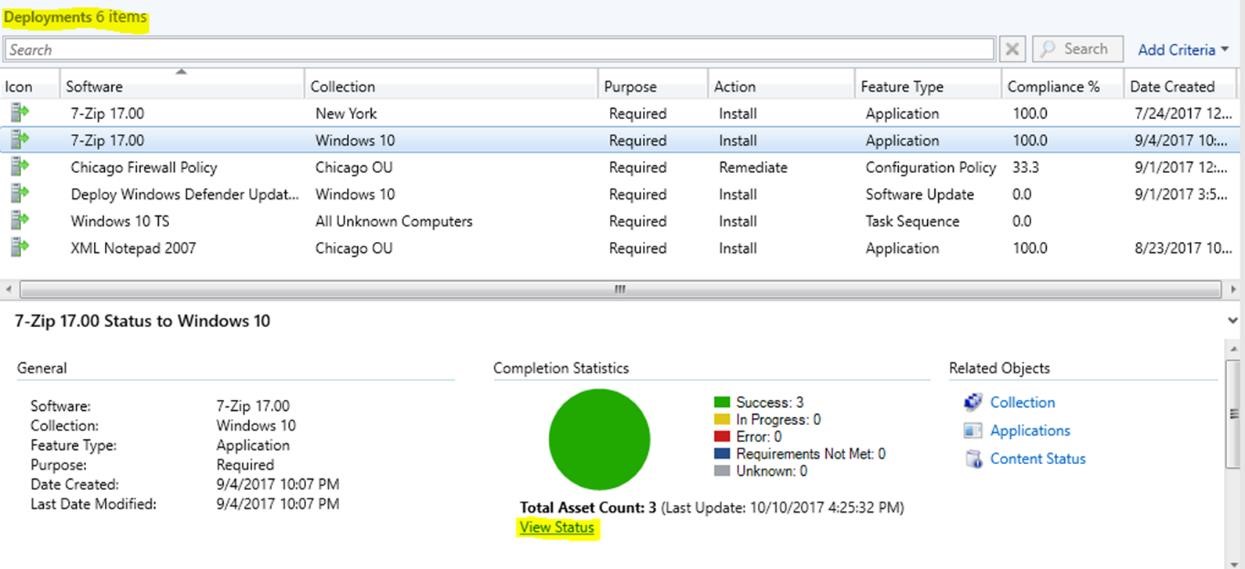
Deployments Node – Use this for software distribution failures – (View active and completed software distributions) Click a deployment for more detailed information
Deployment Status will show messages and details about the success or failure of the deployment.
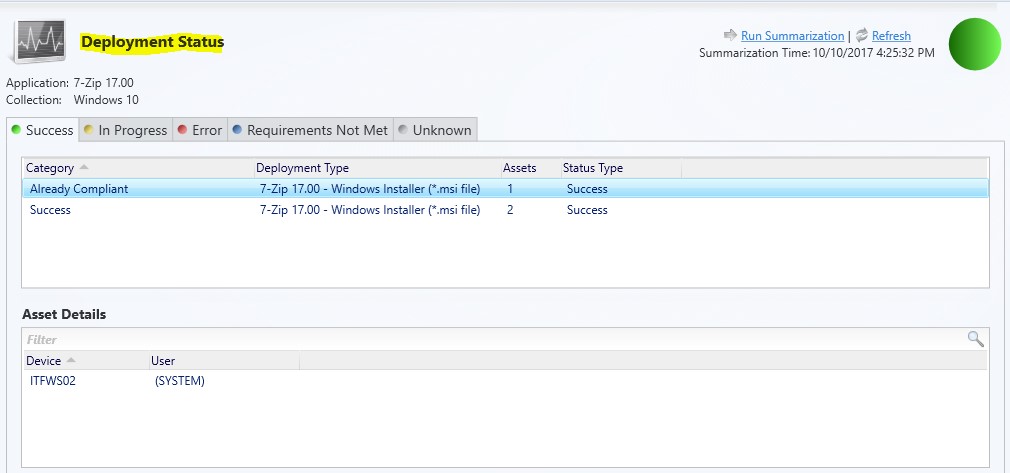
If your deployment shows an error, the message ID and the description are a good place to start troubleshooting.
![](https://zrftqtvkikjkbtkfalgp.supabase.co/storage/v1/object/public/lesson-images/0f96e0333722fd…
No comments yet. Add the first comment to start the discussion.