
Installing Windows 10
In this lecture, we will be installing Windows 10 on our SAWS01 workstation.
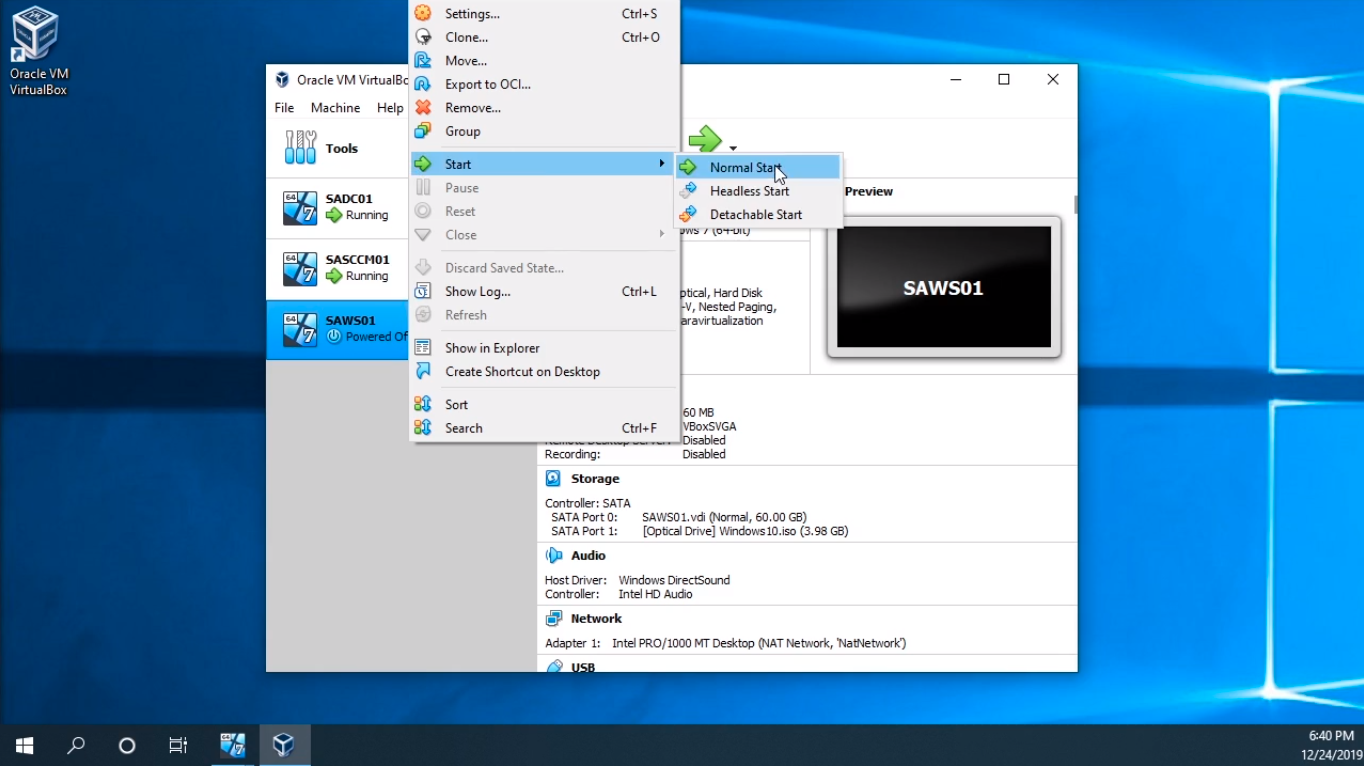
What I am going to do is right-click on the VM and I am going to choose Start and choose Normal Start.
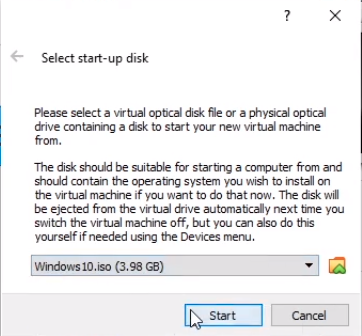
Now, you may see a Select start-up disk window when you first launch this so make sure you select Windows10.iso and click Start.
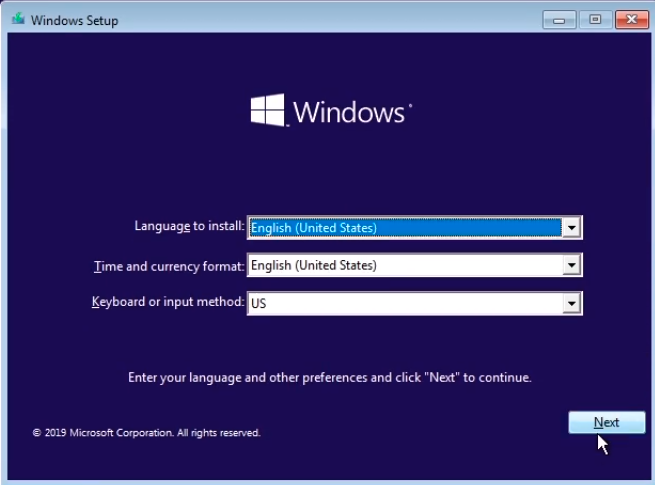
Now, this process is very similar to Windows Server 2019, but we still are walking you through the steps. Click Next.
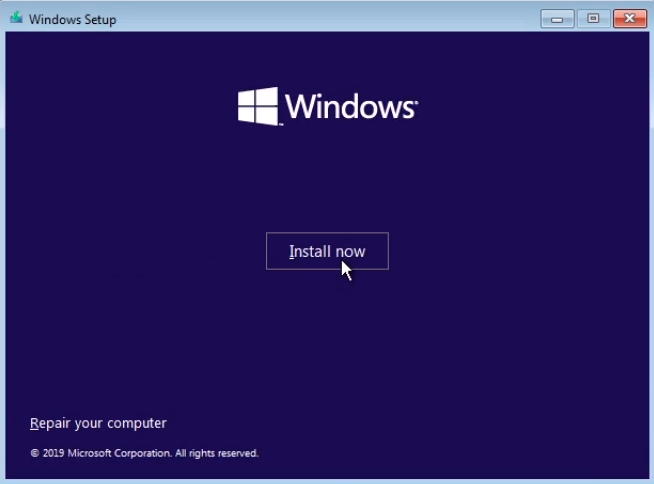
And click Install now.
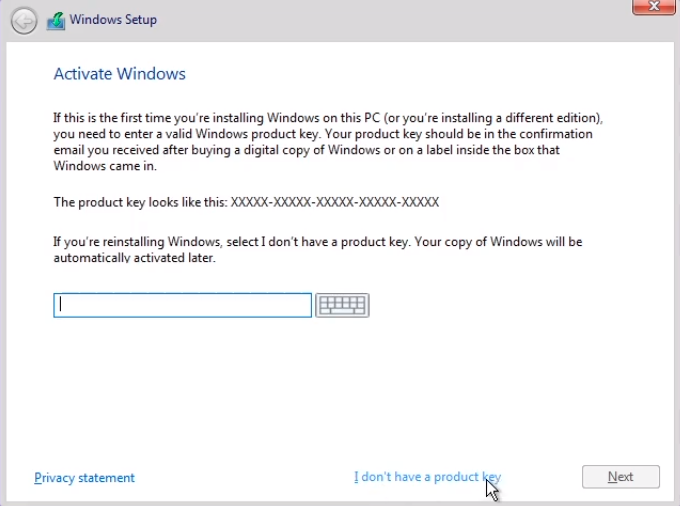
I am going to choose I don’t have a product key.
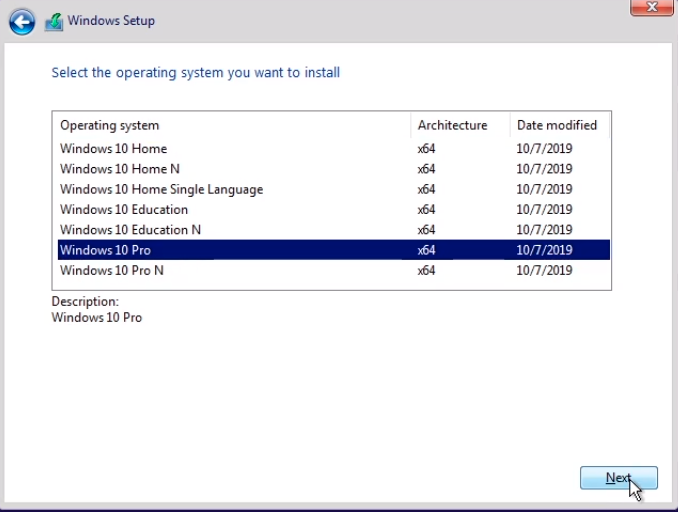
And I am going to choose Windows 10 Pro.
It is very important that we choose the Pro edition and not the Home as Home cannot be joined to a Windows Domain.
So, I am going to click Next.
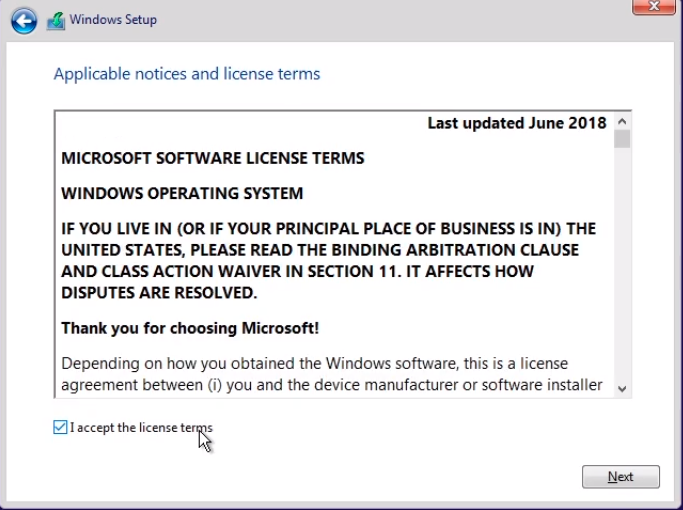
I am going to accept the license terms and again click Next.
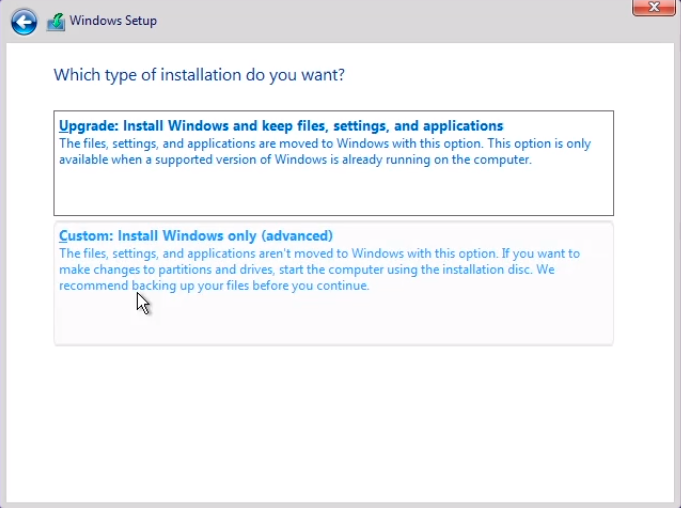
I am going to choose Custom because this is the first installation of Windows on this Hard Drive.
Here I am going to select Drive 0 Unallocated Space and click Next.
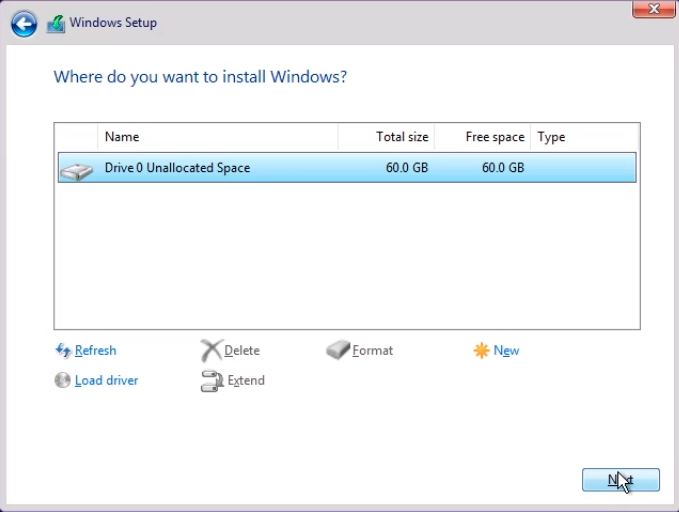
Now the installation is going to begin. From here we just need to wait.…
No comments yet. Add the first comment to start the discussion.