
Installing Windows Server 2019 Part 2
Now, before we finish the installation of Windows Server we need to install the VirtualBox Guest Additions CD Image.
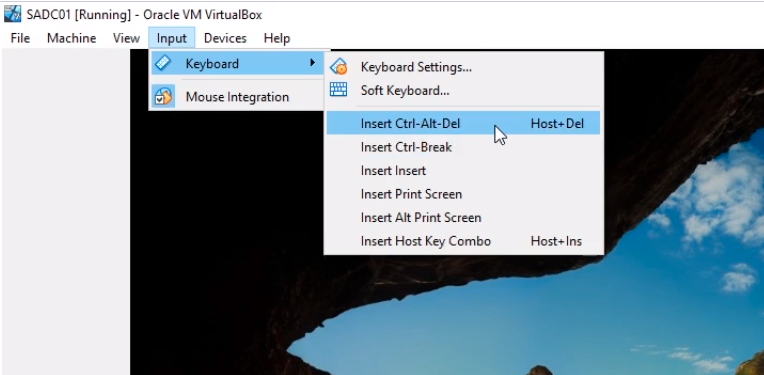
So what I am going to do is select Input > Keyboard > Insert CTRL+ALT+DEL
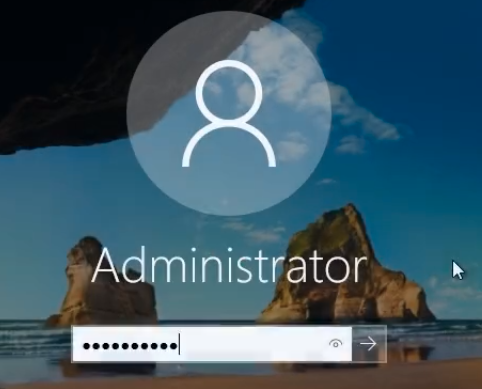
Next, I am going to type in the password and go to the Desktop of the Virtual Machine.
At the top of the Virtual Machine menu, I am going to select Devices > Insert Guest Additions CD Image…
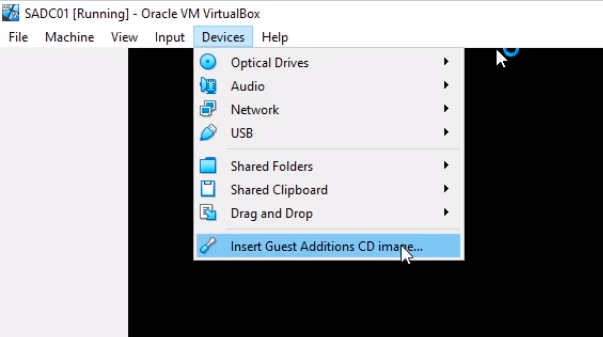
What that’s going to do is mount the Guest Additions ISO to the Virtual Machines so that we can install the installation media.
Now that we are on the Desktop, open File Explorer and click the This PC options from the left and I am going to double-click the VirtualBox Guest Additions CD Image.
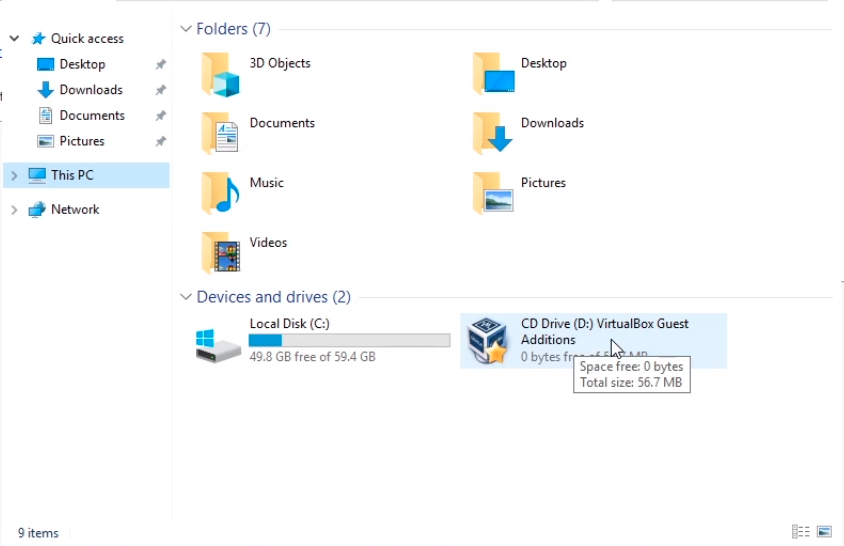
I am now going to double-click on the VBoxWindowsAdditions file and this will launch the installation for VirtualBox Guest Additions.
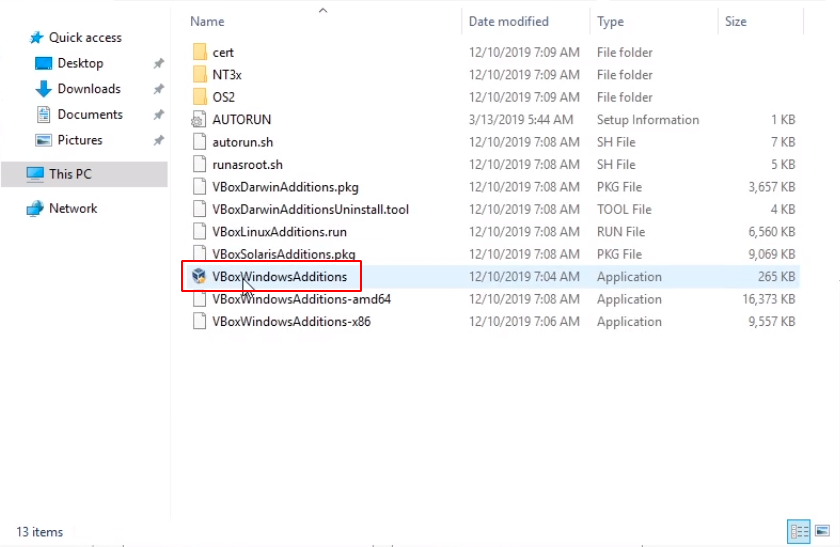
Click Next on the installation wizard.
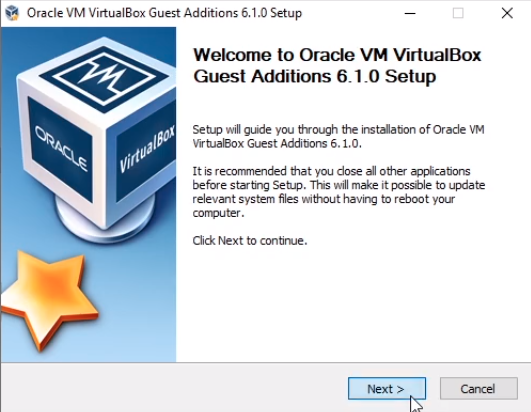
Click Next and proceed with the default installation options.
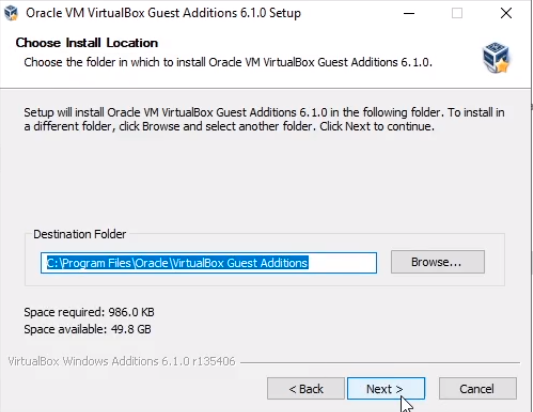
Click Install to begin the installation.
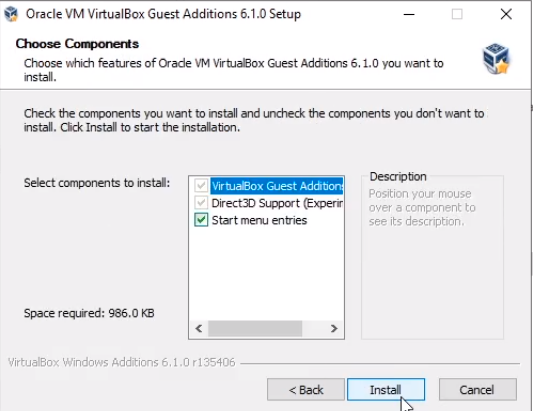
The installation begins.
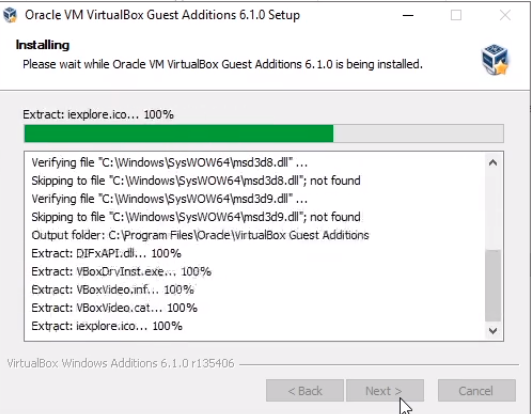
Click In…
No comments yet. Add the first comment to start the discussion.