
Install SQL Server 2017
In our lab we are going to install SQL Server 2017 Cumulative Update 2. Feel free to use an update newer than CU2, but that is the minimum you must install in order for it to be compatible with SCCM. Below is a table that you may reference for a list of supported versions of SCCM 1902 and SQL:
| SQL Server | Edition | Min Cumulative Update |
|---|---|---|
| SQL Server 2017 | Standard, Enterprise | CU2 |
| SQL Server 2016 SP1, SP2 | Standard, Enterprise | Not CU Required |
| SQL Server 2016 | Standard, Enterprise | Not CU Required |
| SQL Server 2014 SP1,SP2,SP3 | Standard, Enterprise | No CU Required |
You should have already downloaded the SQL Server 2017 executable, so at this point launch the installation file.
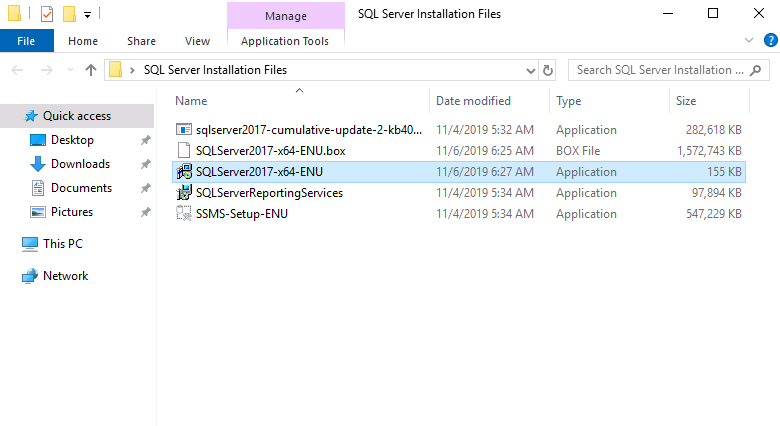
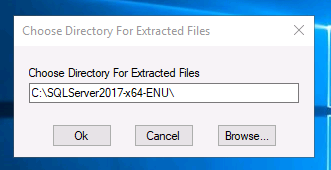
This will prompt us to extract the installation files. I am going to place them on the C:\ drive.
Also, keep in mind that we will need to immediately update to cumulative update 2, so you may begin that download now while you wait from https://catalog.update.microsoft.com (search SQL 2017 Cumulative Update 2) if you have not downloaded it already. Please keep in mind for lab users this is pre-downloaded to the lab VM.
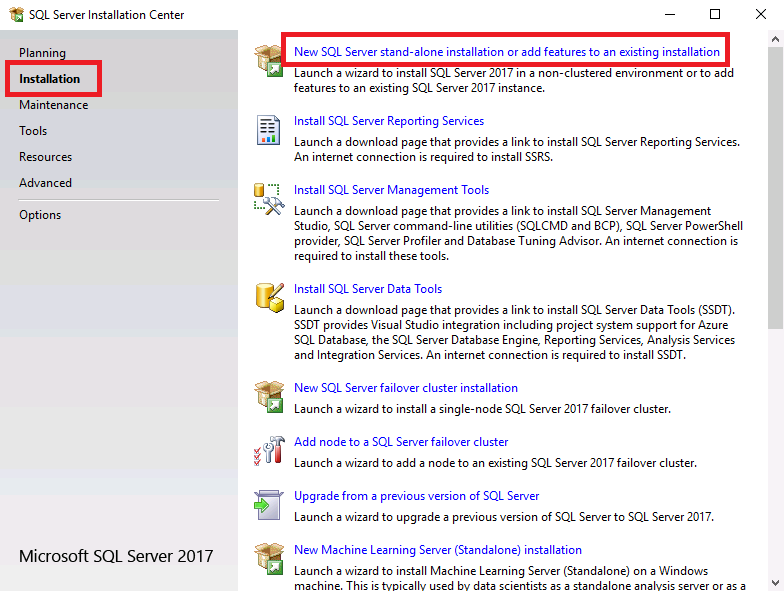
Once the SQL Server Installation Center opens, click New SQL Server stand-alone installation text:
If you have a product key, you may enter it now or choose to use the free evaluation edition and click Next. Agree to the license terms and click Next again. On the Microsoft Update page, click the checkbox next to Use Microsoft Update to check for updates, and click Next:
![](https://zrftqtvkikjkbtkfalgp.supabase.co/storage/v1/object/public/lesson-images/8f364c159e3f6c69.p…
No comments yet. Add the first comment to start the discussion.