
Extending the Active Directory Schema
Extending the Active Directory Schema involves creating new structures to Active Directory that Configuration Manager sites use to store important data that clients need to access. This data simplifies client deployment and configuration and helps clients locate SCCM site resources.
While it is possible to avoid extending the Active Directory schema by using DNS and WINS, this method is generally avoided in favor of simply extending the Active Directory Schema with the automated script that is provided in the SCCM installation files.
Locating your Schema Master Server
To get started, first log in to your Active Directory Domain Controller that has the Schema Master FSMO role. If you’re unsure of how to find your locate your domain Schema Master server, open PowerShell or Command Prompt as an administrator on any Windows Server in your domain and execute the command below:
netdom query fsmo
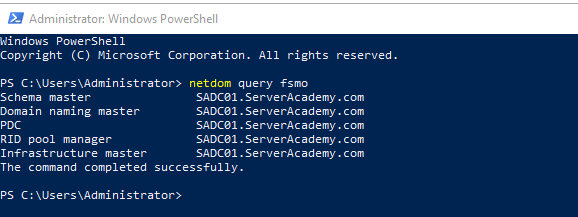
Based on the output of the command above I can see that my Schema Master server is SADC01 - so I will log in to that server to extend the Active Directory Schema.
Copy extadsch.exe to Schema Master Server
Now that we have located the Schema Master Server, let’s copy the utility that will extend our AD schema over to our Schema Master Server.
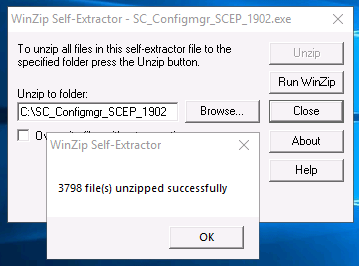
On the SCCM server, log in and locate your installation file “SC_Configmgr_SCEP_1902.exe”. Running that will extract the installation files to the C drive by default. Click Unzip and wait for it to complete.
On the C:\ drive, create a new folder and name it “Share”. Next, navigate to “C:\SMSSETUP\BIN\X64” and copy the files listed below to C:\Share
- Extadsch.exe
- mfc120.dll
- msvcr120.dll
![](https://zrftqtvkikjkbtkfalgp.supabase.co/storage/v1/object/public/lesso…
No comments yet. Add the first comment to start the discussion.