
Monitoring Applications
In this video, you will learn how to monitor the state of an application deployment
What are State-based applications? These are applications that have been:
- Success – The application deployment succeeded
- In Progress – Meaning an application deployment is in progress
- Error – The application failed
- Requirements not met – You tried to install a non-compliant application
- Unknown – State of the application could not be determined
From the Workspace click monitoring, from the Navigation Pane click deployments, then from the ribbon click **view status **
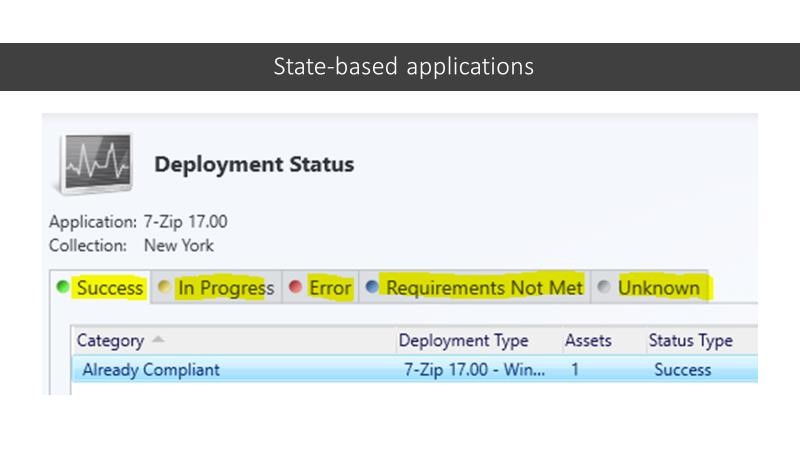
Here in the Deployment status view
- it looks like our 7-zip deployment has successfully completed.
- There are no deployments in progress
- No errors displayed
- Here we see a requirement that was not met. This is because I selected to deploy 7-zip to a Windows 10, 32bit and a 64bit operating system. Since there were no computers in the collection with a 32bit operating system installed, I received a requirement not met.
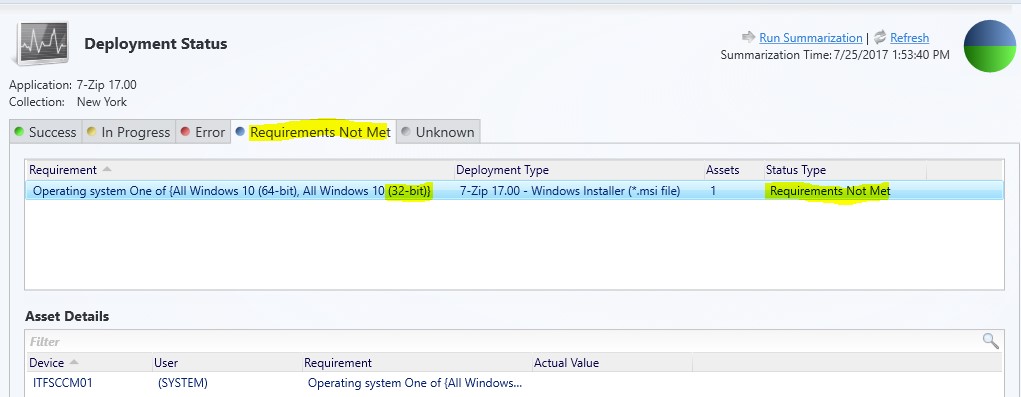
- And in the last tab there are no unknown applications.
Additional information
- If a user logs in to two devices and the application is successfully installed on one device but fails to install on the second device, the deployment state of the application for that user displays as Error.
- If an application is deployed to all users that log on to a computer, you will receive multiple deployment results for that computer. If one of the deployments fails, the deployment state for the computer displays as Error.
- The information shown in the Deployment Status pane after you click View Status is live data from the Configuration Manager database. The information shown in the Summary…
No comments yet. Add the first comment to start the discussion.