
Creating a Package using an MSI
In this lecture we will create a package using XmlNotepad,
First we will need to find and test our Install and uninstall Commands.
Because the program is an .msi we will use msiexec for the install command.
- And here is the Install Command - MsiExec.exe /I XmlNotepad.msi /qn
/I for install and /qn for quiet install. I found the install command on this website. Let’s go out and check it out.
https://silentinstallhq.com/xml-notepad-silent-install-how-to-guide/
- For the install command, I just had to change XmlNotepadSetup.msi to XmlNotepad.msi to match my installer.
For the uninstall command
- You will need to have the product installed to find the uninstall command.
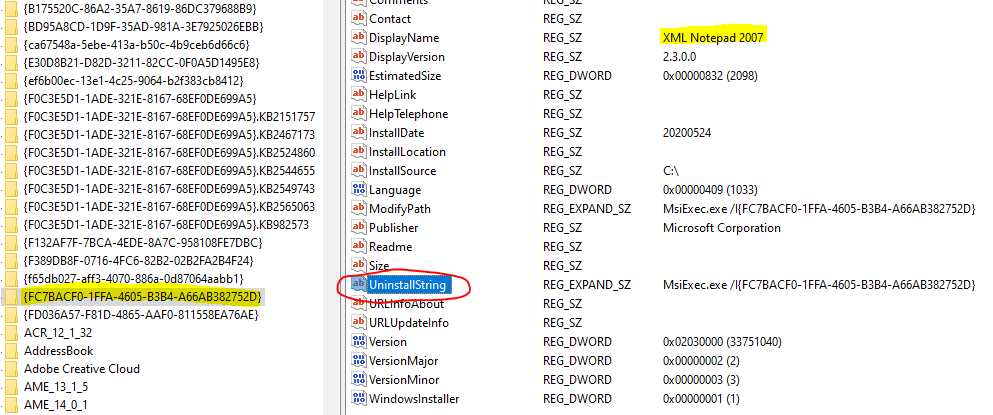
- For the uninstall string it looks like the author is using the product code. So I will have to use regedit to locate an updated product code that will work with my version of the program.
There are two places in the registry I can check for the uninstall string for my program.
Considering this is a 32 bit application running on a 64 bit O/S I will check in the WOW6432 for the uninstall string.
I’ll go ahead and open regedit now and browse through \HKEY_LOCAL_MACHINE\SOFTWARE\WOW6432Node\Microsoft\Windows\CurrentVersion\Uninstall\\{FC7BACF0-1FFA-4605-B3B4-A66AB382752D}
And there is a whole list of product codes. I had to click through each of these until I found the correct Uninstall String. So here is our uninstall command. From the website mentioned above I added the following parameters /x (for uninstall and qn for quiet or silent uninstall
- Uninstall Command \- MsiExec.exe /x {FC7BACF0-1FFA-4605-B3B4-A66AB382752D} /qn
- Now copy both of these commands to Notepad.
You should test your install and uninstall command lines from an admin level command prompt before you deploy them out to your…
No comments yet. Add the first comment to start the discussion.