
Deploying CMTrace to a Device Collection
So why bother deploying CMTrace to all your clients?
By default, CMTrace is not installed as part of the SCCM client installation. If you need to troubleshoot problems on the local client having CMTrace available can be a real-time saver. One method to remedy this problem is to create an application deployment that automatically copies CMTrace to a device collection of your choice. This will copy CMTrace.exe to any device that has the SCCM client installed.
Another method is to copy CMTrace using a task sequence. I have provided documentation if you would like to try this method as well. (Copy CMTrace to all computers using a task sequence.)
In this lecture, we will demonstrate the first method, by completing the following steps.
- Create the folder structure
- Use notepad to create a script
- Create an application in Configuration Manager
- Deploy CMTrace to a device collection
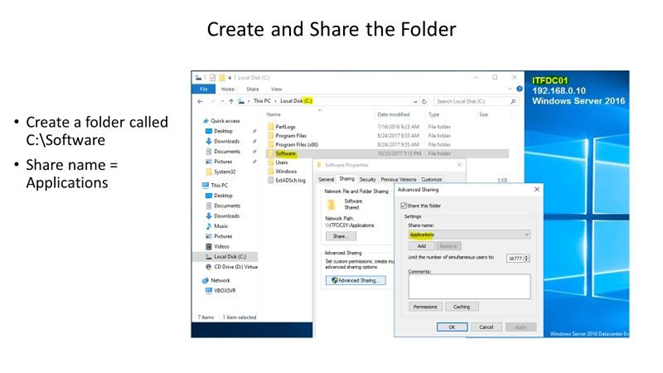
**Step 1 Create the Folder **
-
From the ITFDC01 server
-
Create a folder on the C: drive called C:\Software
-
Share the folder and name the share -Applications
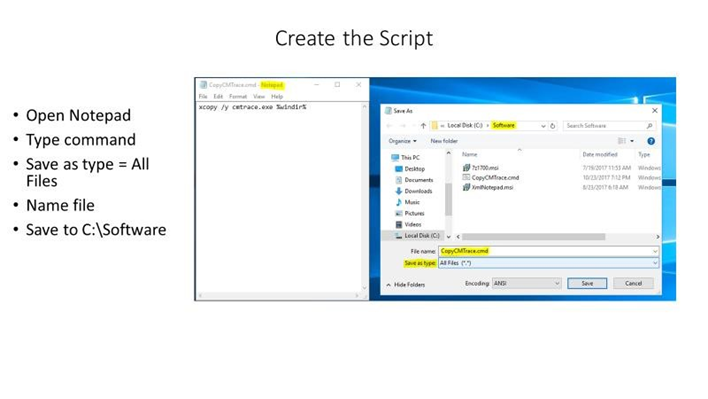
- **Open Notepad, now let’s create the script **• **Type **xcopy /y cmtrace.exe %windir%
- Now save the file.** **
- Click file, Save AS** **
- Make sure you change Save as Type FROM Text Documents, to **ALL FILES **
- Name the file - CopyCMTrace.cmd
- Save the file to the C:\Software folder.
-
**Step 2 Creating the Application **
- From Configuration Manager, from the workspace open software library, from the Navigation Pane, double click Application Management, then right click Applications , select **create Application. **
- From the General tab – Select manually specify the application information , cl…
No comments yet. Add the first comment to start the discussion.