
Downloading and Installing VirtualBox
In this lecture, I’ll be showing you how to download and install VirtualBox.
Now, you don’t have to use VirtualBox, you can use any virtualization technology you would like to use, however, if you never have done it before I’ll be walking you over the steps in downloading and installing VirtualBox.
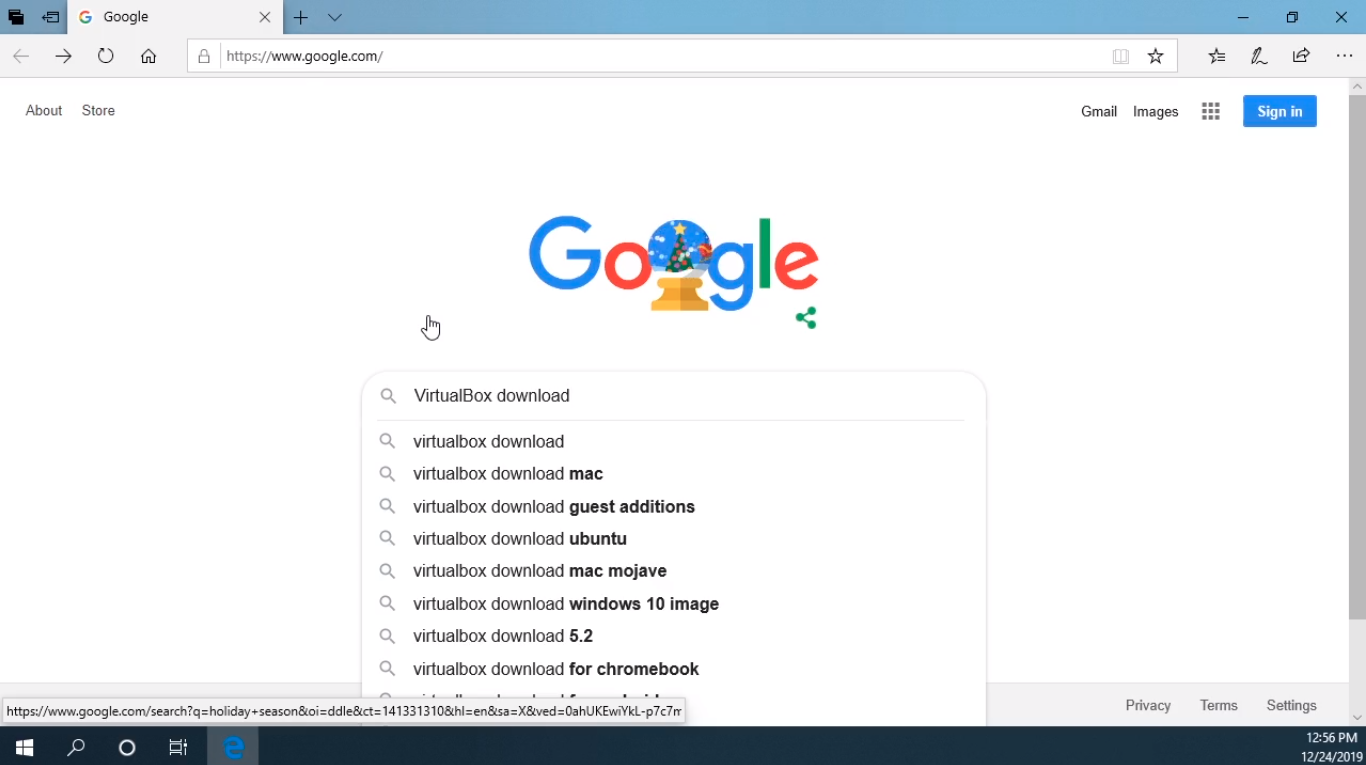
So, the first thing we are going to do is go to https://www.google.com. Next, in the search box, we are going to search for VirtualBox download and press Enter.
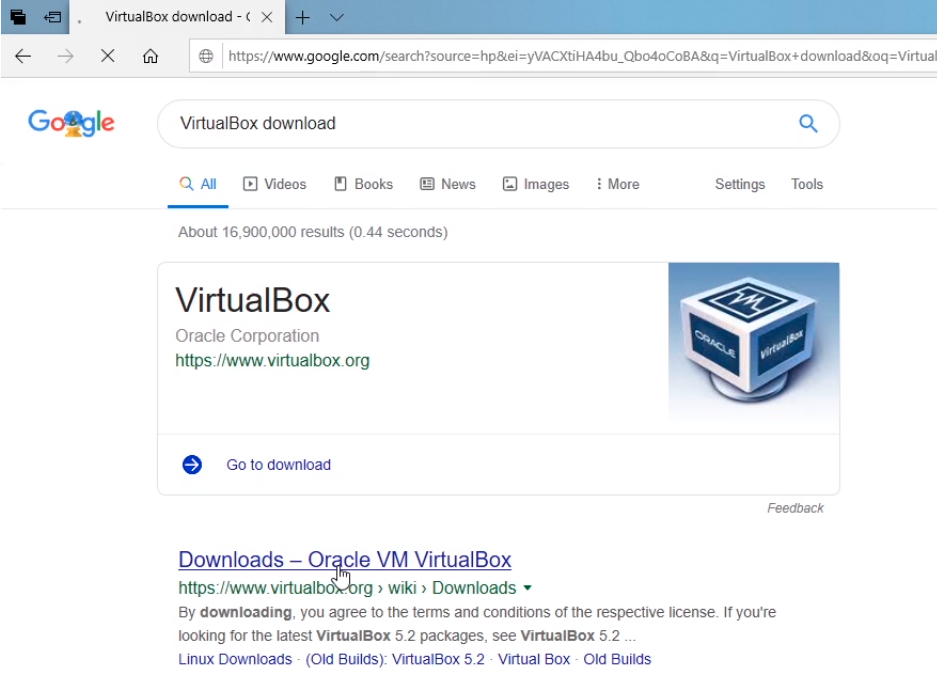
We are going to click on the first result that if https://www.virtualbox.org/wiki/Downloads
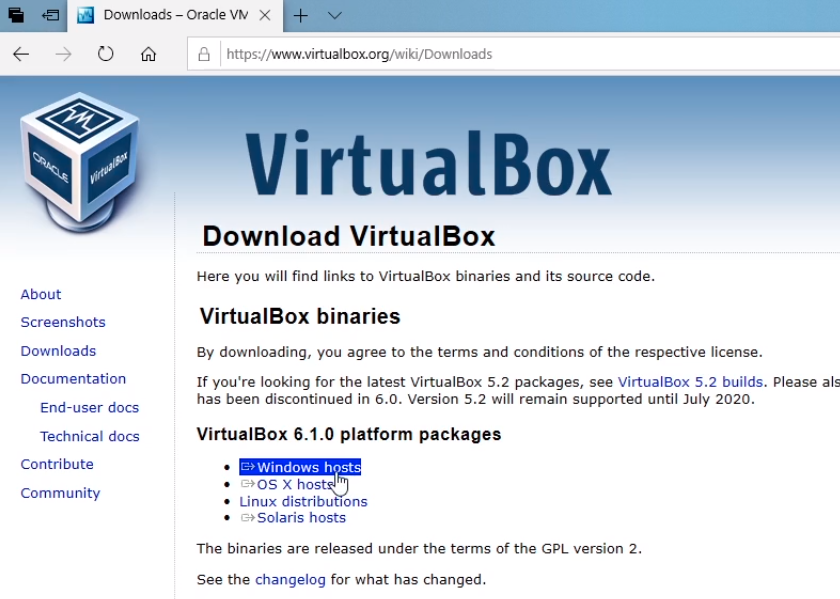
I am on a Windows 10 computer so I am going to choose the windows hosts option.
If you are on Linux or Mac you can choose the appropriate version for the operating system here as well.
I am going to choose the Run option.

The download will begin and it will be complete in just a few seconds.

The download is now complete and It's launching the installation so what I am going to do now is just click Next.
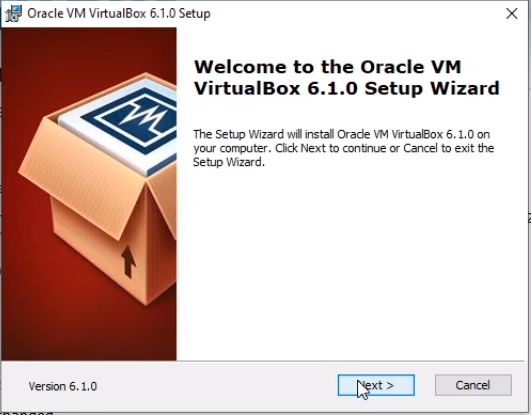
Then just use the default options.
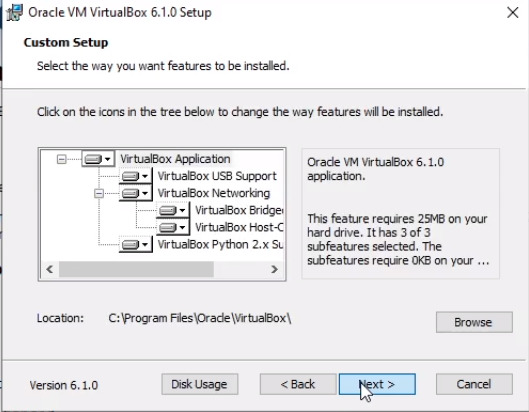
Click Next.
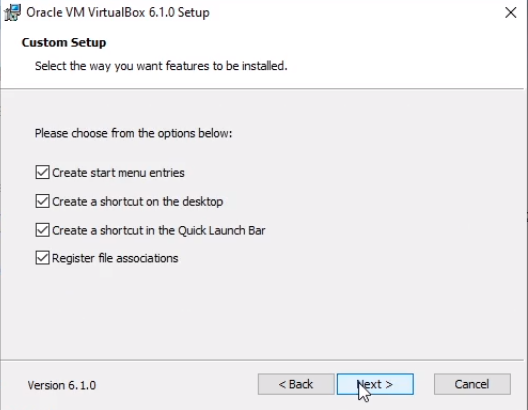
Click Next.
![](https://zrftqtvkikjkbtkfalgp.supabase.co/storage/v1/object/public/l…
No comments yet. Add the first comment to start the discussion.