
Installing System Center Configuration Manager
To install SCCM, we want to be sure we are logged in to the SCCM server as a domain administrator user account.
Do NOT attempt this installation by using the local admin account (SASCCM01\Administrator).
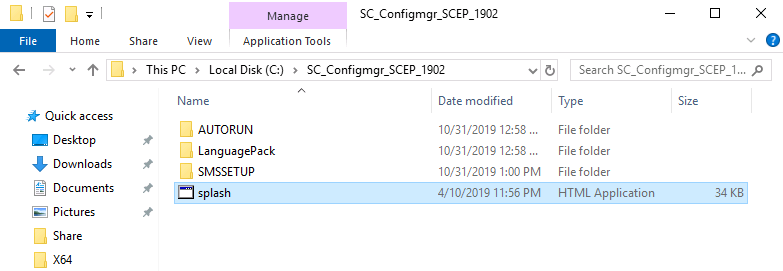
We previously ran SC_Configmgr_SCEP_1902.exe and extracted the installation files to the C drive. Open that folder and run splash.hta to begin the install:
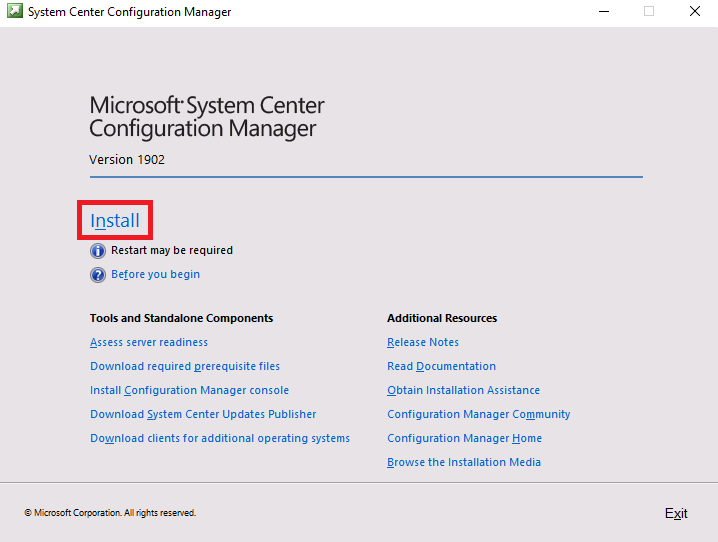
Click the Install button to get started with the installation”
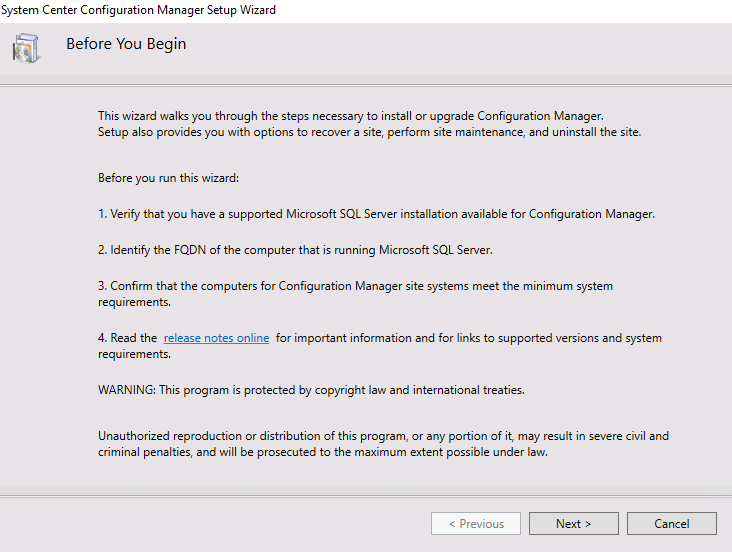
Here we are going to have a few notes about tasks we should have completed before we attempt to install SCCM. Click Next:
On the next screen, we need to select one of the available setup options. Check the checkbox next to Use typical installation options for the stand-alone primary site. Click Yes at the popup.
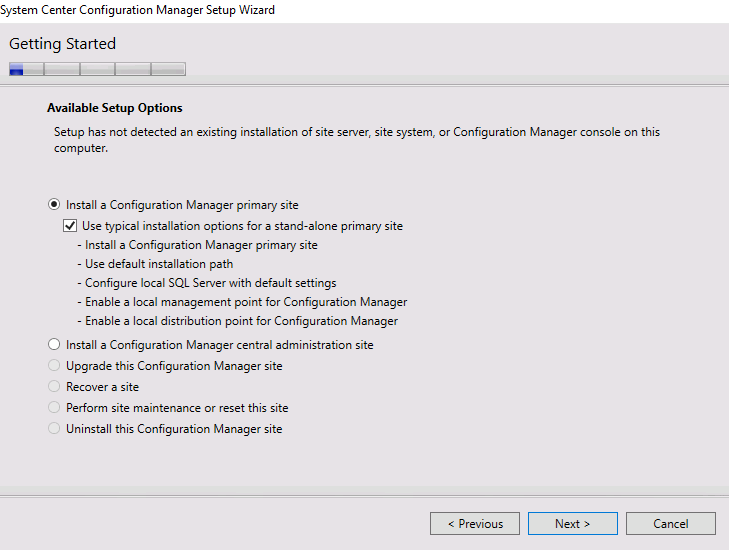
A Configuration Manager central administration site (CAS) and all the other options are only appropriate when we have other SCCM servers created - which we currently do not. Click Next to proceed to the next page.
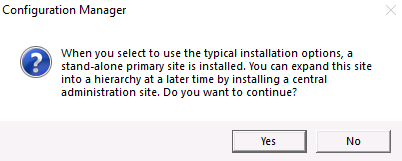
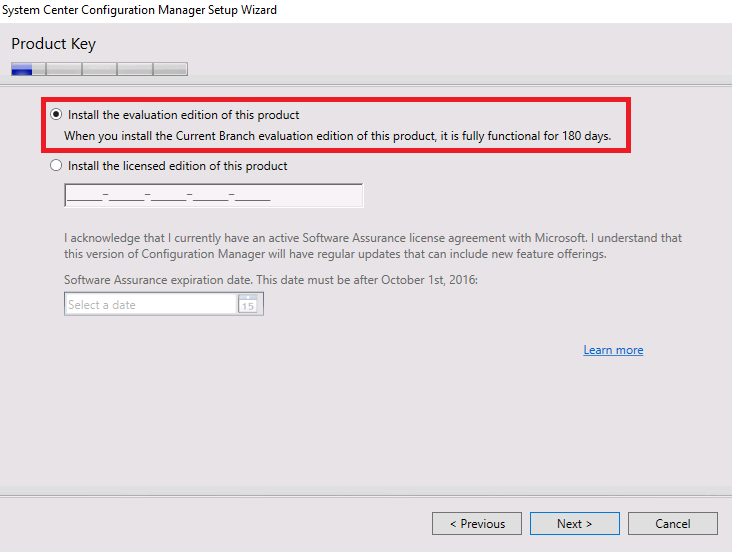
You will see a popup like this when you click Next, simply click Yes to confirm your choice. Now you may enter your license key or chose to install the evaluation edition and click Next.
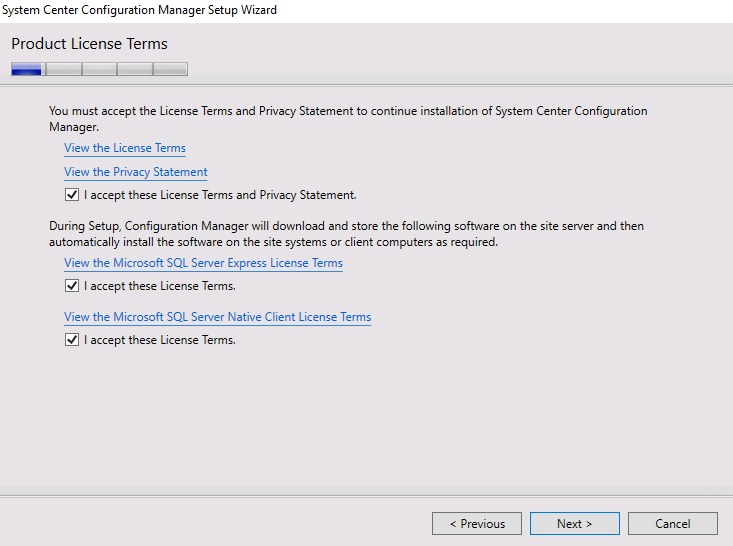
Accept the license terms and click next:
Now specify a download path fo…
No comments yet. Add the first comment to start the discussion.