
Use the OGV Command to Easily View console data!
In this lecture, you’re going to learn about the Out-GridView or the OGV command within PowerShell. This is a command that sends the output from a command to a grid view where it will provide an interactive table that you can use to filter and manipulate data.
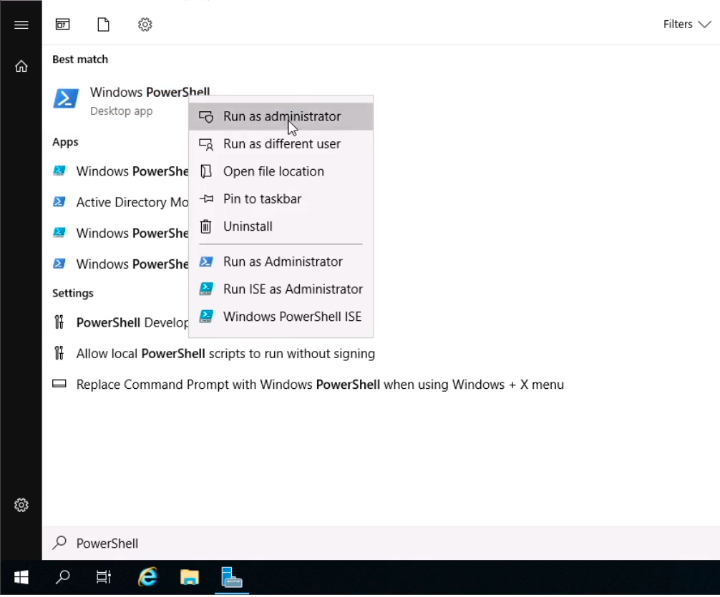
On SADC01 click the start button and type PowerShell. Right-click on the Windows PowerShell icon from the list of applications and select Run as administrator.
We should have the PowerShell window open.
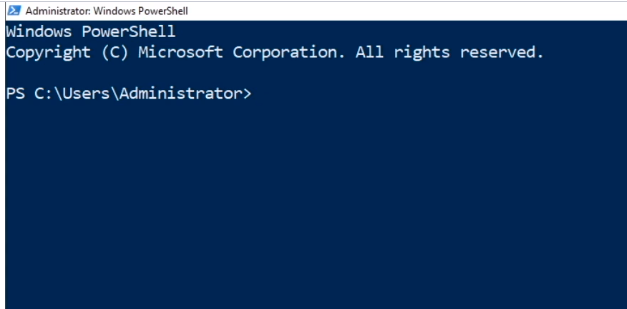
Out-GridView or the OGV command works in Windows 10 and Windows Server, however, we are going to be running some Windows Server-specific commands like Get-WindowsFeature. This will not run on Windows 10.
Type the command Get-WindowsFeature and press Enter.
This will show all the Installed and Available Windows Server Roles that we have in Windows Server.
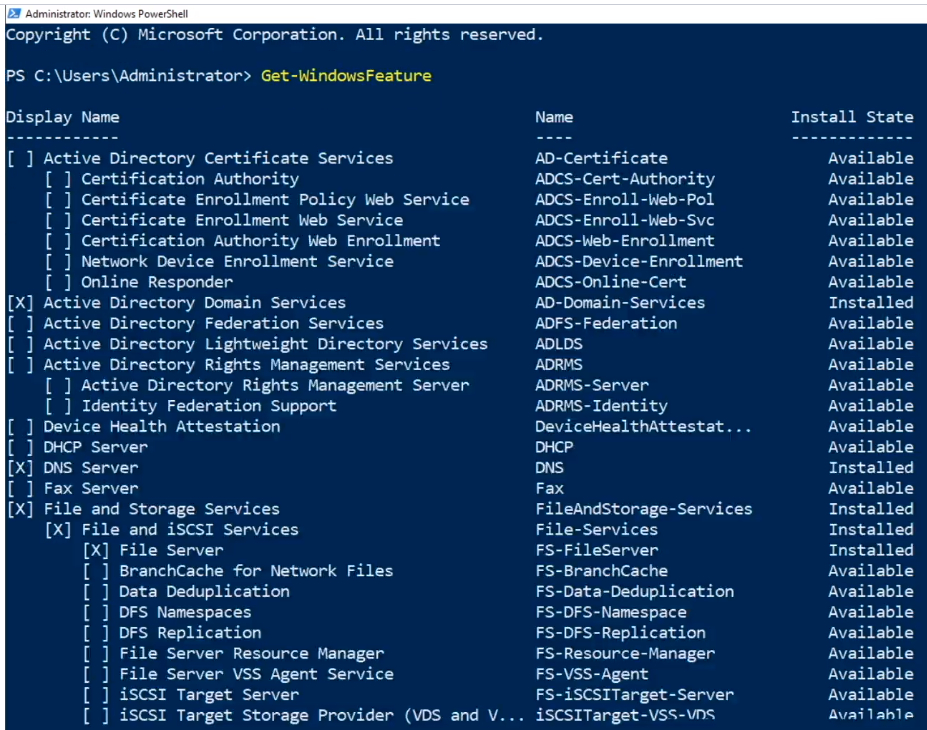
There’s a better way to look at all this data. If we want to filter for something we have to type Get-WindowsFeature -Name MSQ for example. QUickly, you will notice that it is not that easy to work with these filters.
Let’s pipe the command to Out-GridView. Type Get-WindowsFeature | ogv and press Enter.
The previous command will make a new window popup appear with the output of Get-WindowsFeature as we can see here:
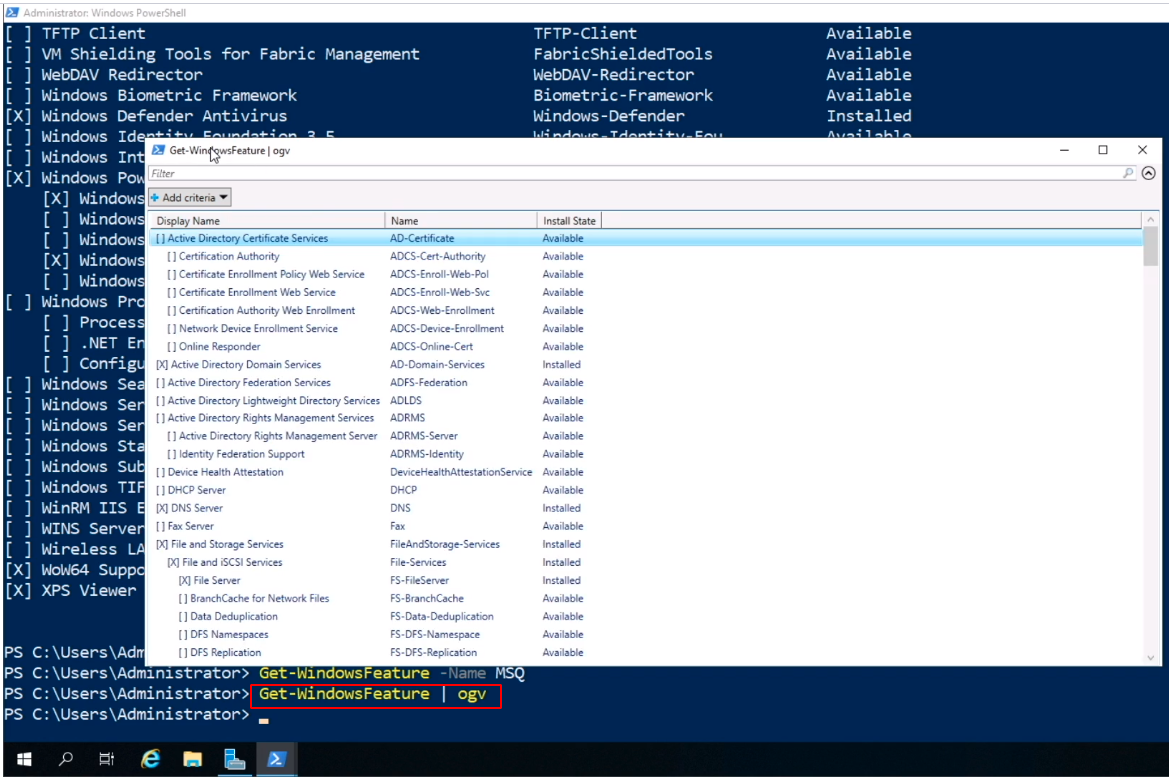
This is the same exact data as we had before in PowerShell, however it is an interactive table.
Let’s say we want to find the feature for SMB. In the filter textbox, we type the word smb and it will filter down to the Roles and Features that include that search filter.
![](https://zrftqtv…
No comments yet. Add the first comment to start the discussion.