
Creating Organizational Units with Powershell
In this lecture, we are going to learn how to create Active Directory Organizational Units with Windows PowerShell.
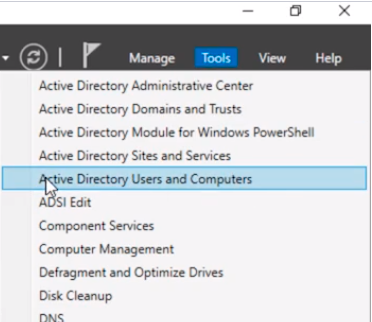
Now, first just a quick reminder. The way you would do it using the Graphical User Interface is by clicking Tools here in the upper right-hand corner of Server Manager and selecting Active Directory Users and Computers.
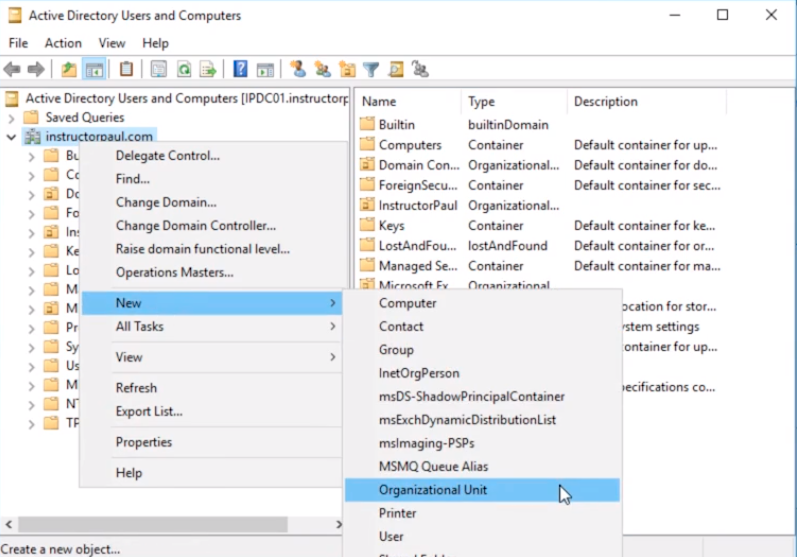
Then we select the desired location and choose New > Organizational Unit.
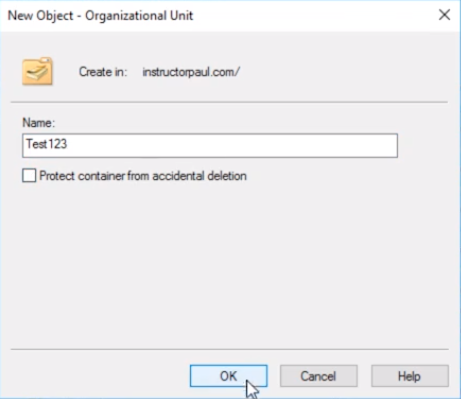
And we make some kind of name like Test123 and you can uncheck Protect container from accidental deletion and click OK.
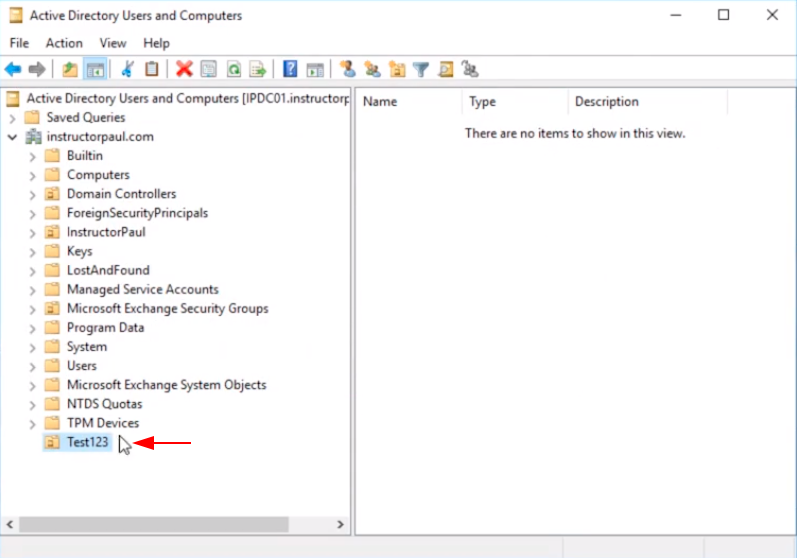
And there is our Organizational Unit Test123 and it has been created under instructorpaul.com.
So, we are going to learn how to do this in PowerShell.
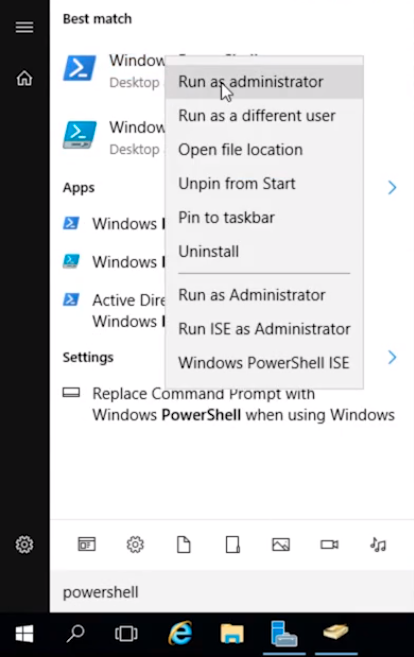
I am going to go ahead and delete that Organizational Unit and launch PowerShell as Administrator.
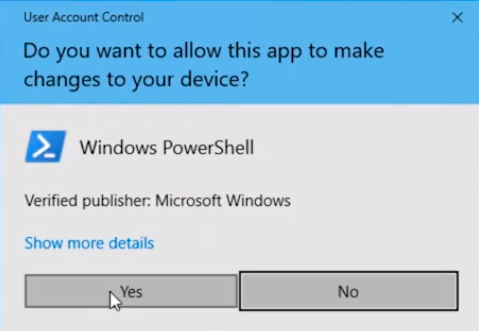
Click Yes on the User Account Control window.
First, before we create the Organizational Unit let’s learn how to list or get our Organizational Units.
We are going to type Get-ADOrganizationalUnit and press Enter.
What it did right there is that it Imported the Active Directory module for us.
Now is asking us to type in a Filter. We are just going to type in a * and press Enter.
It has output every single Organizational Unit that it is inside of our Active Directory.
No comments yet. Add the first comment to start the discussion.