
Enabling PSRemoting with Group Policy
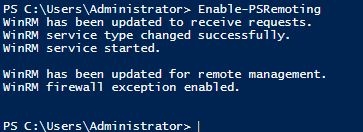
To get started we need to enable PSRemoting on our target computers. We can do that by entering the “Enable-PSRemoting” command within an administrative PowerShell console:
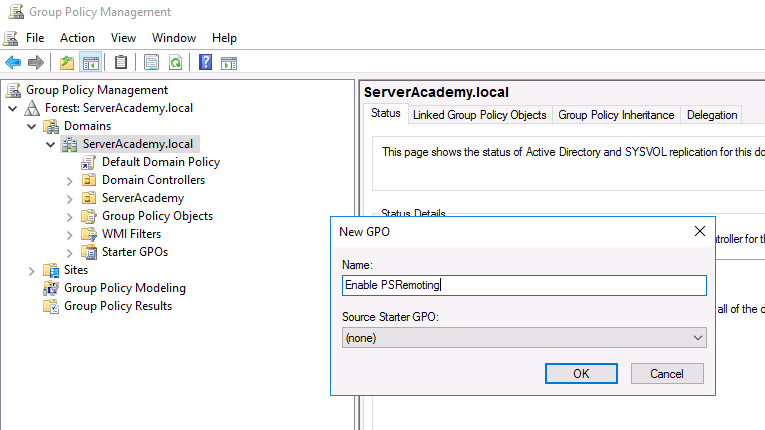
A more efficient way would be to create a Group Policy Object that will enable PSRemoting. This is the method that we will use. Log in to your Domain Controller, open Group Policy Management, and create a new GPO at the root of your domain (or where your target computers are located)
Open that GPO and navigate to the following setting:
Computer Configuration > Administrative Templates > Windows Components > Windows Remote Management (RM) > WinRM Service > Allow remote server management through WinRM
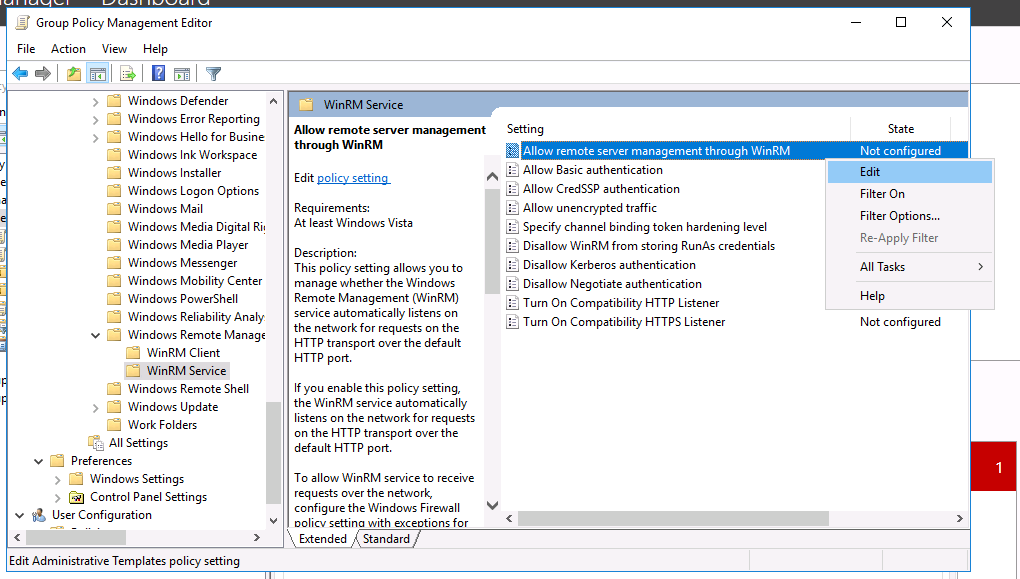
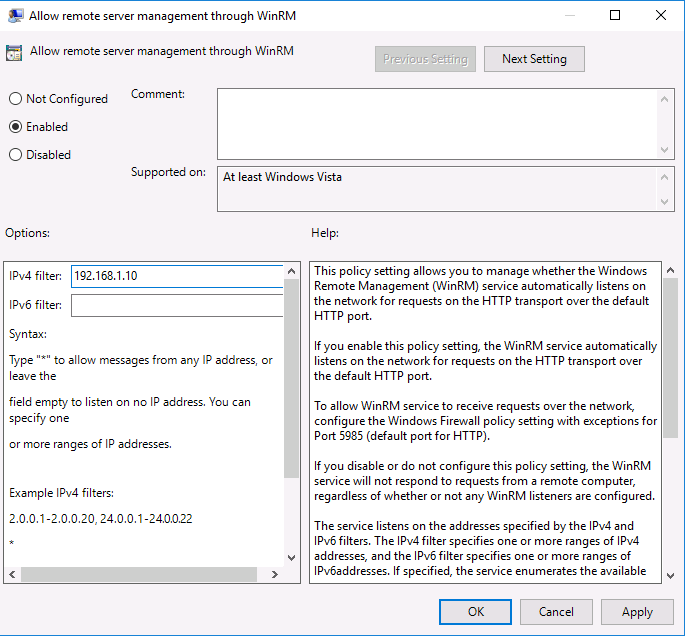
Right-click and choose Edit. Enter the IP address of your primary domain controller (or wherever you want to push your DSC configurations from):
Next, let’s enable the firewall. Navigate to:
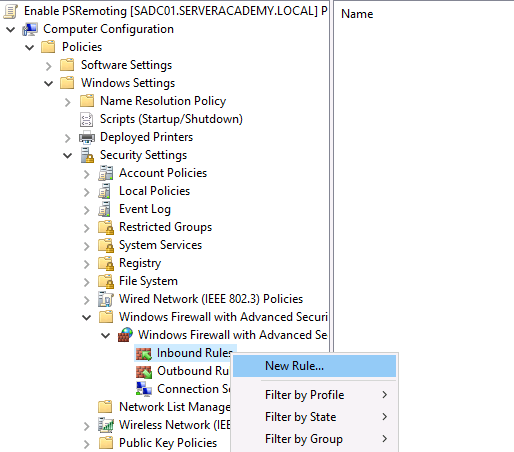
Computer Configuration > Windows Settings > Security Settings > Windows Firewall WIth Advanced Security > Windows Firewall WIth Advanced Security > Inbound Rules
Right-click and select New Rule...
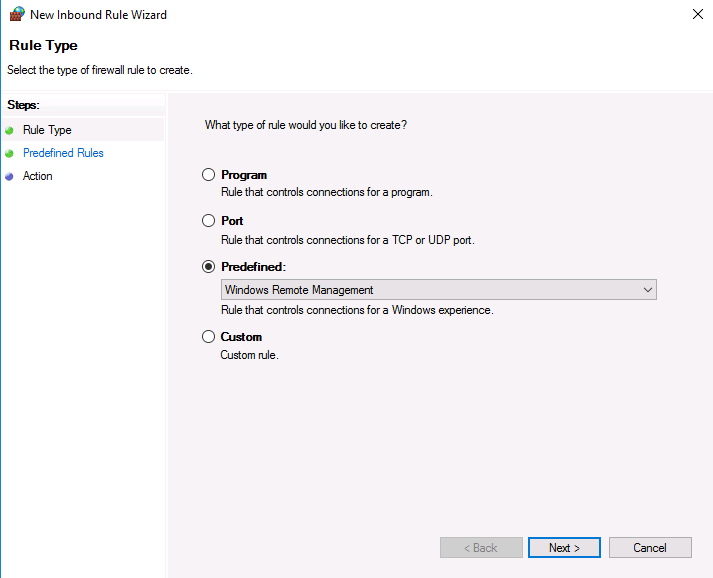
Select Predefined > Windows Remote Management:
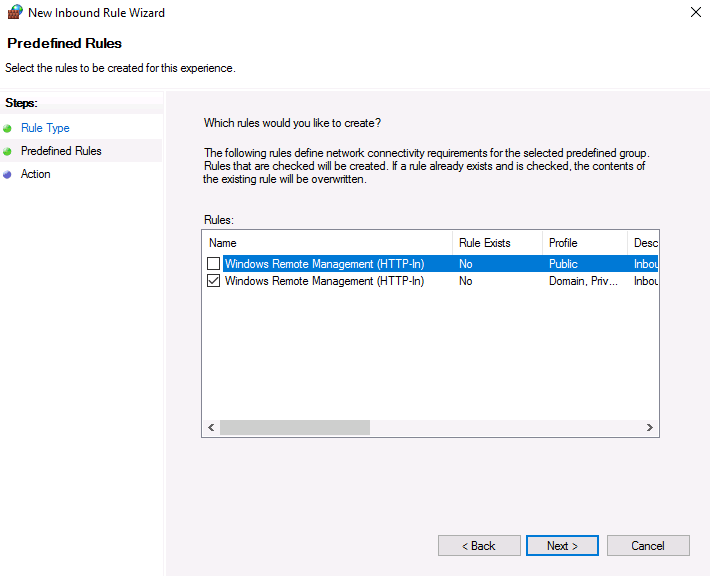
Click Next until you get to the Predefined Rules page, then deselect the public rule:
Click Ne…
No comments yet. Add the first comment to start the discussion.