
PowerShell Variables Solution
In this lecture, I am going to give you the solution to the Variables Challenge that I gave you earlier.
So, If you haven’t completed the challenge just yet, and you don’t want to see the solution go ahead and pause this video, complete the challenge, and then come back because I am going to show you all the code that you need in order to finish this challenge.

I am going to bring up the PowerShell ISE.
Now, this is the code that I used to accomplish the challenge or complete the challenge that I gave you earlier.
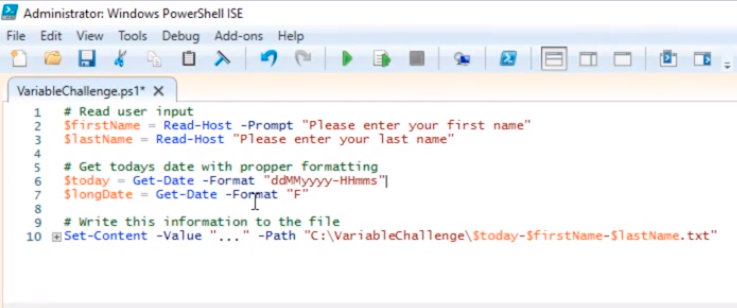
So, the first thing I wanted you to do is to store the users First and Last names in two separate variables.
We can see here that we have the $firstName and $lastName variables and I am using the Read-Host to get the user's input to allow them to input whatever they want to enter for their First and Last name.
So, I have “Please enter your first name” and I have -Prompt. Again, below I did not use -Prompt but still accomplishes the same thing. You can probably look at this as being more efficient yet typing fewer commands is probably the best way to do it. I just wanted to show you both so you can be aware you could do both.
The next thing that I specified was that you need to create a new text file under the C:\VariableChallenge folder, and that’s done with the Set-Content command with the -Path argument. So, we have C:\VariableChallenge\ and then the file name.
So, for the file name, I wanted you to specify with today’s date - firstName - LastName .txt. If you remember that today was supposed to be specified in the following format: 2 digit day, 2 digit month, and then the 4 digit year - hours, minutes, and seconds. So, I was able to accomplish that using the Get-Date command and I stored the variable here called…
No comments yet. Add the first comment to start the discussion.