
Configuring The Local Config Manager for DSC Push
To get started, we need to log in to our Domain Controller and open the PowerShell ISE as an Administrator:
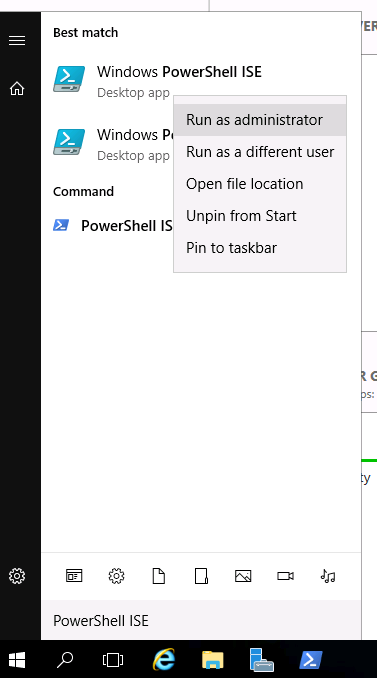
Important: If you don’t run the ISE as an administrator, then the DSC commands will fail!
To test these settings, type the following commands:
$TargetServer = "SAMS01"
Create a CIM session
$Session = New-CimSession $TargetServer
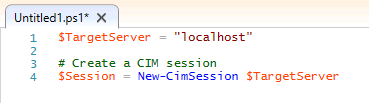
When we execute the script with F5 we should get the following:
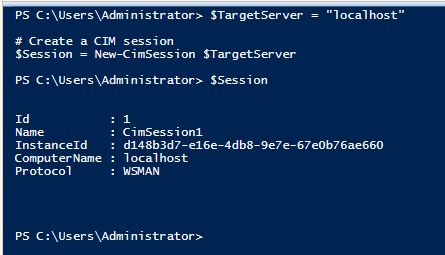
If you get an error about the WinRM service or access denied, check the following:
- You are running the PowerShell ISE as an administrator
- The “Enable PSRemoting” GPO we created earlier is being applied to the target server or workstation
If you have errors, please refer to the lecture for enabling PSRemoting with Group Policy.
Next, we have to configure the Local Configuration Manager or LCM. We can do this with the code below:
Declare local config manage settings
[DSCLocalConfigurationManager()] configuration LCMConfig {
}
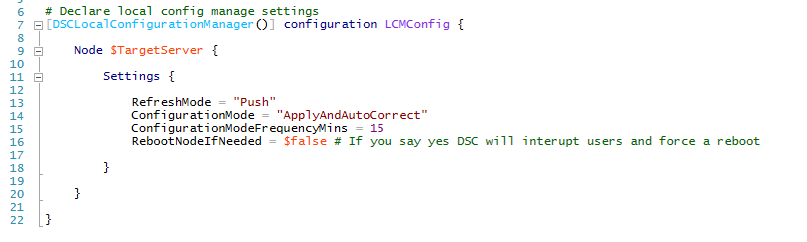
First, we are declaring the configuration object as a DSC local configuration manager object type with the [DSCLocalConfigurationManager()] attribute on line 7. Then we declare the configuration as “LCMConfig”. You can think of configurations simi…
No comments yet. Add the first comment to start the discussion.