
Downloading Windows Server 2019
In this lecture, we are going to download Windows Server 2019.
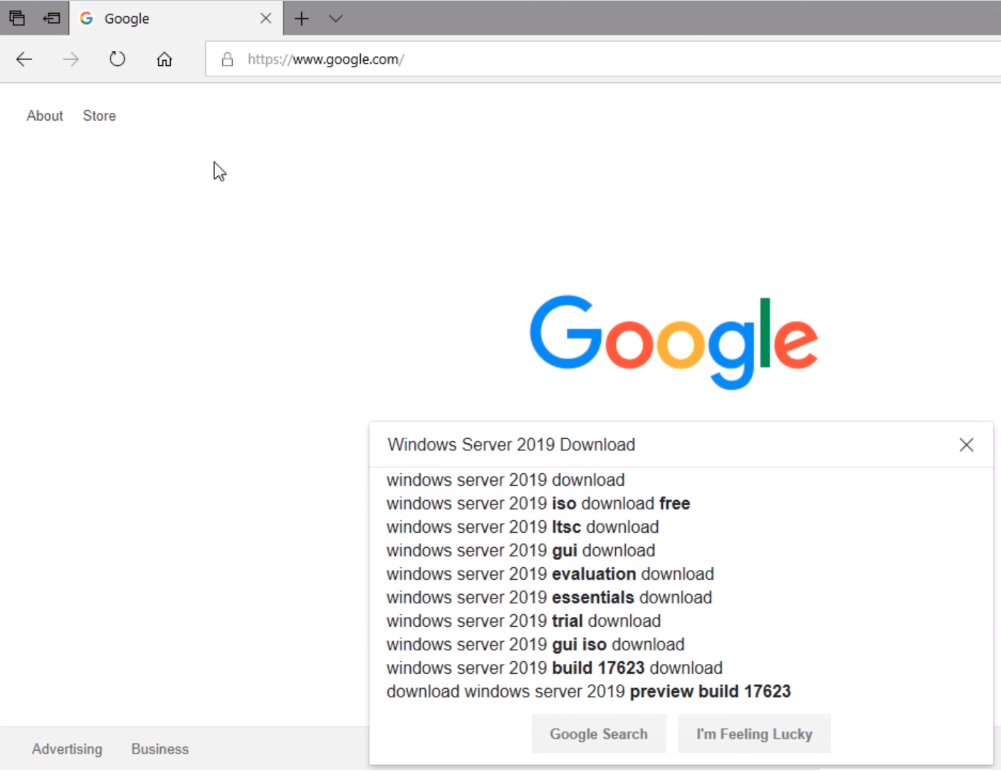
What you need to do is open your preferred Web Browser, and I am going to use Edge for this lecture, and you need to go to https://www.google.com. Now, once the page is loaded we are going to simply search for Windows Server 2019 Download and press Enter or hit the Google Search button.
Now, I would generally tell you to go straight to Microsoft.com but they are always changing the download page and the download location so it's better to Google for the download and then find it that way.
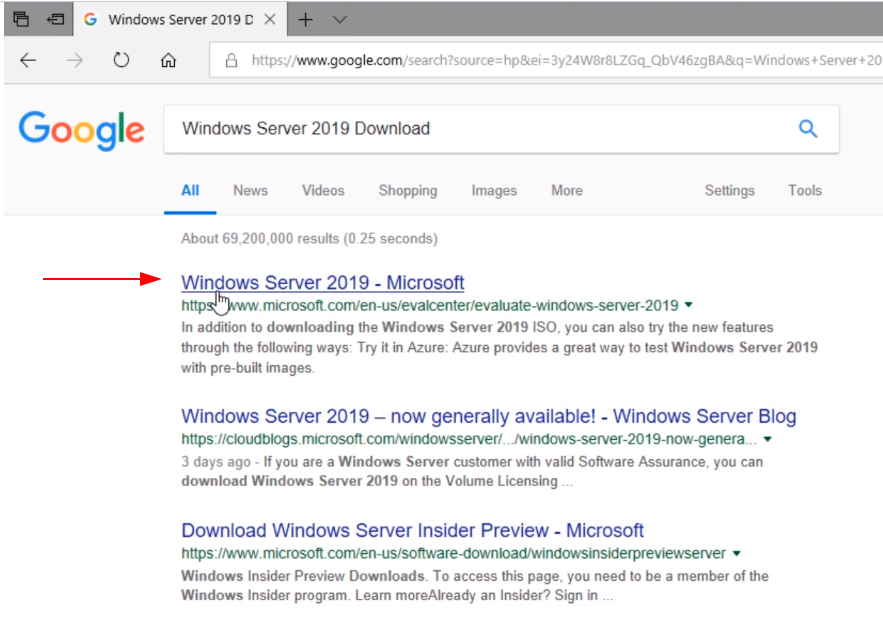
Here on the top page, we have Windows Server 2019. We can see here this link is inside the Eval Center so this tells me that this is a good idea.
Click on the link or open a new tab.
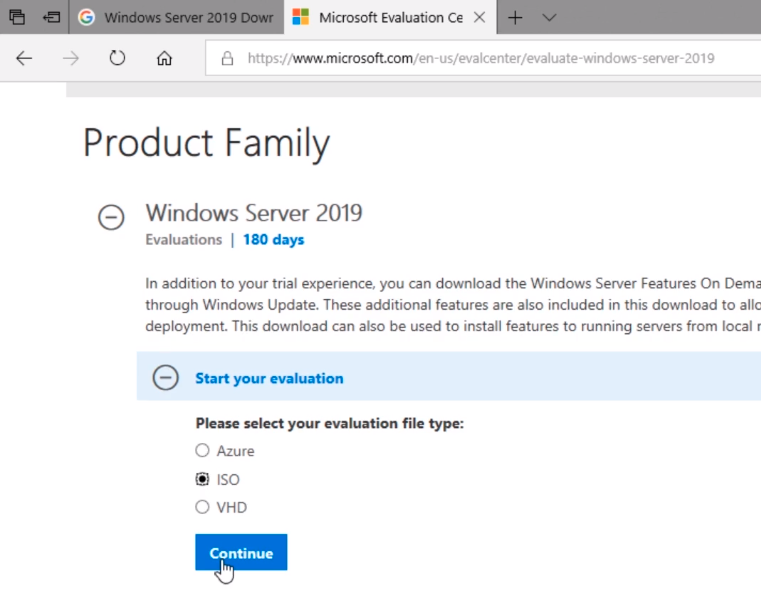
So, we are brought to the Eval Center, and we have Windows Server 2019.
Now, if you see a different version or is not what you expected, this has happened to students before, just dig around the website a little more, and you will be able to find what you need.
Click on ISO and Continue.
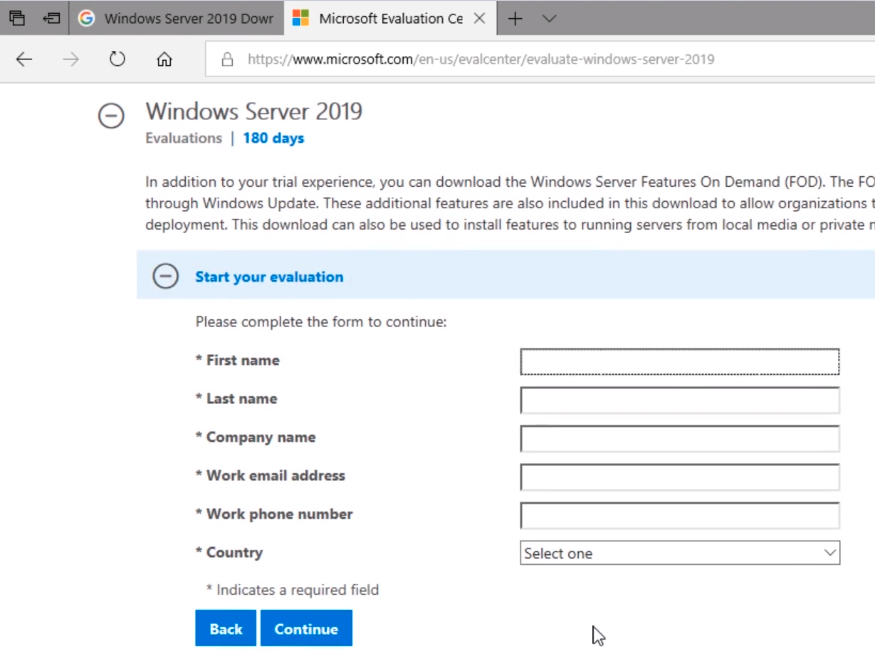
Now, it’s going to have us register so type your info and click Continue.
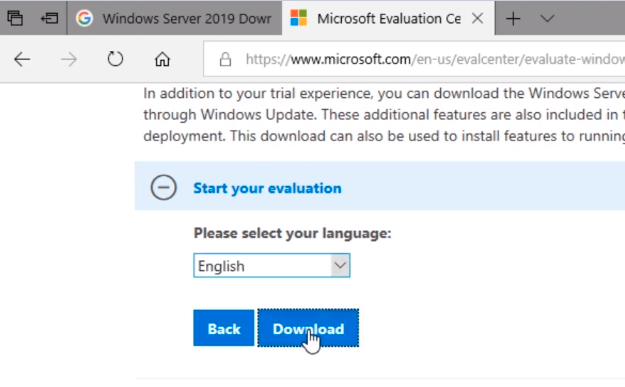
Choose English as a language and then Download.
Now, we are going to have two ISO files. One is the Operating System and the second one is the features on-demand ISO file.
Download both files by clicking Download.
![](https://zrftqtvkikjkbtkfalgp.supabase.co/storage/v1/object/public/less…
No comments yet. Add the first comment to start the discussion.