
Installing and Updating PowerShell
Installing PowerShell
- Already installed on Windows 7 and server 2008 and every release after that.
Finding PowerShell
For Windows 10 click the lower left corner called the search box and type Windows PowerShell.
Go ahead and right click Windows Powershell and RUN AS Administrator
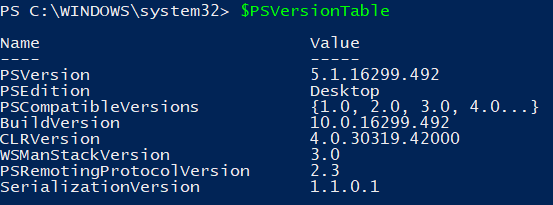
Now let’s check our version of powershell that we are currently running.
- To Check your version number type $PSVersionTable, then hit return.
Here we see were running PowerShell Version 5.1
The version of PowerShell and the version of WMF is the same thing.
By default PowerShell comes with a **minimal **help system so it must be updated. So let’s go ahead and update the help system on this windows 10 VM
If you want to follow along, Be sure to open the console version of PowerShell as an Administrator.
Commands for updating the Help System:
You could use Update-help -force (Will download the latest help from the internet every time you run it) Or you could just run **update-help. **If you get an error, try running update-help –verbose ,press return.
Error – Failed to update help for the module WindowsUpdateProvider. You can ignore this error.
Now let’s open the ISE in Administrator mode
Are you ready for your first Practical PowerShell Tip?
Q: Let’s say you have a Windows 10 machine that is _Not _connected to the internet. How can you update the help files? This is a common scenario on secure networks
**A: **You can use Save-Help , that will save a copy of the help files from the internet.
Then you run update-help on the computer with no internet connectivity, pointing the command to the downloaded copy of the help file .
Let’s check it out:
Type explorer
Now what we want to do is create a help folder on the C: drive of your VM.
Close Explorer…
No comments yet. Add the first comment to start the discussion.