
Downloading and Installing VirtualBox
In this lecture, we are going to download and install Oracle VM VirtualBox.
So, what we need to do is open our preferred Web Browser, and again, I am going to use Microsoft Edge, and we are going to load https://www.google.com. Once you are at https://www.google.com we are going to search for Virtualbox download and press Enter or click on the Google Search button.
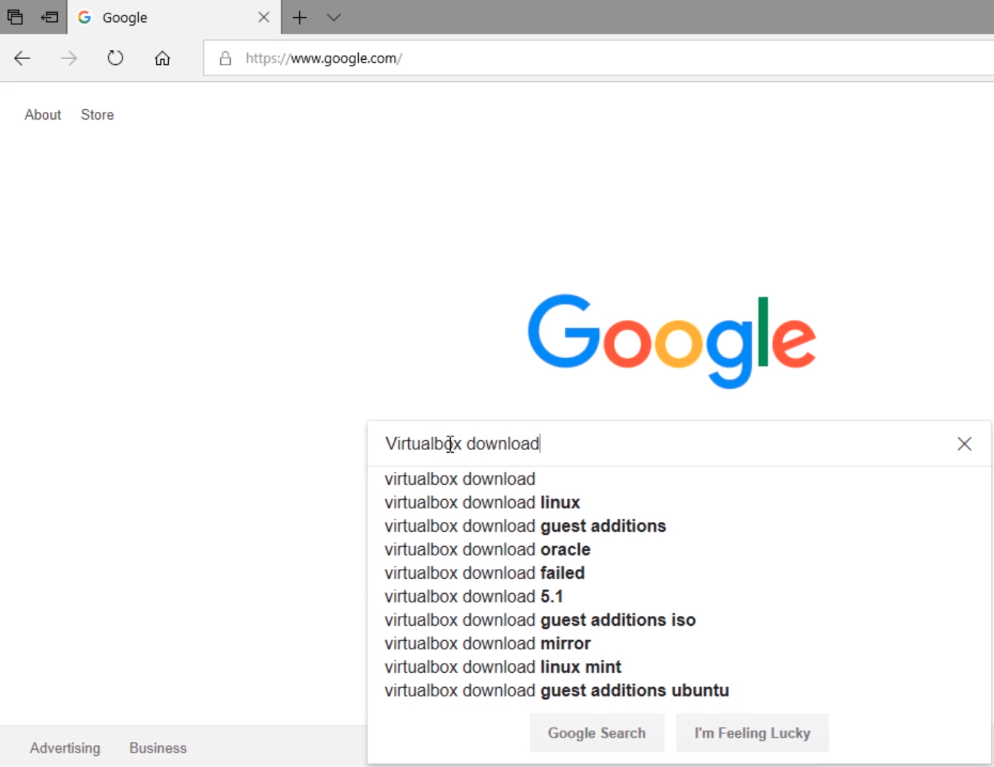
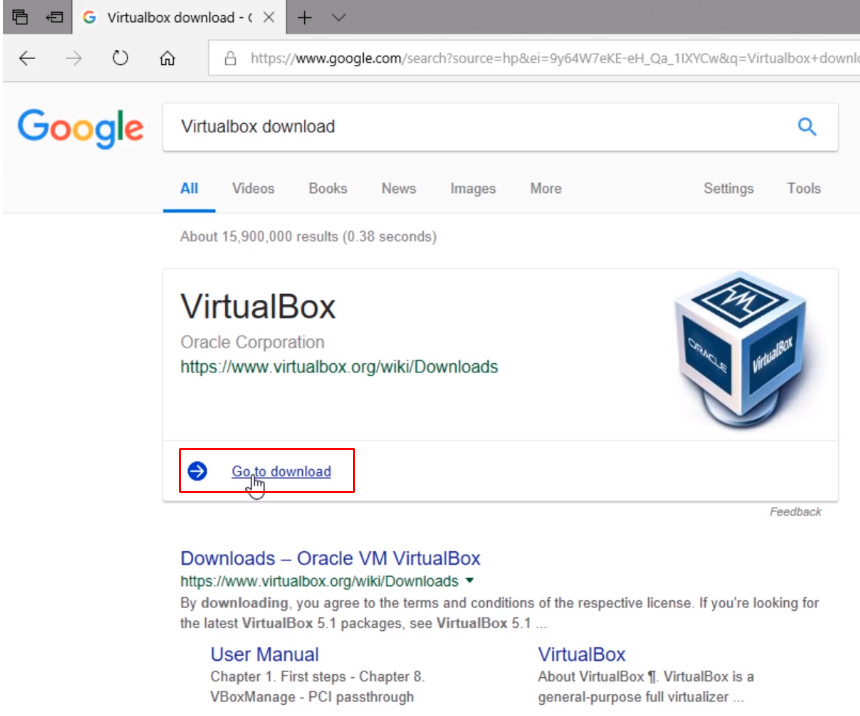
Ok, so we see VirtualBox and a link Go to download.
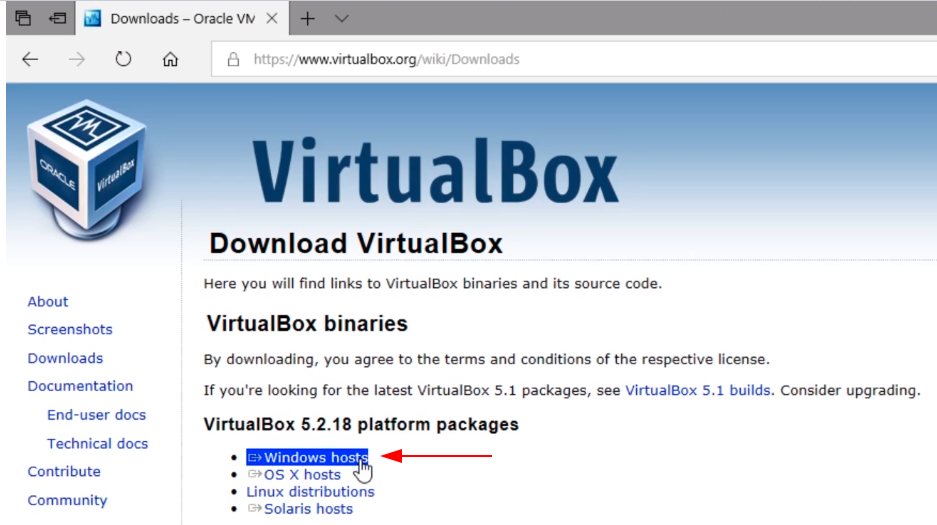
Now, we need to choose a Windows host.
And, I am going to click on Save.

Wait for the download to complete.

Now, the download is complete so I am going to click on the Run button.

And, this brings up the installation so I am going to click on Next.
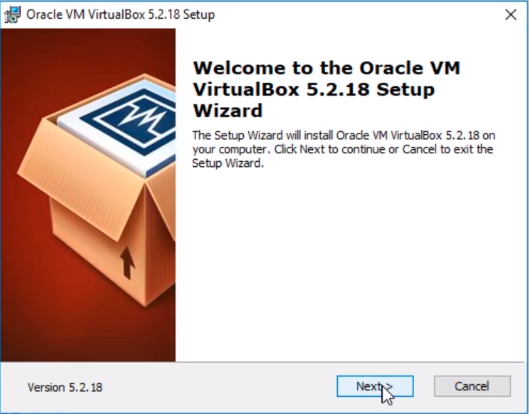
I am going to leave all the options default and click Next.
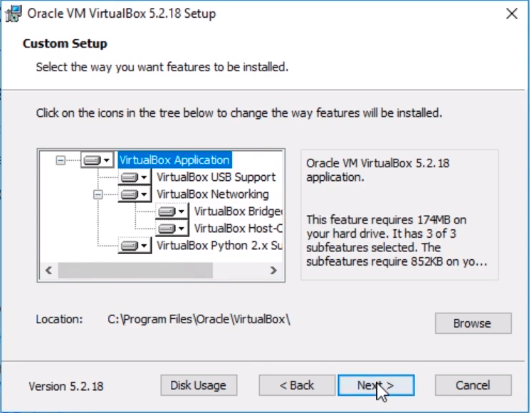
No reason to change these options, click Next.
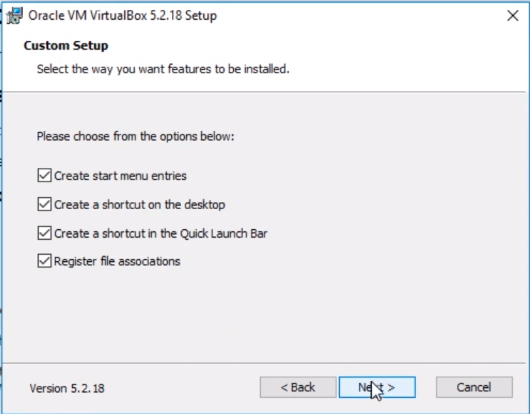
We are going to click on Yes when we are brought to the Network Interface Warning.
![](https://zrftqtvkikjkbtkfalgp.supabase.co/storage/v1/object/public/les…
No comments yet. Add the first comment to start the discussion.