
PowerShell Conditional Statements (If Then Else, Switch)
In this lecture, we are going to discuss PowerShell Conditional Statements.

As always, I will launch the PowerShell ISE as an Administrator.
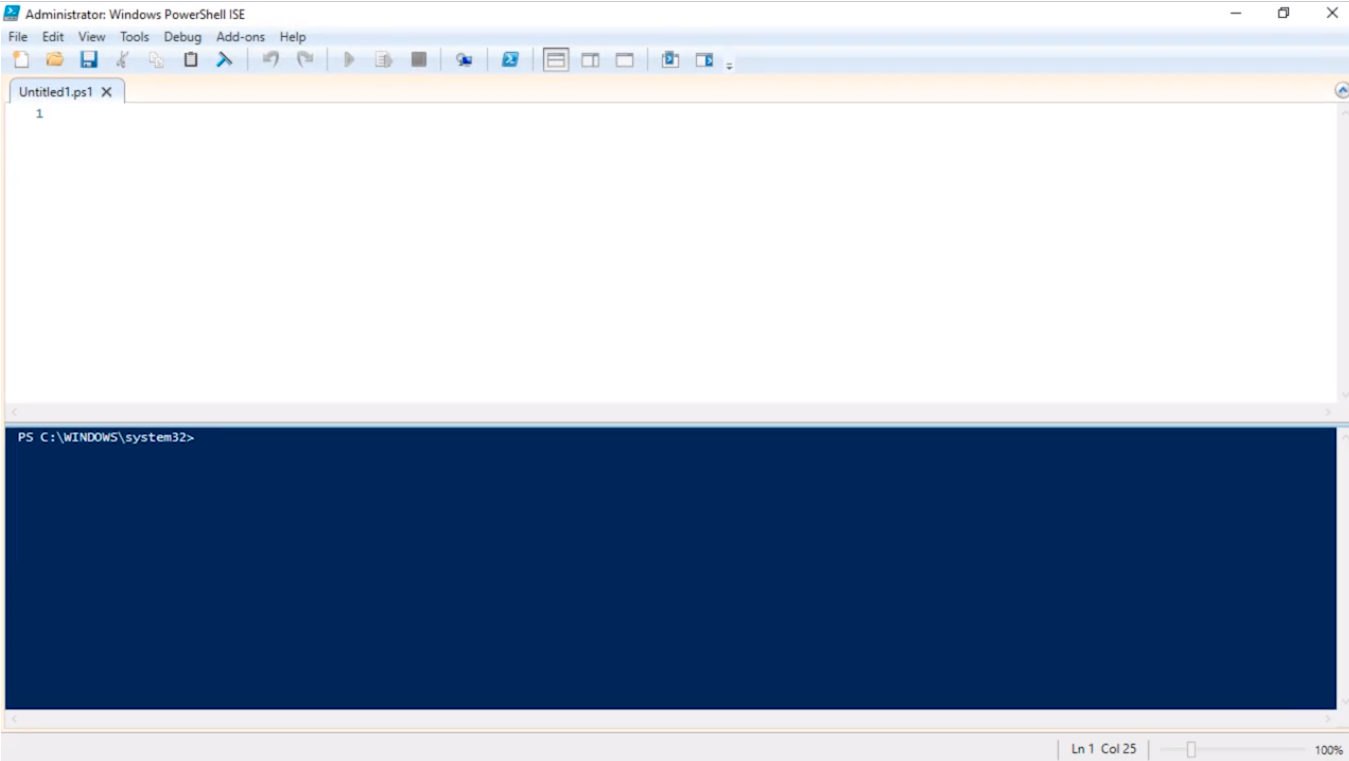
The first conditional statement we are going to talk about is If Then Else statements.
So, we can write an If statement very easily by just typing the following
If (1 -eq 1) { echo “True”}
This is a very simple statement. We are comparing the two values and if that is equal to true then we are going to echo out “True”. We can change “True” to “I Like hot dogs” or anything you want, it doesn’t really matter.
So what we are going to do now is hit Play.
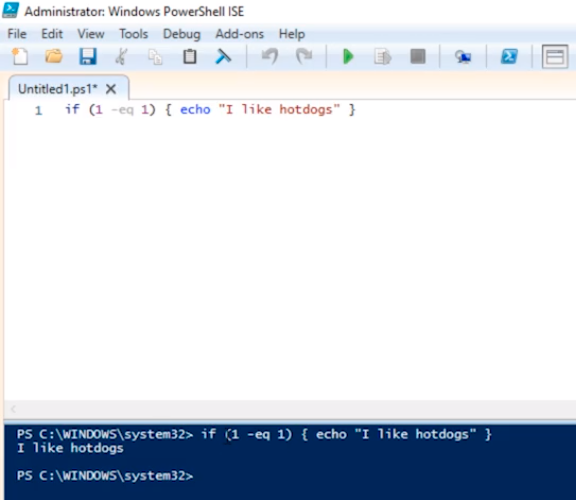
Since 1 is equal to 1 that means “I like hotdogs” and outputs “I like hotdogs”.
Now, if we set this to 1 equals 2 obviously that’s a False statement since 1 is not the same as 2:
If (1 -eq 2) { echo “True”}
If we run this, it will not output “I like hotdogs”.
So, we can append an Else statement to this script.
If (1 -eq 2) { echo “True”} else {echo “I dislike hotdogs}
And I can change the equal condition value. Click Play.

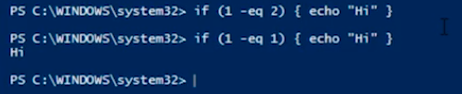
Now, there's an easier way to write these IF statements. We can also write these in the command line just by typing:
If (1 -eq 2) { echo “Hi”}
So don’t feel like you only can do this in the ISE. You can also write IF statements directly in the PowerShell command line.
Now, there’s an easier way to format this. I just like to do the following:
If (1 -eq 2) {
echo “Hello”…
No comments yet. Add the first comment to start the discussion.