
Bulk Install Windows MSU Files Automatically with PowerShell
The Manual Method
One way to handle this is the manually launch each window update installer file. This will result in you seeing a screen like the screenshot below for anywhere from 10-30 minutes for EACH update.
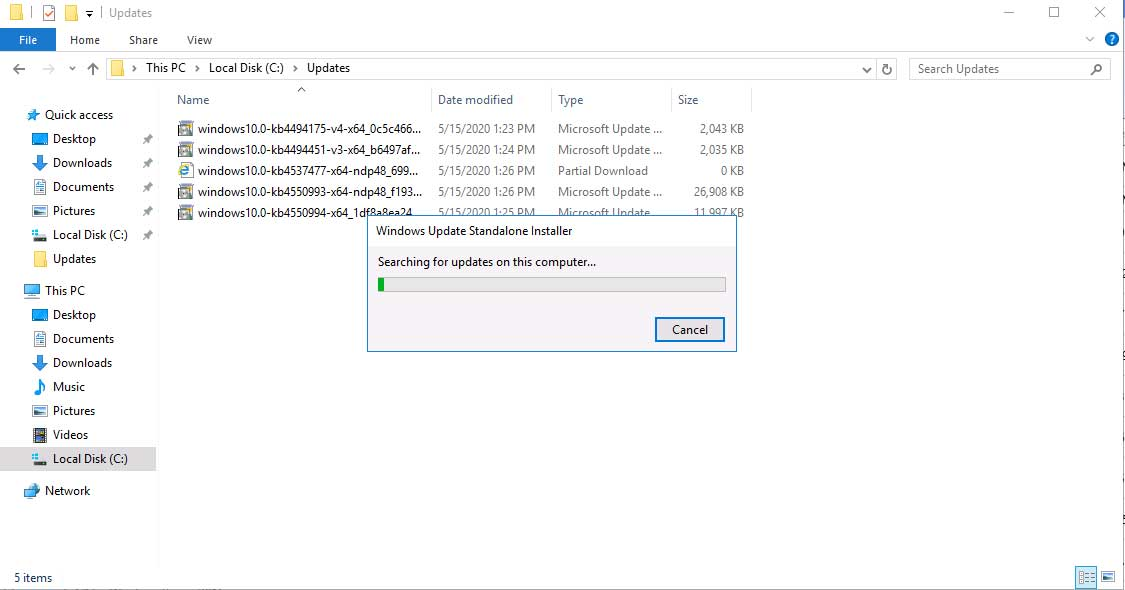
Obviously, this is an inefficient method and a huge time waster. I was contacted by someone who had to install roughly 50 updates and the process would have taken them several days to complete.
What's most frustrating is if your computer doesn't need the update then after waiting 20 minutes or so you will see a message like this:
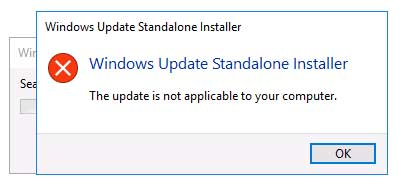
Not very ideal... The PowerShell script below is automated and will make the installation process MUCH faster.
Before running the script
Before you can get started this script assumes that you have downloaded all of your update files under a single folder. It's ok to have subfolders, but keep them all in one place.
Your update folder should look something like this:
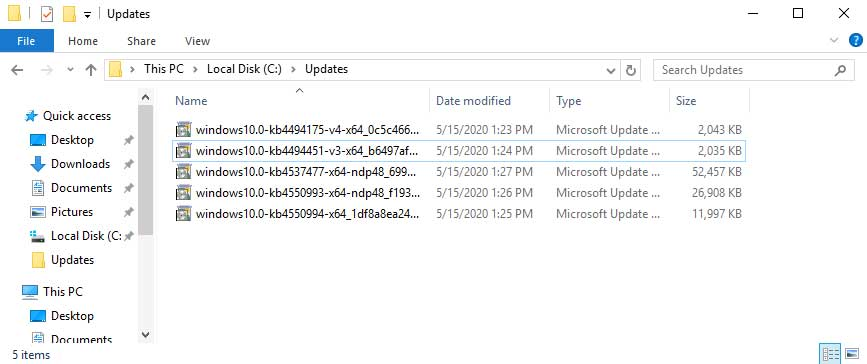
I have all of the update files under the "C:\Updates" path.
Update files have VERY long names so it's important that you place them under the C:\ drive and inside of a folder name with NO SPACES
If your updates are located inside of a folder with spaces in the name (I.E. your desktop) the script will not work. The easiest way to make things go smoothly is to place them under the C drive.
View the Windows Update logs
Before you install your updates you want to open the event viewer and navigate to Windows Logs > Setup.
Once we install the updates we will be looking for the source "WUSA" and "Servicing". This is where you wi…
No comments yet. Add the first comment to start the discussion.