
Creating and Managing Active Directory User Accounts with PowerShell
In this lecture, we are going to learn how to create new Active Directory user accounts with Windows PowerShell.
We also are going to learn how to reset passwords, manage the group of the user, and general Active Directory user management with Windows PowerShell.
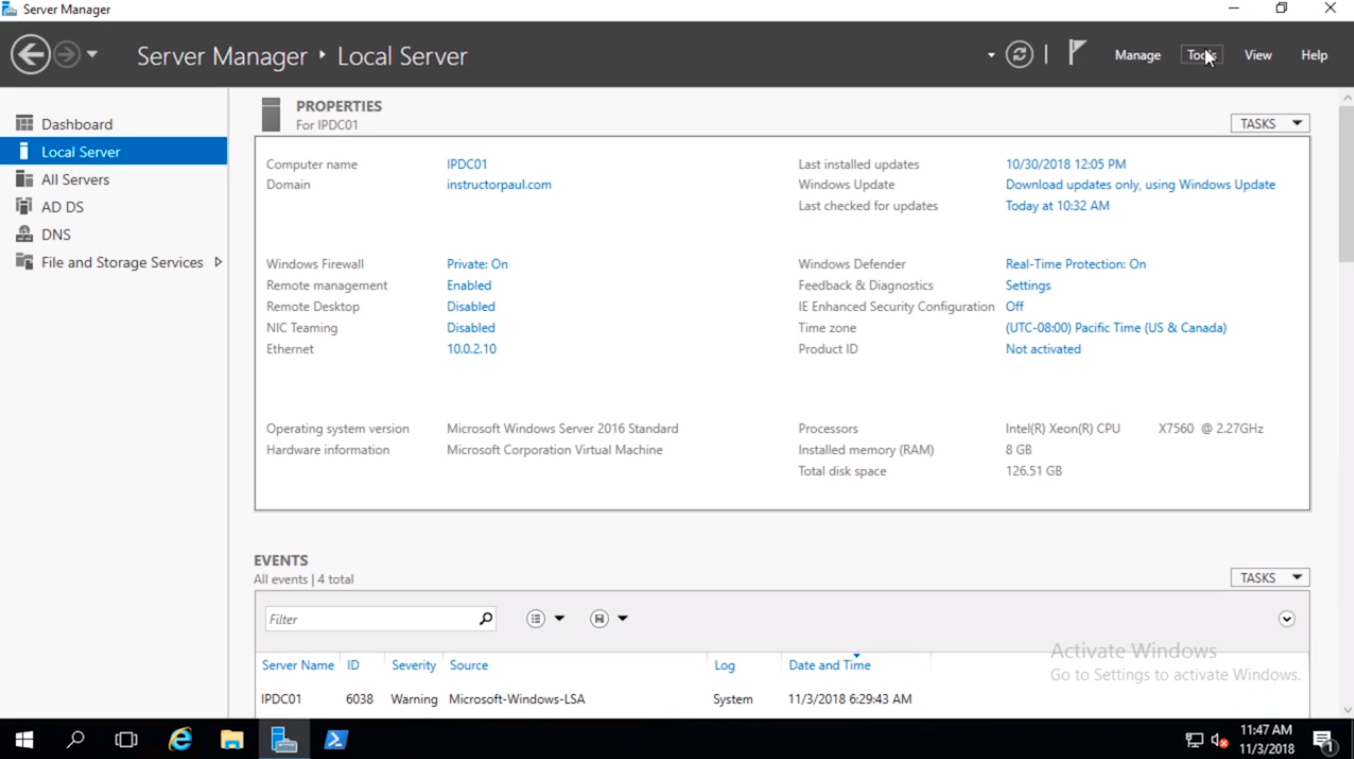
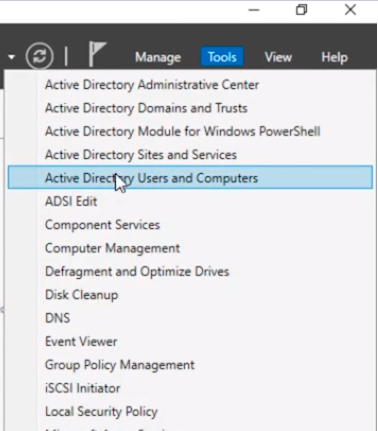
So, the first thing that I am going to do is on IPDC01 which is my Domain Controller in instructorpaul.com Domain we are going to open Active Directory Users and Computers by clicking on Server Manager > Tools > Active Directory Users and Computers.
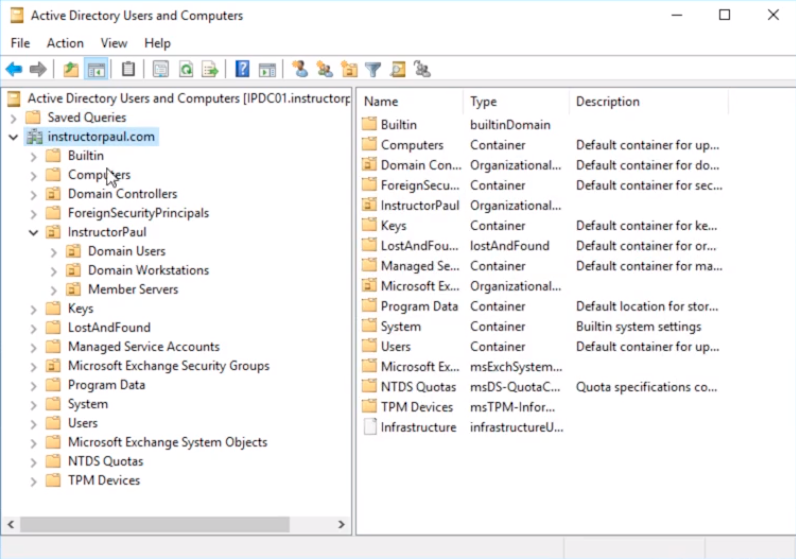
One that launches, what I am going to do is click on the domain instructorpaul.com.
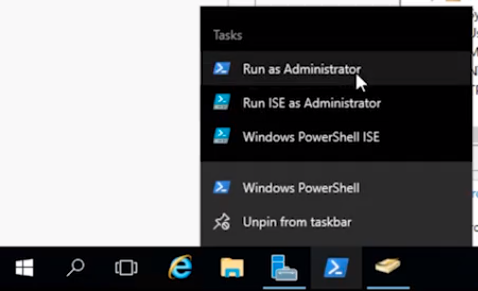
I am going to right-click on the PowerShell icon in the taskbar and make sure to select Run as Administrator.
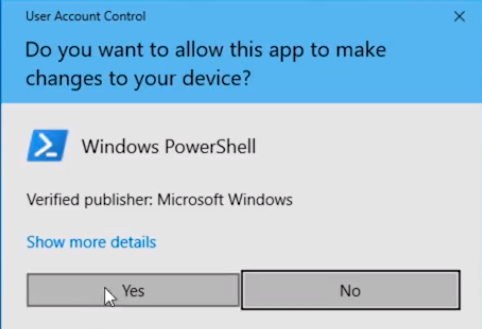
Click Yes on the User Account Control window.
So, let’s go ahead and just run Get-Help for the command that we are going to be using which is going to be New-ADUser, and press Enter.
It will automatically import the Active Directory module for us and then we will get the information about this command.
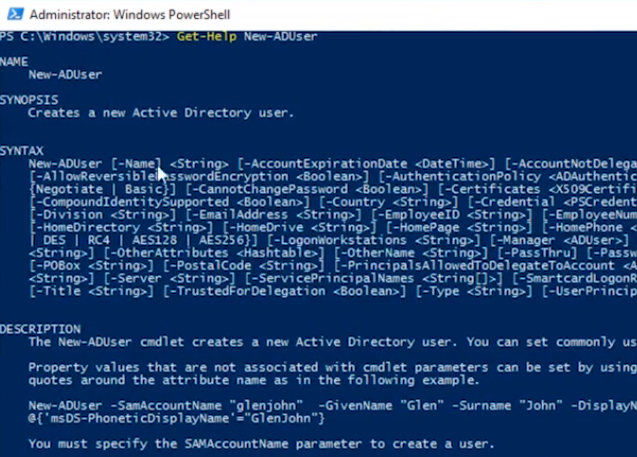
Here we can see there’s a ton of properties that we can specify, however, only one of them is actually required and that is -Name.
So, if we were to type in just the command New-ADUser it’s going to prompt us to specify the name which I can use Test Account and press Enter.
No comments yet. Add the first comment to start the discussion.