
Disk Initialization and Partition Styles
In this lecture, you are going to learn how you can initialize a new disk that you’ve added to your Windows Server operating system, and how to configure its partition styles.
This is something you will have to do every time you take a physical hard disk and insert it into a physical server or you add a new Virtual Hard Disk to a new Virtual Machine.
The first thing we are going to do is we are going to prepare the disk with the utility called diskpart. You can find this utility by hitting the Windows button and typing in diskpart or you can launch Command Prompt and type in the command diskpart.
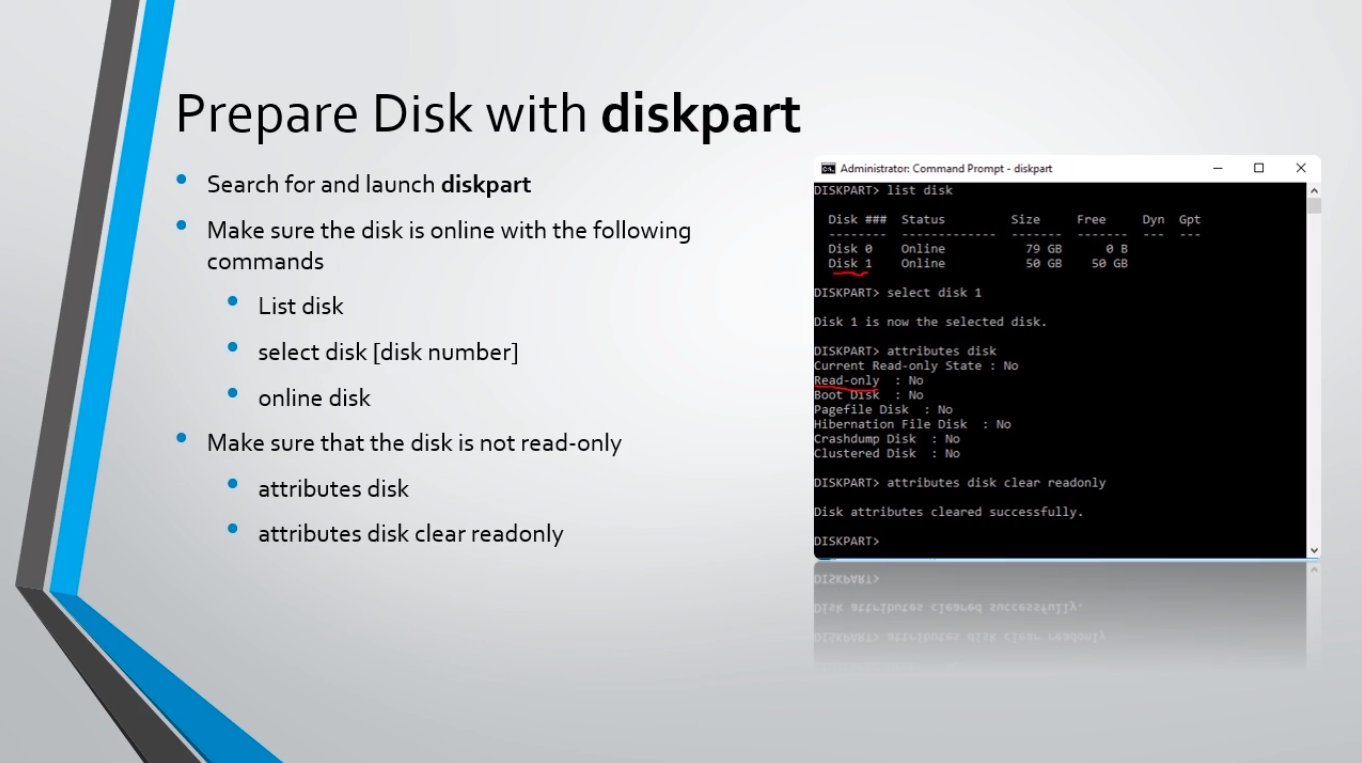
Once you’ve launched diskpart there’s a couple of commands we are going to use. First, we are going to type list disk, and over here at the right-hand side, we can see that I’ve typed in that command, and we get all the disks that are on this computer. We have Disk 0 which is 79 GB and we have Disk 1 which is 50 GB.
Now Disk 0 is going to be generally your operating system, and in this case, Disk 1 is a new 50 GB hard drive that I have added to the server. So, what we want to do is select disk 1. Once we select that disk we are going to run the command online disk.
The next thing we are going to do is to make sure that we can Read and Write to the disk. Sometimes this will initialize and come online as Read Only and we do not want that to be the case. And, we can find out if this disk is Read-Only by simply typing in the command attributes disk. Since we have already selected the disk there’s no need to say attributes disk 1 or anything like that. Any command that we type in from now on after we select the disk will be executed on that disk.
Now, in this particular case Read Only is set to No. If that was set to Yes then we will need to run t…
No comments yet. Add the first comment to start the discussion.