
Creating a One-Time Backup
In this lecture, we will be creating a one time backup with the Windows Server Backup feature.
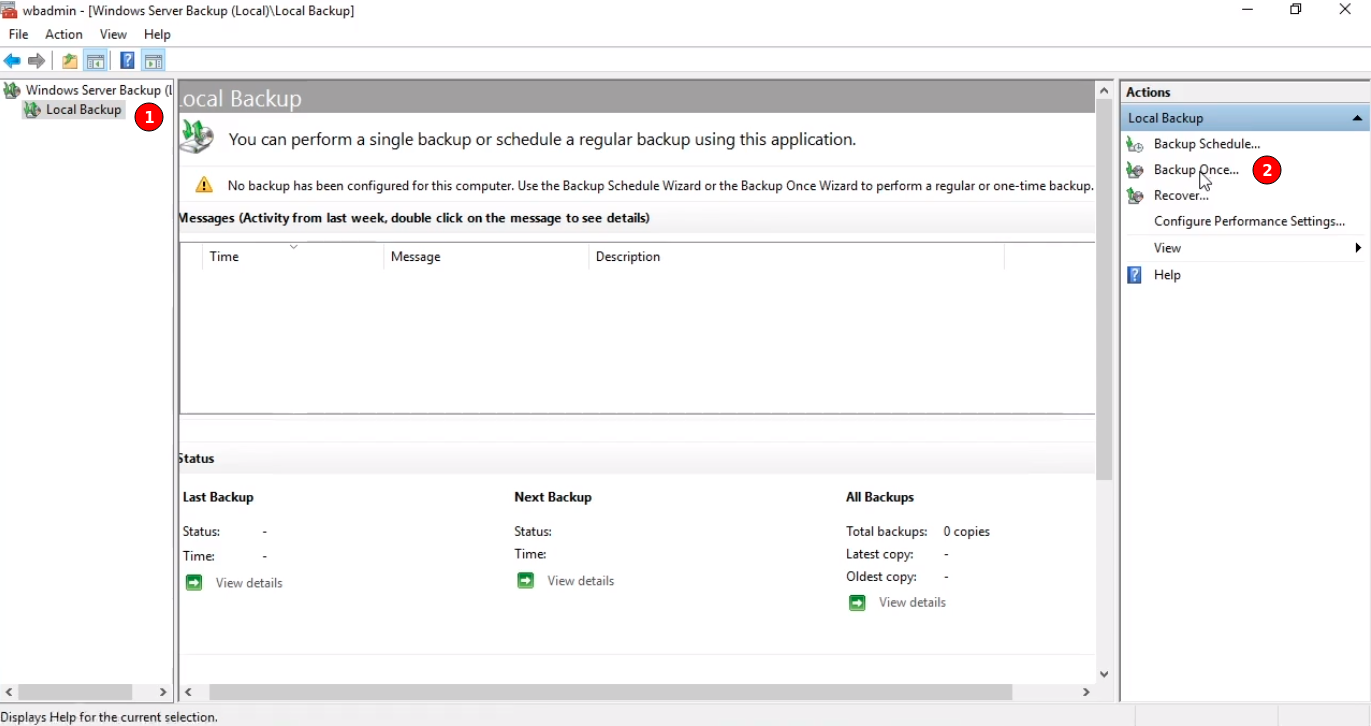
Log into the DE01 server and open the Windows Server Backup Console and click on the Local Backup (1) option from the left pane and then Backup Once (2) from the right pane under Actions.
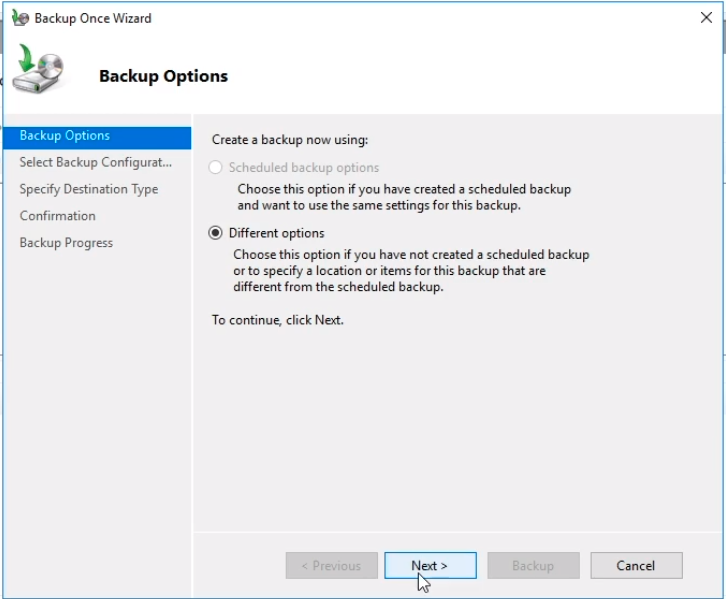
The Backup Once Wizard appears.
The only option available is Different options. The Scheduled backup options is grayed out since we haven’t configured any scheduled backups. Click on Next to continue.
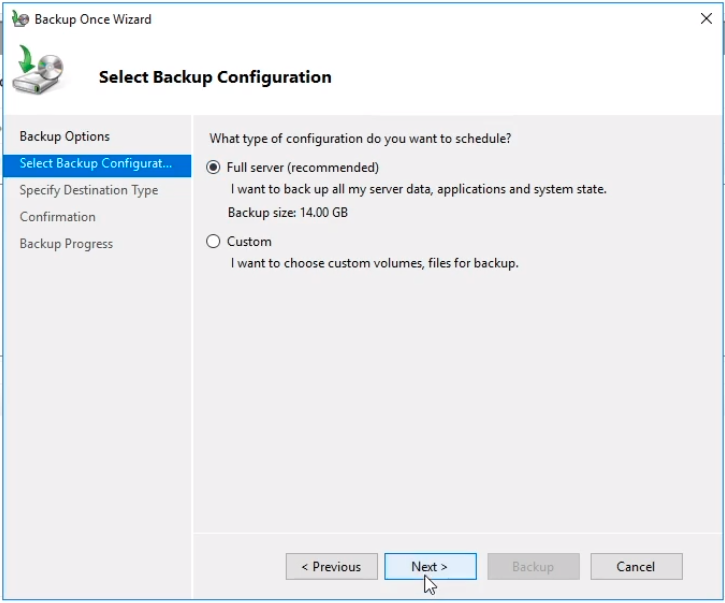
We can choose either a Full server (recommended) backup or a Custom backup.
Notice that a Full server backup is 14GB. Make sure you have enough space to store the full backup and click Next to continue.
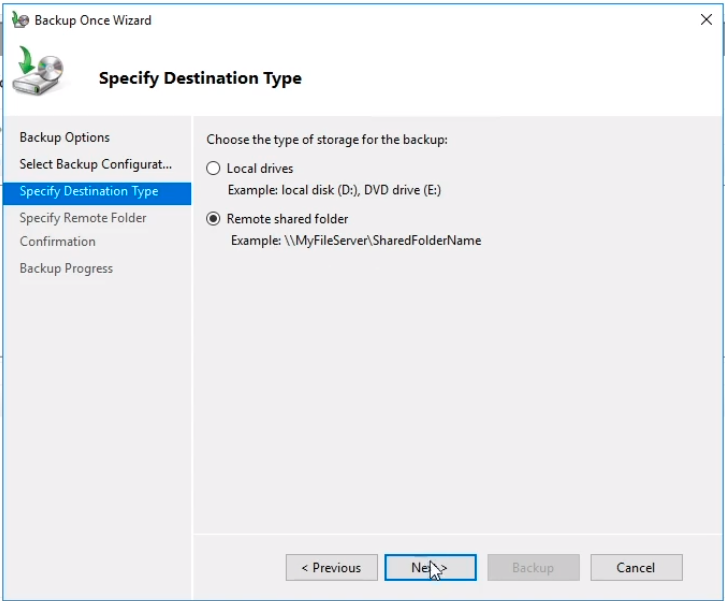
Now, in the Specify Destination Type we ideally would be saving the backup to a remote storage location.
Generally you don’t want to be saving them to the same server that you are creating the backup for.
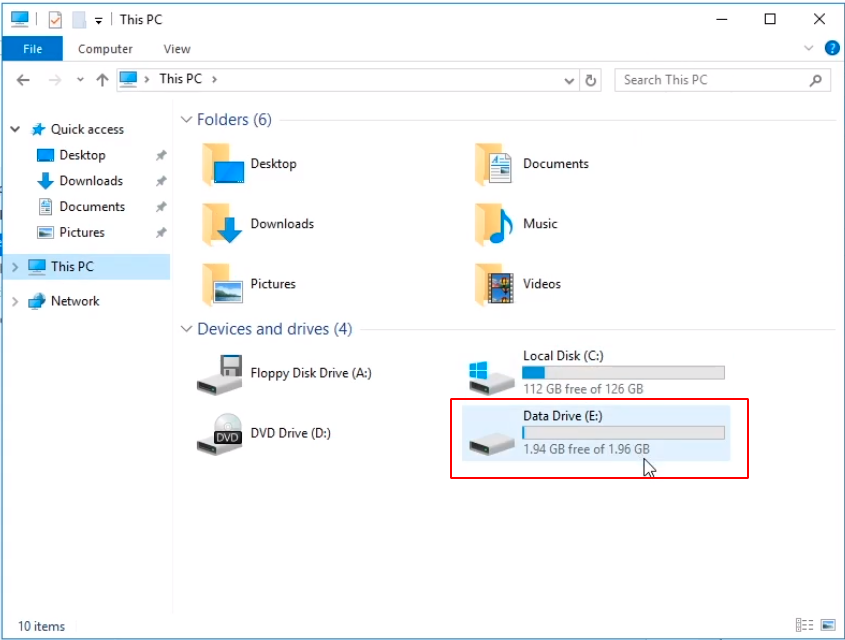
In our specific case we can back up to the local disk D:\ which wouldn't work because that’s actually a DVD drive. The other option we have is the E:\ drive. If we check File Explorer we can quickly see our drive size and available space. The problem is that our E:\ drive is only 2 GB in size and we are backing up 15 GB.
So we will select the Remote shared folder radio button and click on Next to continue.
Now, we have to Specify the Remote Folder location. We are going to trick the wizard here for the lab purposes because w…
No comments yet. Add the first comment to start the discussion.