
Moving Your WSUS Content to Another Hard Drive (or Location)
In this lecture, I want to talk to you about moving your WSUS content from one hard drive to another or from one location to another.
On the IPWSUS01 server if we open File Explorer we have a new Data drive E:\\.
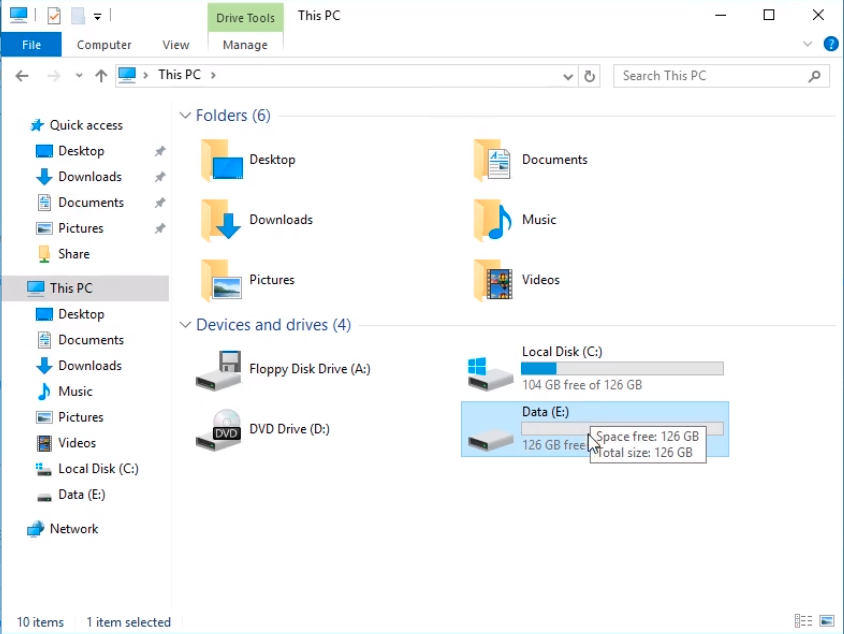
What we want to do is move the WSUSUpdates folder onto that drive.
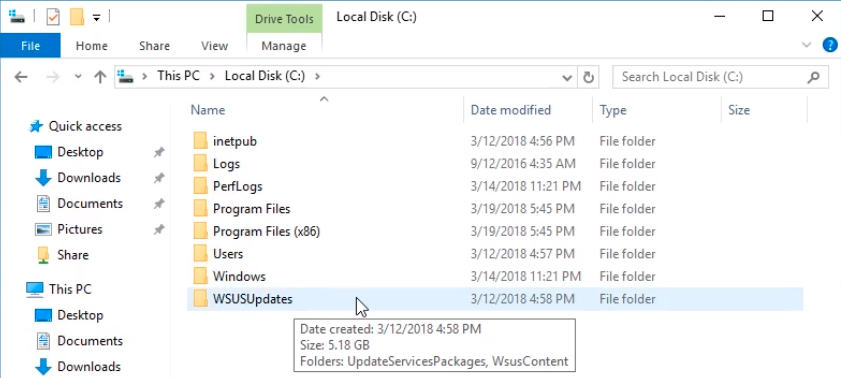
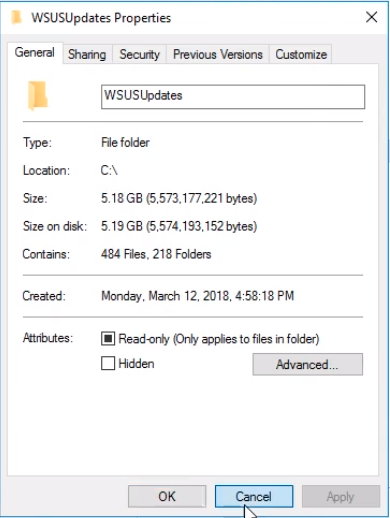
The drive is around 5GB in size. In some situations when more updates are downloaded the folder size will increase and we need to move it to a bigger location.
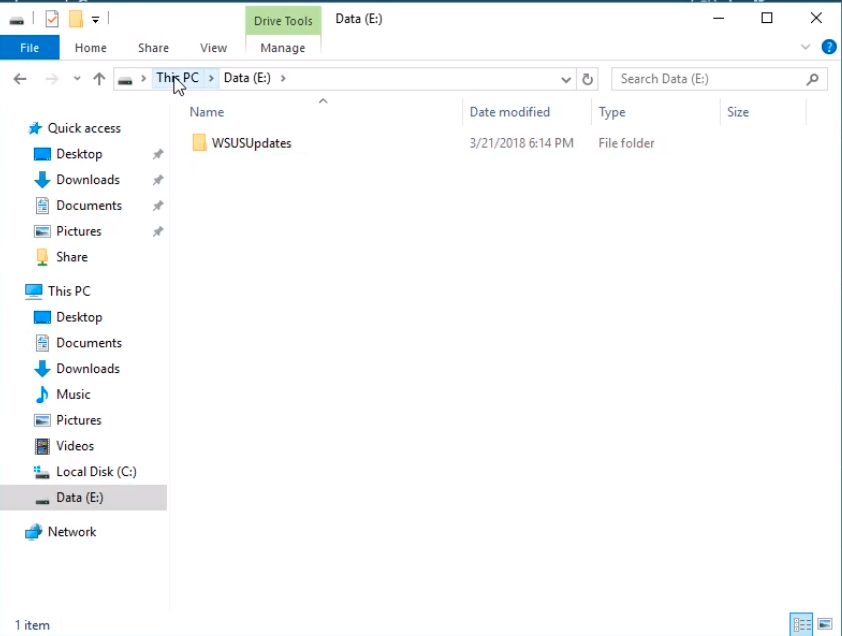
The first step is to go to the new location and create the path where we want to move the updates.
Create a new folder and name it WSUSUpdates. Make sure it matches with the C:\ drive folder. This does not necessarily need to match but when you’re running the command you need to create the folder ahead of time before you execute the move command.
We will open a Command Prompt and Run as Administrator to use wsusutil.exe.
Type “C:\Program Files\Update Services\Tools\WsusUtil.exe” and press Enter to see the program options. We will use the movecontent option.
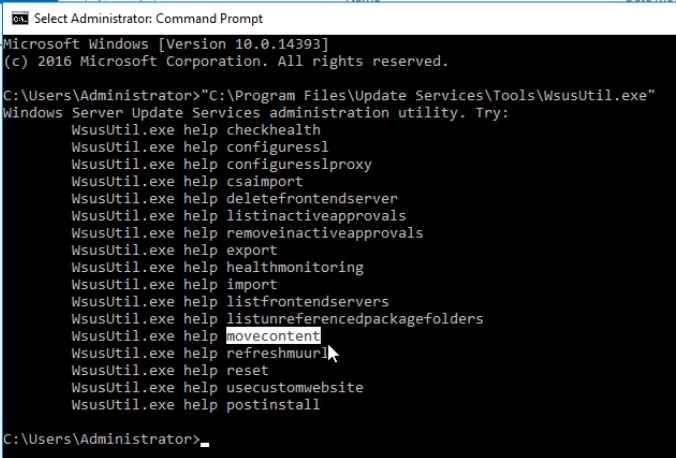
Press the Up arrow on your keyboard and complete it by typing “C:\Program Files\Update Services\Tools\WsusUtil.exe” movecontent and press Enter to see the arguments that we need to put for this command.
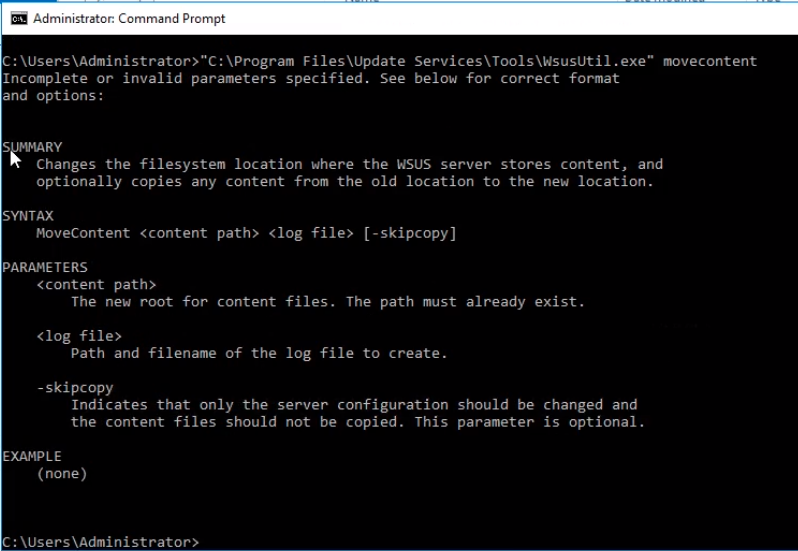
Type again “C:\Program Files\Update Services\Tools\WsusUtil.exe” movecontent E:\WSUSUpdates E:\…
No comments yet. Add the first comment to start the discussion.