
Building Our Windows Domain
In this lecture, I am going to be showing you how to build a Windows Domain, and we also will be joining our Windows Server VMs to that Windows Domain. We are going to do this from our IPDC01 VM.
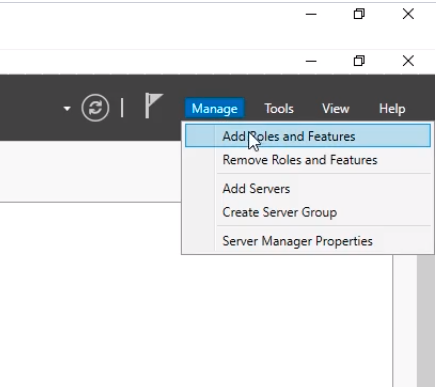
Open IPDC01 VM and from Server Manager we are going to add the Active Directory Domain Services role to this server. On the upper right corner click on Manage and select Add Roles and Features.
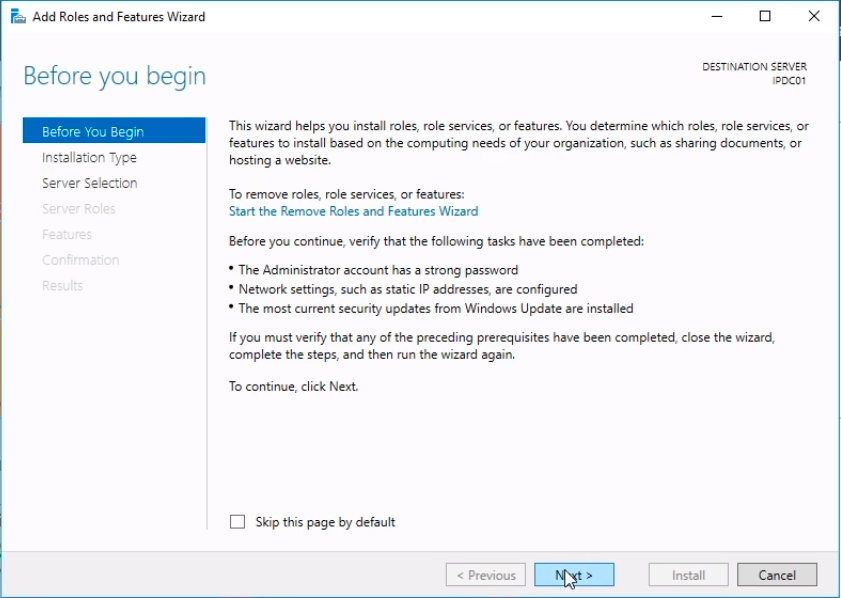
The wizard starts with the Before you begin window. Click Next to continue.
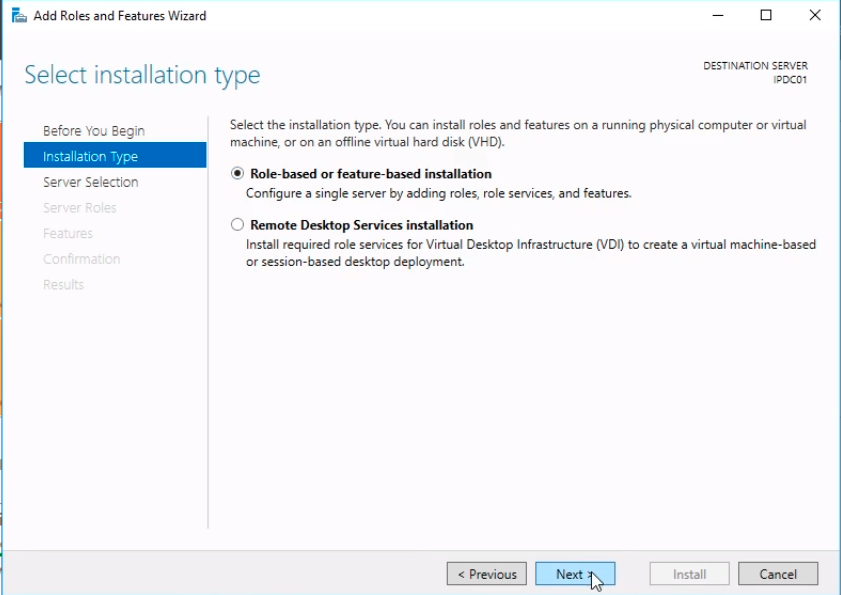
The Select installation type window shows two options. We need to choose Role-based or feature-based installation. Click Next to continue.
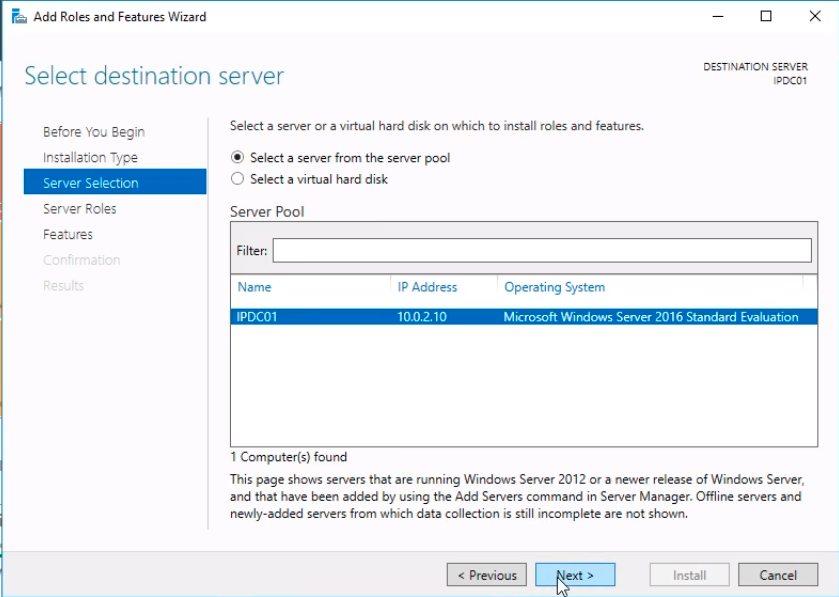
The window Select destination server shows the servers where we can install the Role. Choose Select a server from the server pool and click on IPDC01 and click on Next.
From the Select server roles we need to select Active Directory Domain Services.
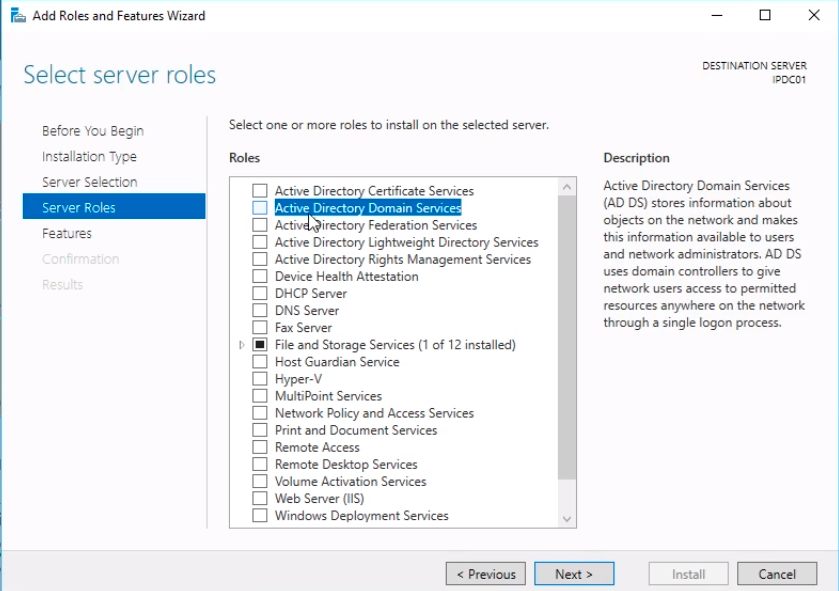
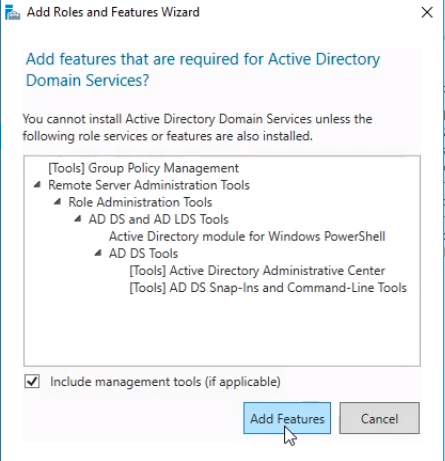
A new popup displays prompting us to add the required features for the Role we are installing. Click on the Add Features button and click Next.
Here, we don’t have any additional Features we want to install but here is where you can choose them. Click Next to continue.
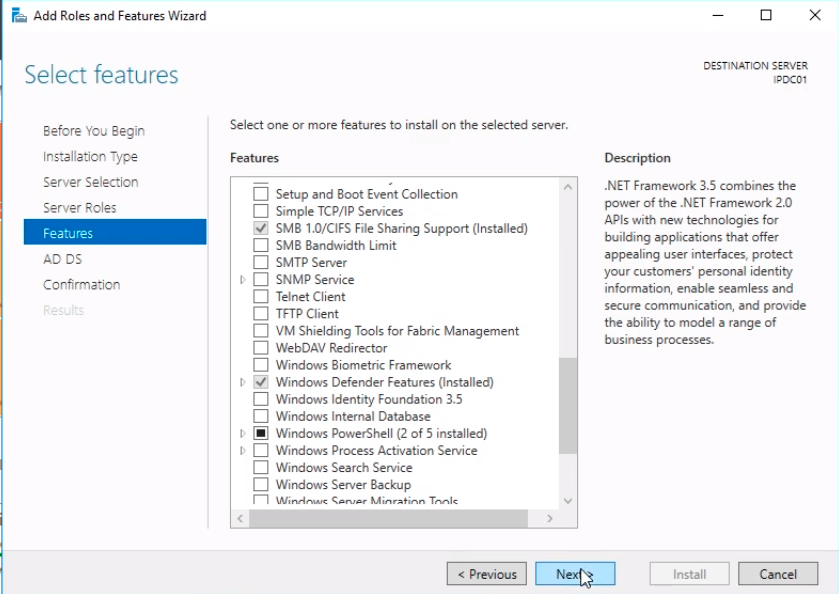
Click Next.
![](https://zrftqtvkikjkbtkfalgp.supabase.co/storage/v1/object/public/les…
No comments yet. Add the first comment to start the discussion.