
Creating an Downstream WSUS Server
In this lecture, I am going to show you how you can set up a Downstream WSUS Server and we can use our first WSUS Server as an Upstream server.
This is commonly done when you have two different sites that you are trying to connect to and manage with your WSUS environment.
So if I had one site in New York and another site in Washington DC I wouldn’t want my Washington DC computers to be downloading updates from New York when I can set up a server in Washington DC that will update these computers there.
I am logged in to my IPWSUS02 server joined to my instructorpaul.com domain with IP Address 10.0.2.12 with no server roles installed yet.
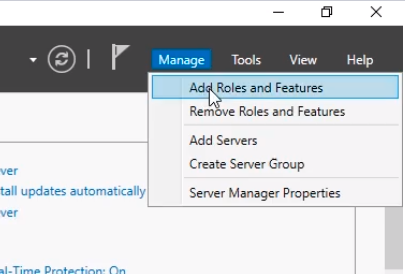
From Server Manager click Manage > Add Roles and Features. We are going to install the WSUS role.
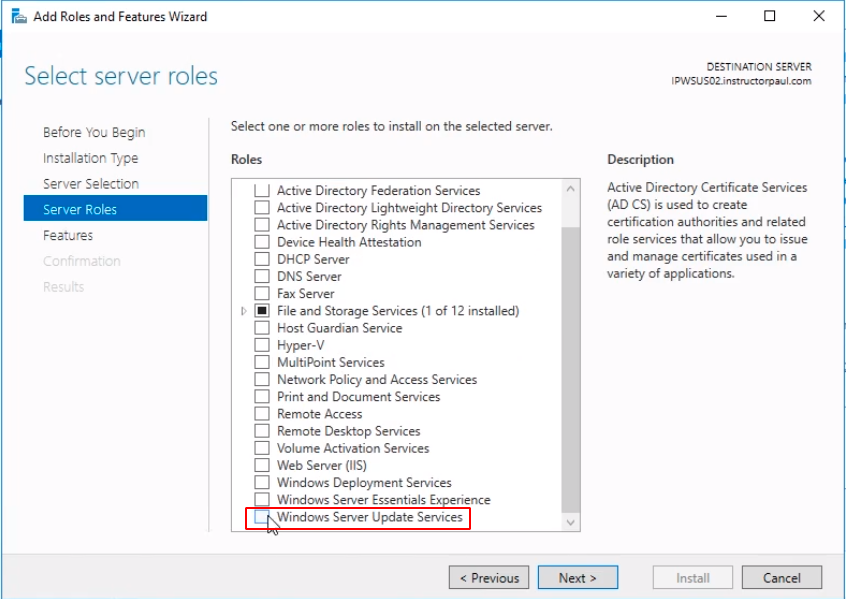
Navigate through the wizard clicking the Next button until you get to the Select server roles window.
Select the Windows Server Update Services check box.
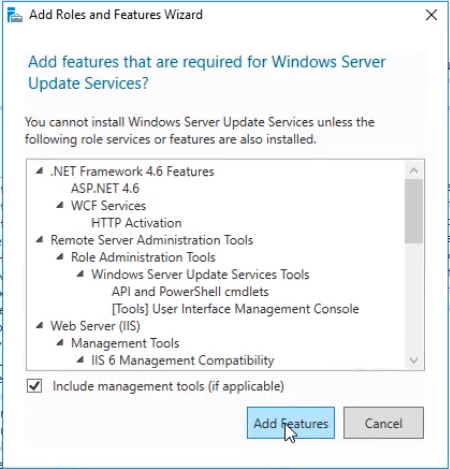
Click on the Add Features button to add all the needed features.
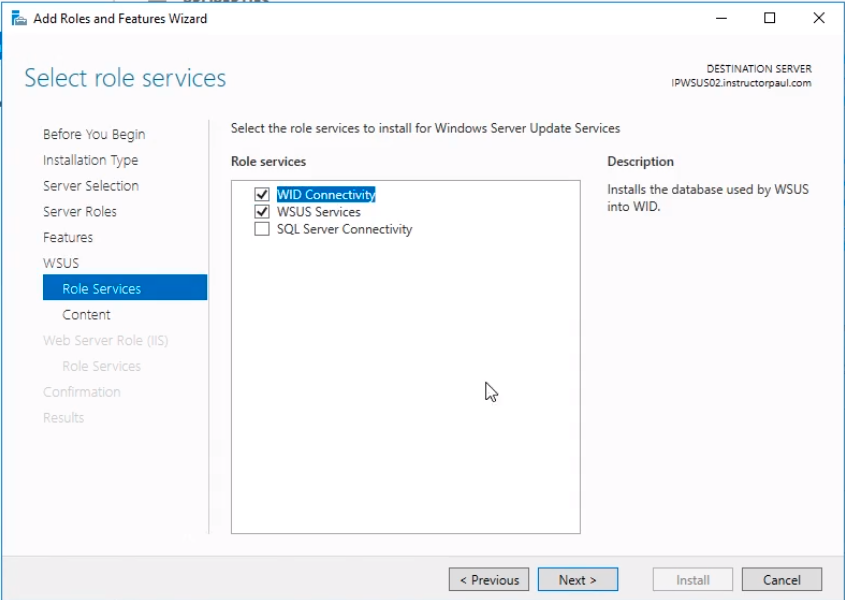
Click the Next button multiple times until we get to the Select role services. Here we leave the first two checkboxes checked as default for WID Connectivity and WSUS Services and click Next.
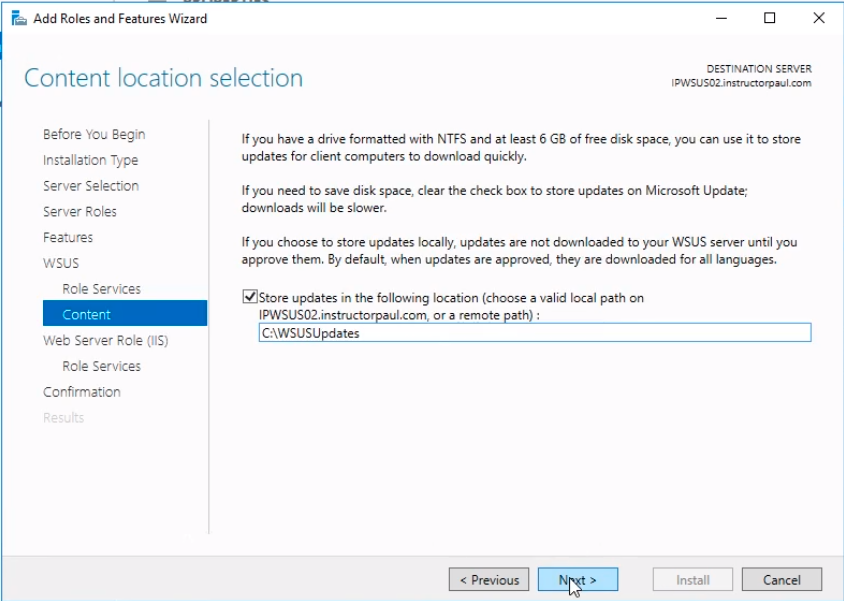
In the Content location selection window, we are going to choose the local path to store the database typing C:\WSUSUpdates and click on Next.
Click Next again multiple times until you get to the Confirm installation selections and click the Install button.
![](htt…
No comments yet. Add the first comment to start the discussion.