
Installing The WSUS Role
In this lecture, we are going to be installing the Windows Server Update Services (WSUS) role on our IPWSUS01 server.
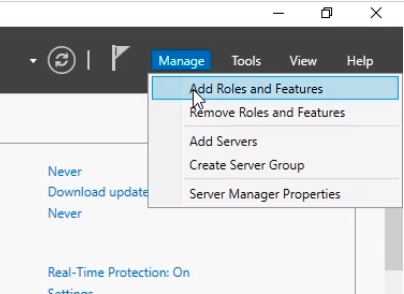
In Server Manager click Manage and select Add Roles and features.
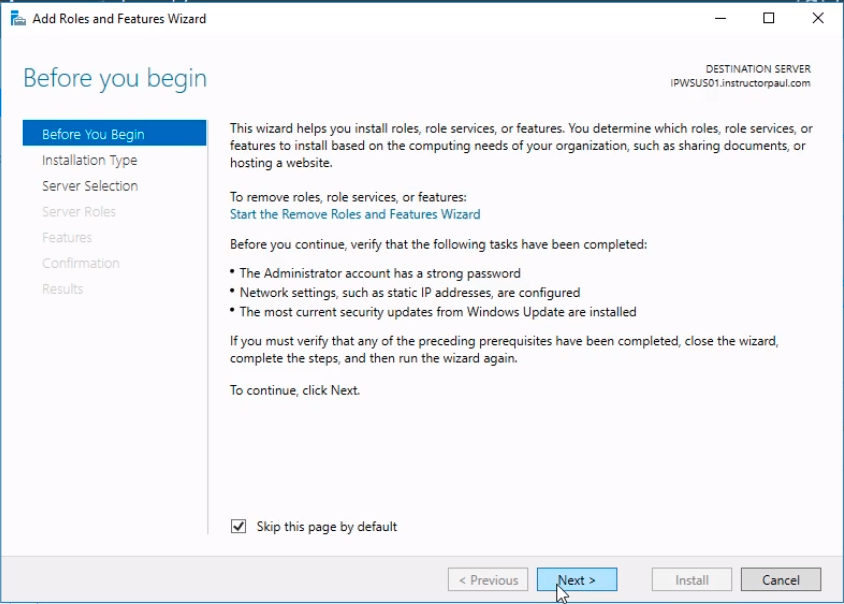
The Add Roles and Features Wizard open the Before you begin window. We click the check box on Skip this page by default after we read it to skip it next time we install a role.
Click Next to continue the wizard.
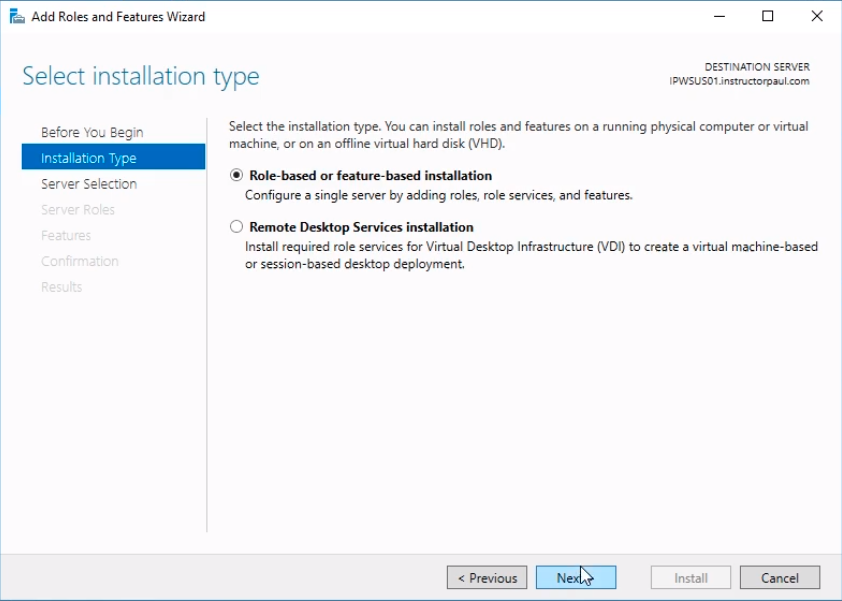
On the Select installation type window, we will leave the default option Role-based or feature-based installation selected and click Next to continue.
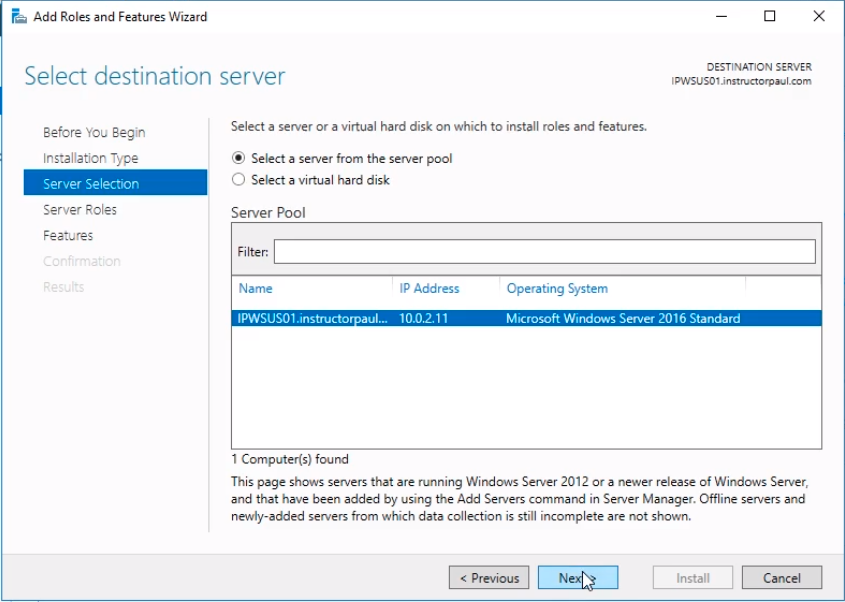
Now, under the Select a destination server window we leave the default radio button Select a server from the server pool and select the server in the list IPWSUS01.instructorpaul.com since it is the only server we currently manage and that is our target server.
Click Next to continue.
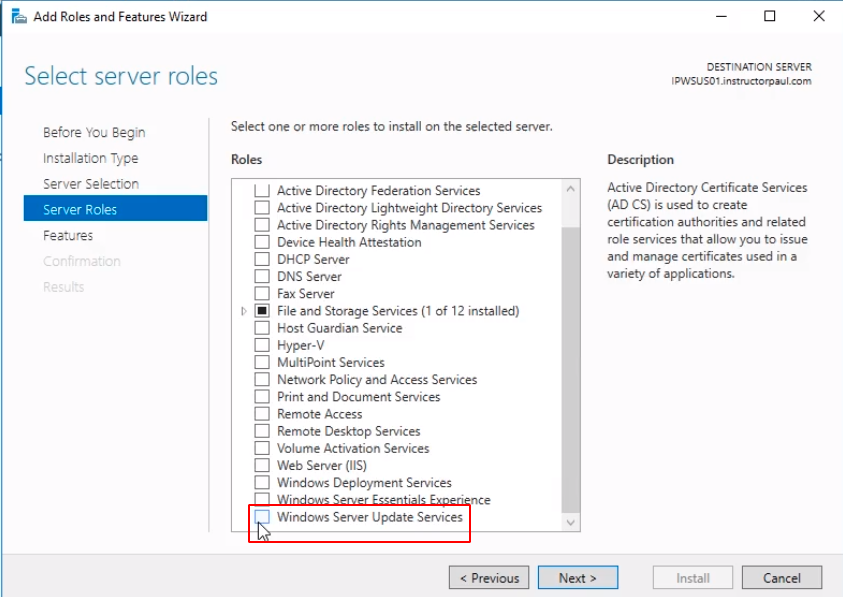
Now on the next window Select server roles, we scroll down to the bottom and we are going to select Windows Server Update Services.
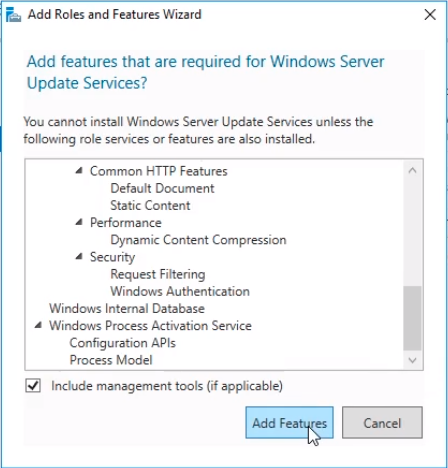
Now you will see a message pop up saying Add features that are required for Windows Server Update Services?. Click Add Features button to add all these role services and features.
You will be taken back to the previous Select server roles window.
Click Next to continue.
On the Select features window, we don’t need any extra features so we are j…
No comments yet. Add the first comment to start the discussion.