
Importing Updates to an Offline WSUS Server
In this lecture, I want to talk to you about importing updates to a WSUS server that does not have Internet connectivity.
Generally, the way this works is that you have a network that contains sensitive data, and is so sensitive that it's actually better to keep that computer network disconnected from the Internet.
You may have 100 servers and thousands of clients that need to be patched, and the best way to do this is with a WSUS server, so you set up a WSUS server, and then on that WSUS server, it can't reach Microsoft.com.
The way you get around this is that you set up a WSUS server that has Internet connectivity in a separate network, completely separate from this disconnected network, and on that WSUS server that has Internet connectivity you download all of your updates, you synchronize to Microsoft.com and then you export those updates and transfer them over to the disconnected network, typically with an external hard drive and then you import these updates to the disconnected WSUS server.
So essentially you are just manually importing these updates to this disconnected WSUS server. Generally, you will do this once a month on every Patch Tuesday or after, and that way you are able to keep your WSUS clients, in your disconnected network, up to date.
Let’s see how we can do this.
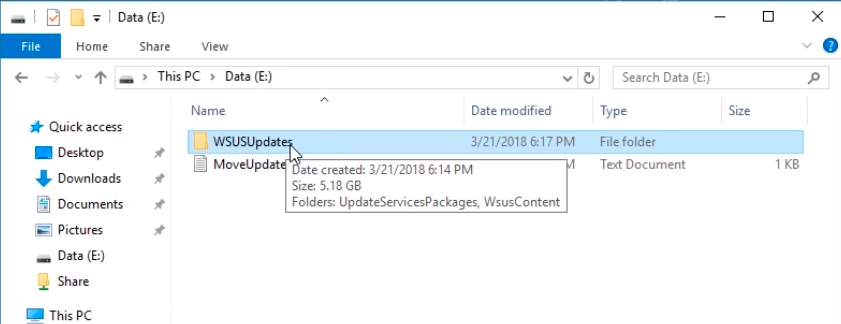
On the IPWSUS01 server, I am going to export the updates from the server. Now, that’s a two-step process. First, we are going to copy these files from the E:\WSUSUpdates folder, which is actually holding all the actual files. We will copy that folder to an external media so we can get it over to the disconnected WSUS server.
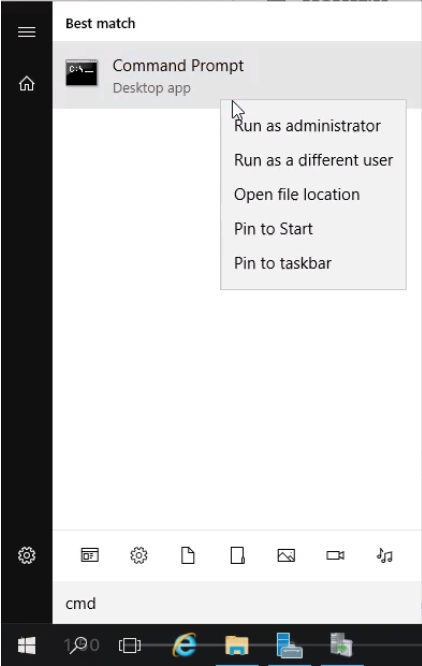
Next, open a Command Prompt window and choose to Run as administrator.
Type cd “C:\Program Files\Update Services\Tools” a…
No comments yet. Add the first comment to start the discussion.