
Installing Windows Server Part 1 and 2
In this lecture, I am going to be showing you how to install Windows Server 2016.
Now, I am going to be installing Windows Server 2016 on my IPDC01 Server and my IPWSUS01 Server, but I am going to be showing you the process for one of the VMs as it’s exactly the same until we get to the part where we are configuring the servers.
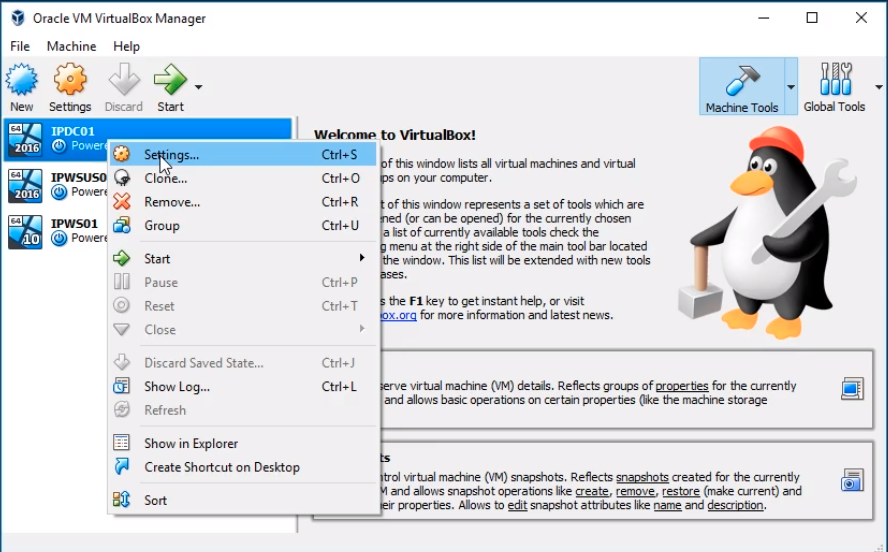
So, what we need to do is right-click on IPDC01 and select Settings...
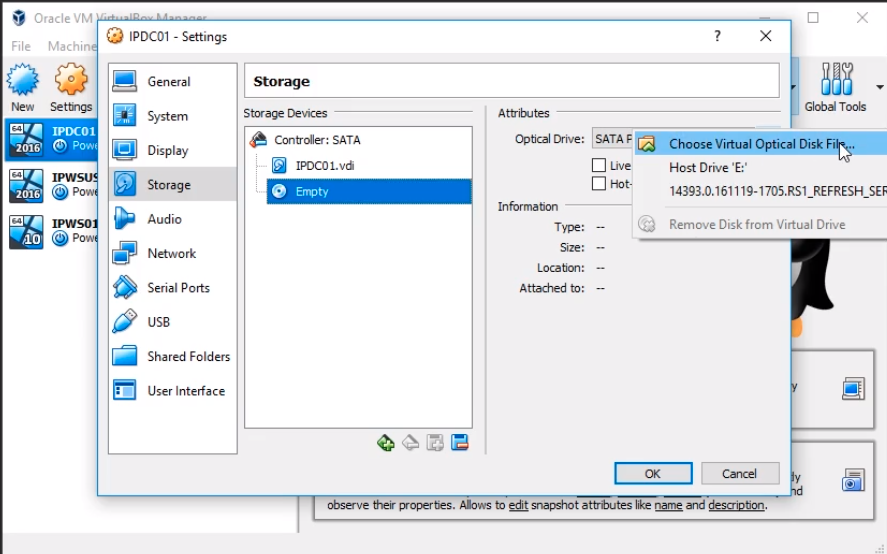
Next, we are going to go to the Storage tab. Here we are going to select the Disk icon where it says Empty and to the left, we click on the Disc to show the options. Select Choose Virtual Optical Disc File...
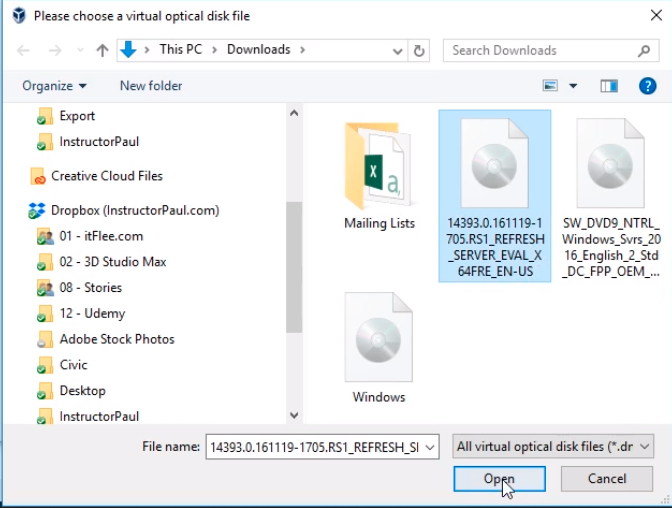
Now, I am going to navigate to the folder location of the ISO file and select the Windows Server 2016 file and click the Open button.
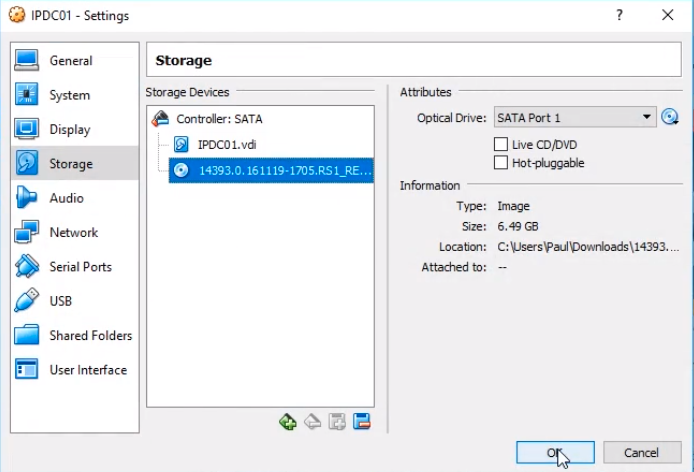
Now I am done with that and we can see the ISO file has been mounted under Storage Devices. Click OK to close IPDC01 Settings.
Repeat the same process of mounting the ISO file on IPWSUS01 Server.
Now, we are ready to launch the installation on IPDC01 Server. Note that the process of installation goes really slow if you attempt to run it on both VMs at the same time. I recommend you run one at a time.
Select IPDC01 and click on the Green Arrow to start the Virtual Machine.
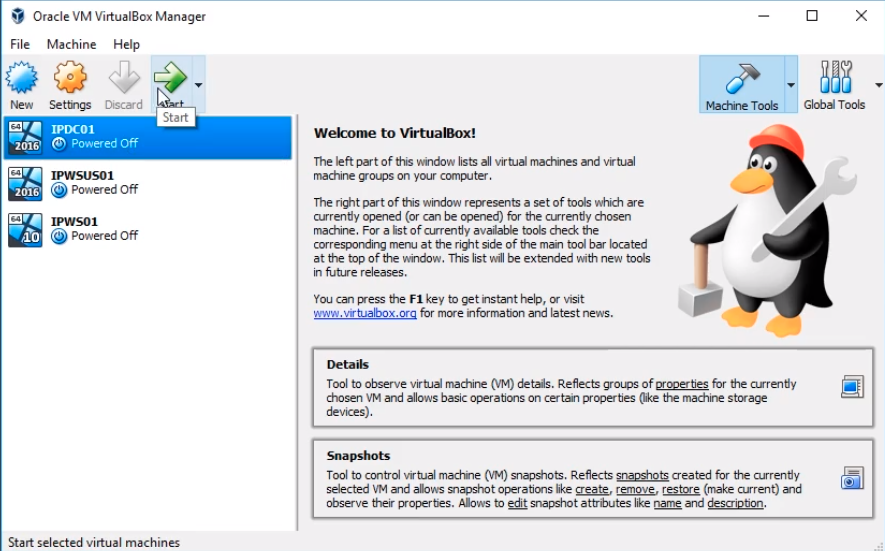
This first part is going to be exactly the same for both servers all the way up until we rename the computers. Click Next to start the installation wizard.
No comments yet. Add the first comment to start the discussion.