
Installing VirtualBox and Creating Our VMS and Virtual Network
In this lecture, we are going to be installing VirtualBox, and we are going to be creating our Virtual Machines and our Virtual Network.
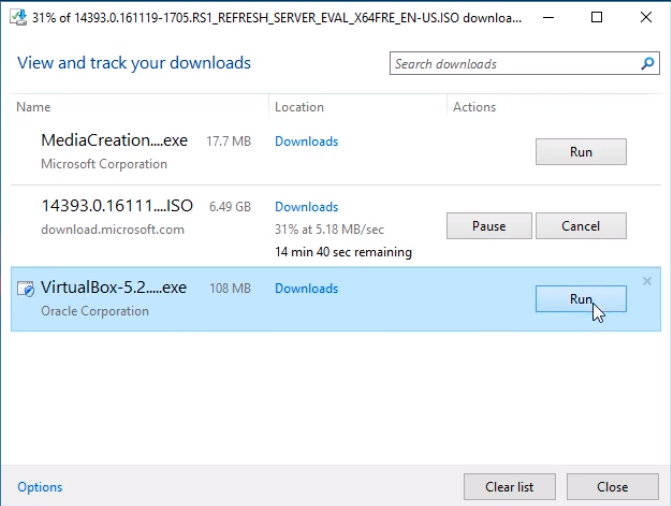
Checking the downloads, we see our Windows Server 2016 is still downloading and that’s fine. We are going to open our VirtualBox installation file here by clicking Run.
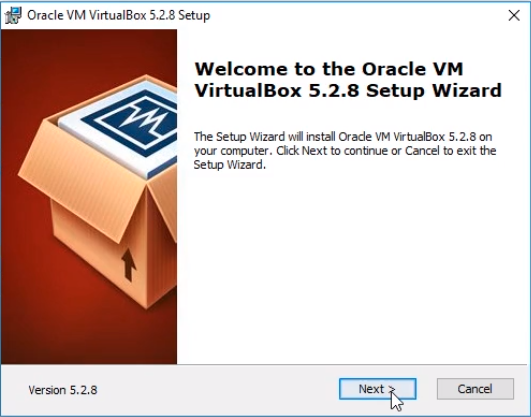
Here’s the installation window so we are going to click Next to start the VirtualBox installation.
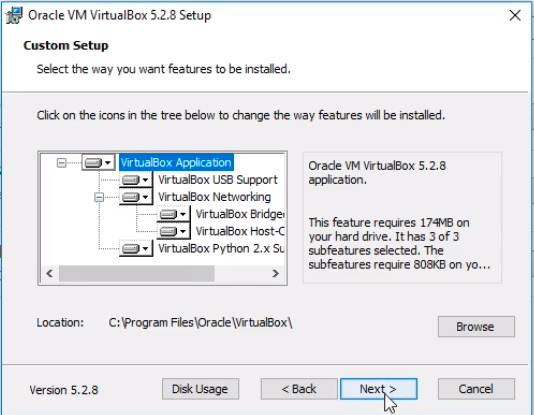
Here, I am going to leave all the defaults and just click Next.
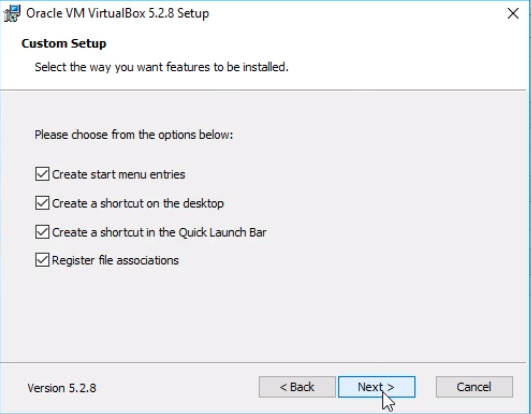
Click Next again.
Click Yes on the Warning: Network Interfaces window.
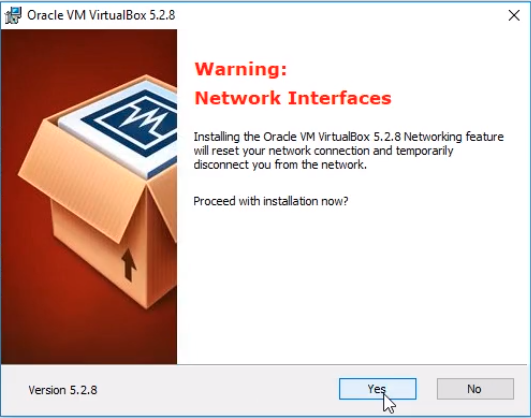
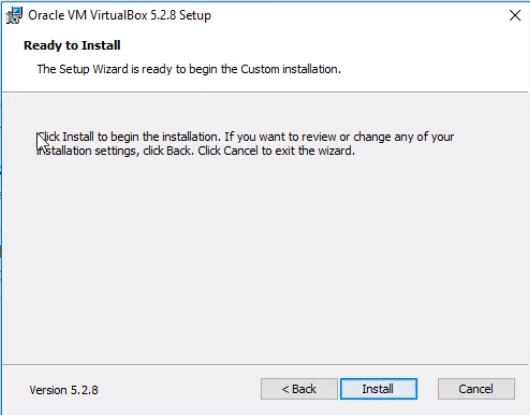
Now, click on Install to begin the VirtualBox installation.
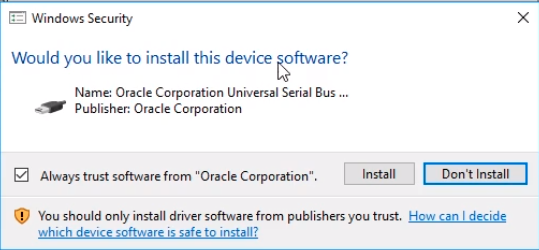
You will be asked if You would like to install this software. Click on Install and leave the option checked for Always trust software from “Oracle Corporation”.
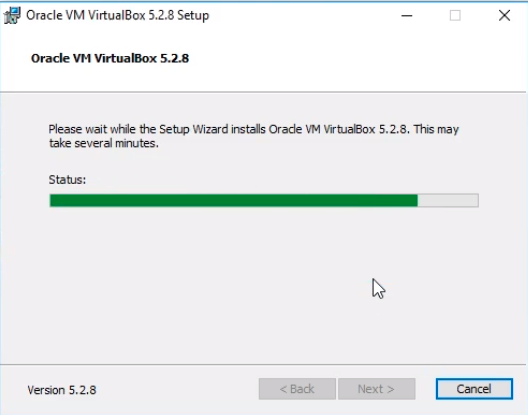
The VirtualBox installation will continue.
Click on Finish and leave the option checked to Start Oracle VM VirtualBox.
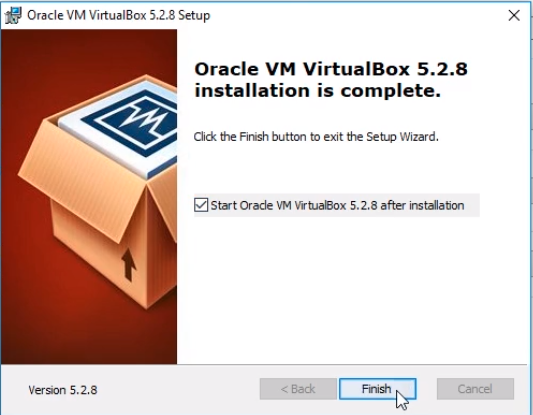
Great! Now we have VirtualBox installed.
![](https://zrftqtvkikjkbtkfalgp.supabase.co/storage/v1/object/p…
No comments yet. Add the first comment to start the discussion.