
Installing Windows 10
In this lecture, we are going to be installing Windows 10 on our new Windows 10 VM that we just created.
Once we install Windows 10 we are going to join our instructorpaul.com domain and then we are going to be done with this lecture.
First thing I am going to do is open VirtualBox. I can see I have my IPDC01 Powered On and running, and I have my IPWSUS01 Server up and running. Now, the most important thing is that you keep your Domain Controller Running because once we are done installing Windows 10 we want to join this to our domain, so that will require that our Domain Controller is Powered On.
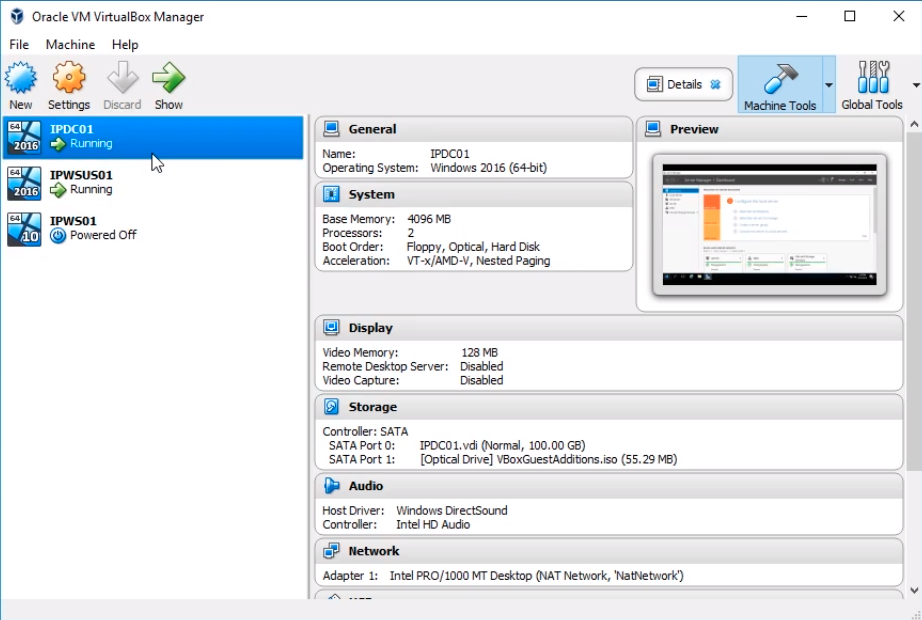
So, what I am going to do is right-click and IPWS01 and click on Settings.
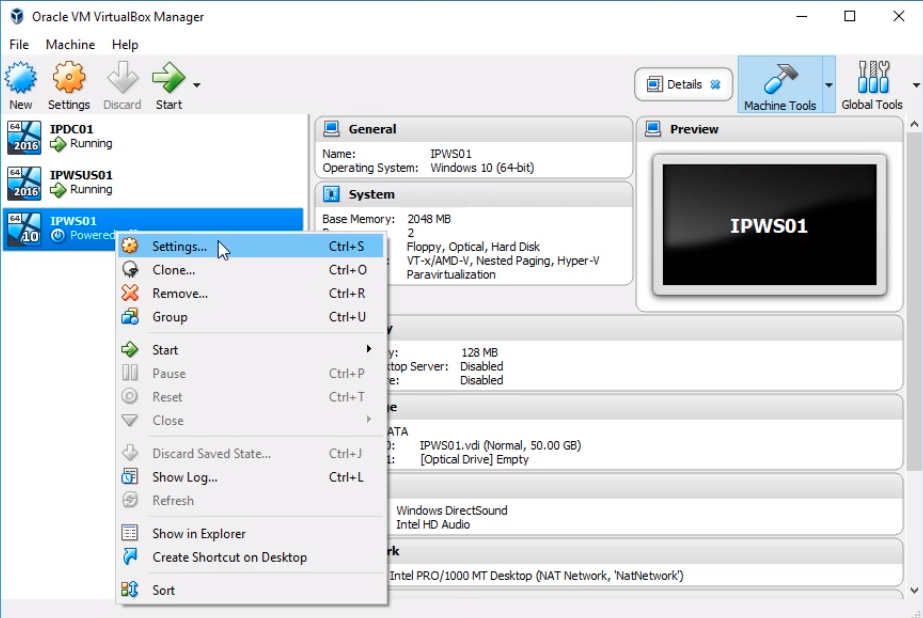
Click on Storage and we are going to mount the Windows 10 ISO. Select the Empty disc icon and then on the right hand side of the screen click on the Disc icon and click on Choose Virtual Optical Disk File...
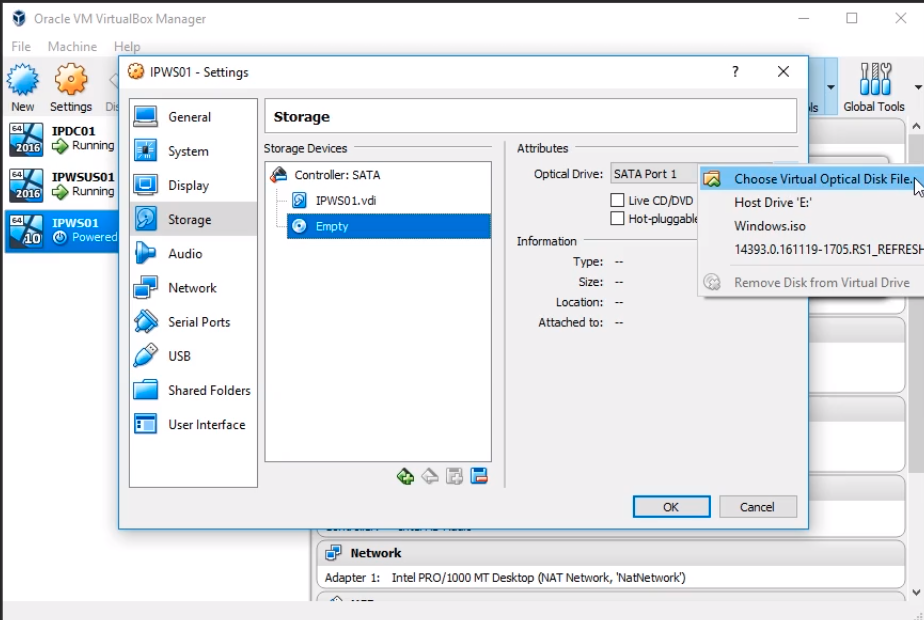
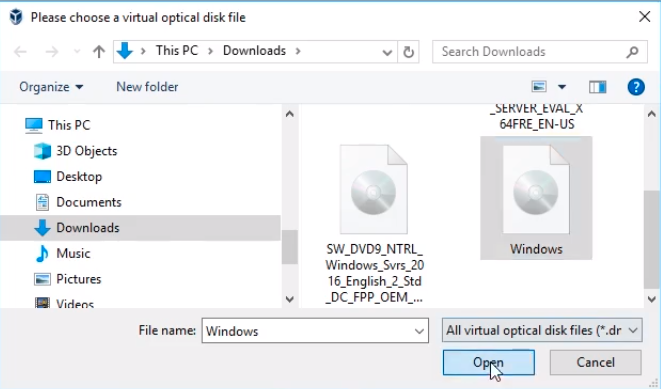
This opens a File Explorer window and we can see in our Downloads folder our Windows ISO file. This is my Windows 10 download. Select it and click Open.
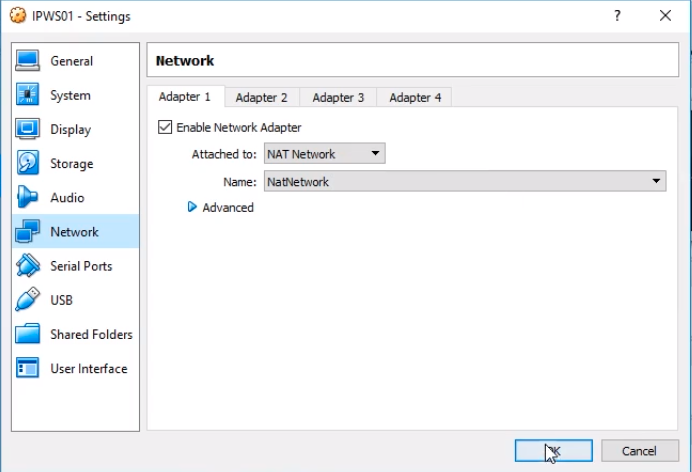
Click Network to the left. I am just going to check we are connected to the right network. Click OK when done.
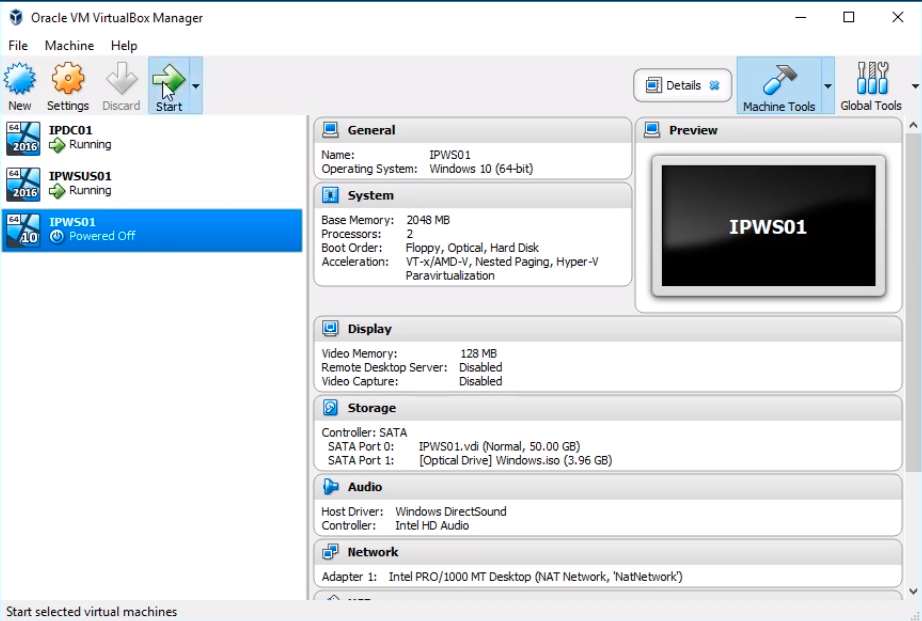
So, now what I need to do is Power On this Virtual Machine. I am going to click Start.
Now, the VM is Powered On and is going to begin the Windows 10 installation, so I j…
No comments yet. Add the first comment to start the discussion.