
Downloading Required Software
In this lecture, we are going to be downloading all the software that we are going to need for the upcoming courses setting up our lab environment.
I am going to open my preferred Web Browser which is going to be Internet Explorer and I am going to navigate to https://www.google.com.
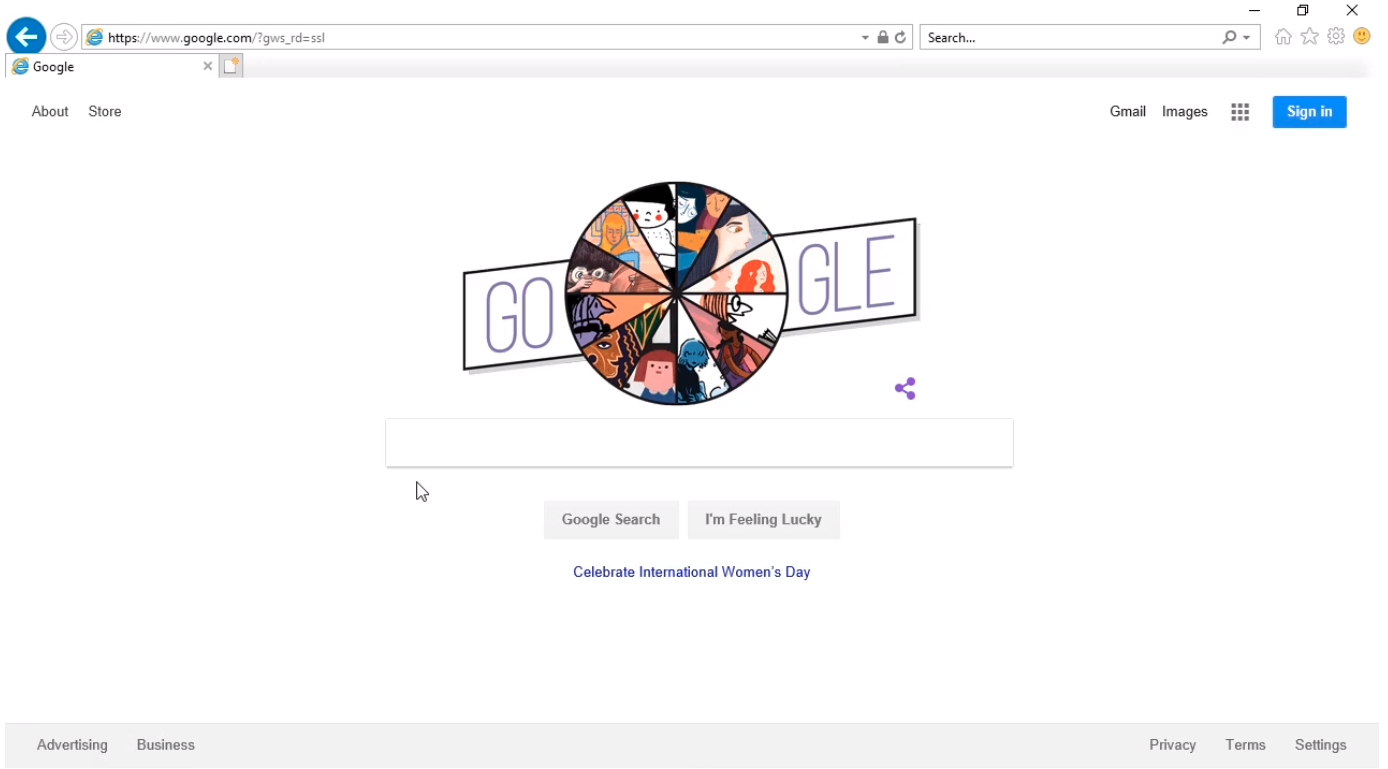
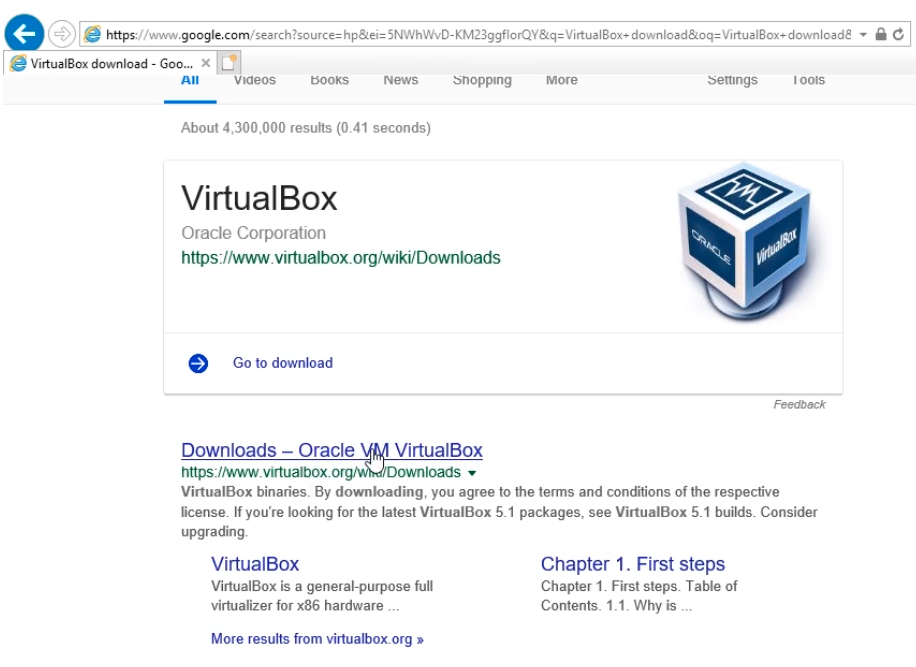
Let’s start by downloading VirtualBox. I am going to type VirtualBox download into the search box and press Enter.
From the search results, I am going to click the first result which is https://www.virtualbox.org/wiki/Downloads to go to this page.
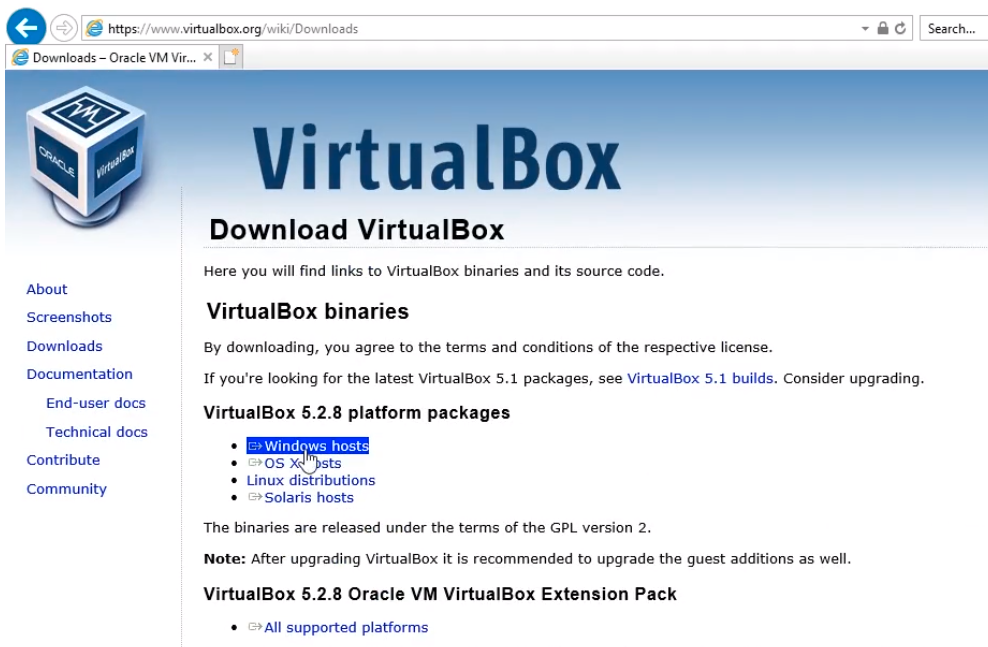
Now, we need to choose which version we want to download.
If you are following along in a Mac that’s fine, you just need to choose the appropriate version. The cool thing is you can follow along in this course on either a Windows computer or a Mac computer. I am going to choose Windows hosts since I am on Windows 10.
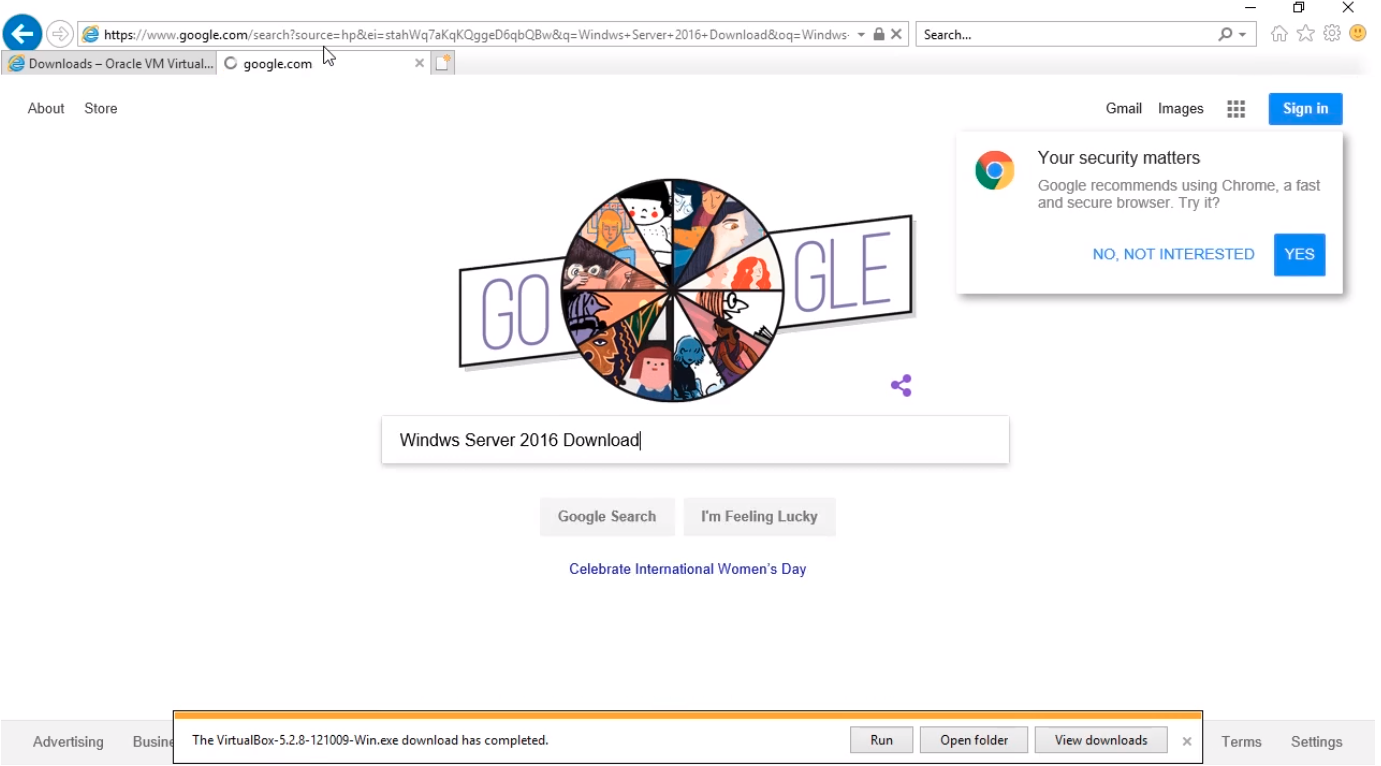
Click on the Save button.

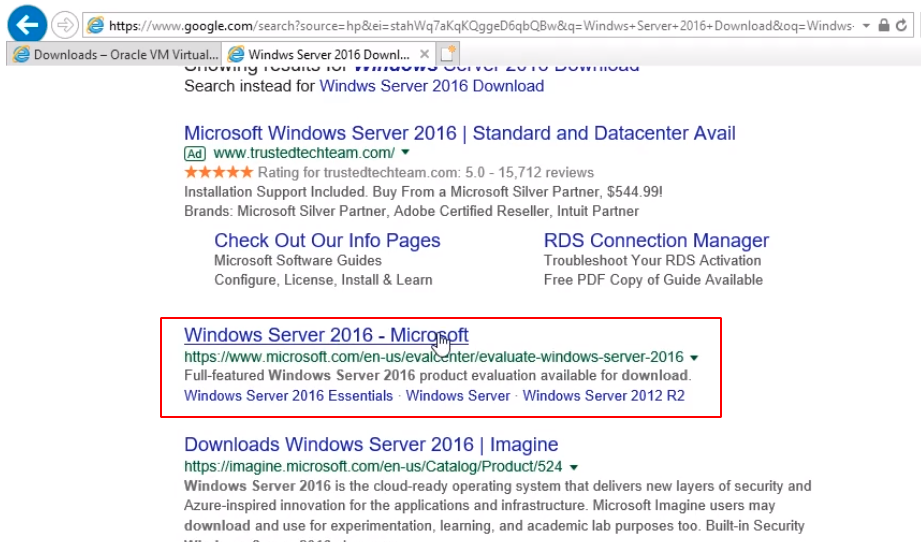
While the installer is being downloaded I am going to open a new tab and navigate again to https://www.google.com and I am going to search for Windows Server 2016 Download and press Enter.
From the search results, we only want to go to a Microsoft trusted website. We are going to choose from the search results https://www.microsoft.com/en-us/evalcenter/evaluate-windows-server-2016
Now we are brought to the Windows Server Evaluations site…
No comments yet. Add the first comment to start the discussion.