
Resetting User Passwords and Unlocking Accounts in Active Directory
In this lecture, I am going to be showing you how to reset passwords with Active Directory Users and Computers.
This is not that complicated so it will be a short lesson, but it is important to know about it.
So, a lot of times what's going to happen is that someone will come up to your desk, or you’ll receive a phone call, or you will get an email or a ticket that someone just forgot his/her password.
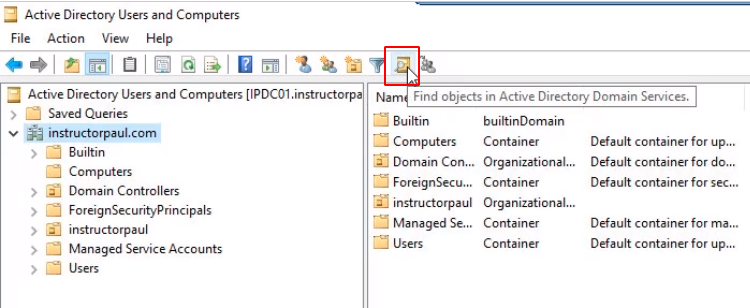
What we need to do is reset the password. Once you get the first and last name you will click the Find button.
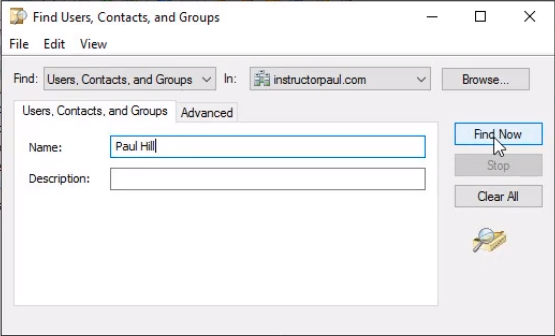
Type the first and last name of the user and click on the Find Now button.
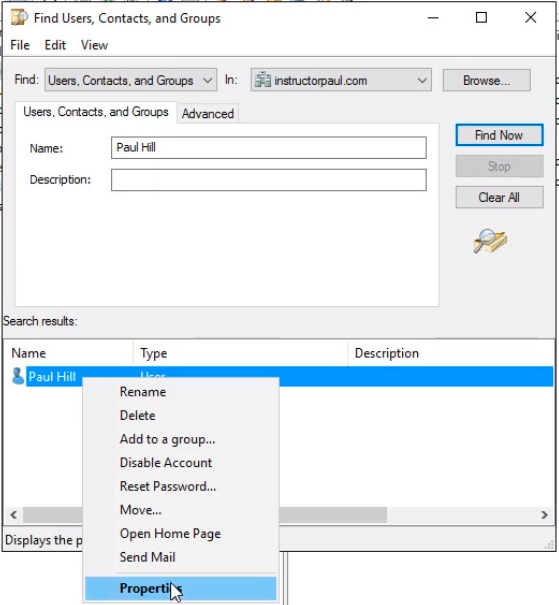
From the results pane right-click the user and select Properties.
As a best practice check the User logon name under the Account tab to make sure we are resetting the password for the right user.
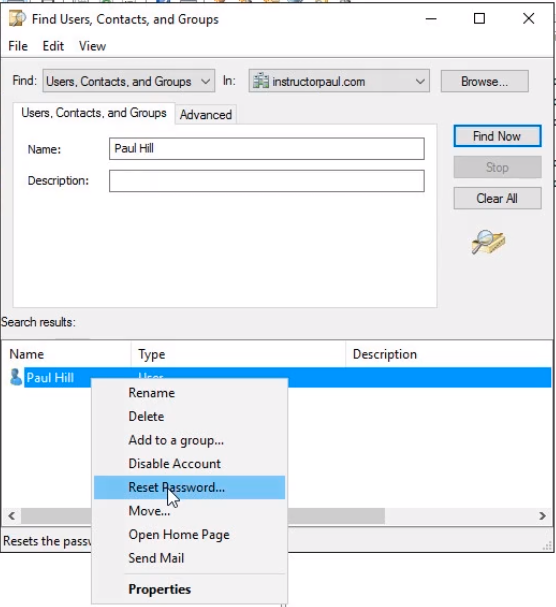
Then back to the search results right-click the user and from the context menu select Reset Password...
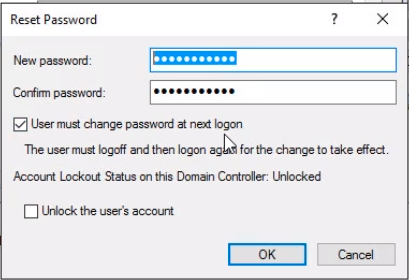
The Reset Password popup appears. This is similar to when we create a user account. We need to choose a password.
If it is a temporary password then we need to check the checkbox so the User must change password at next logon checkbox.
If they are with you they can simply type it in and there will be no need to check this checkbox.
Notice the second checkbox Unlock the user’s account. This is used in case the account is locked after too many failed attempts. Click OK.
A confirmation message will appear. Click OK.
![](…
No comments yet. Add the first comment to start the discussion.