
Add Custom Attributes to Active Directory Users
In this lecture you will learn how you can add custom attributes to your Active Directory user accounts. We are going to add an “extensionAttribute1” attribute to the user class of AD.
IMPORTANT: Once you add one attribute you will need to wait until your other Active Directory servers replicate before you can add another - so I recommend that you add all the attributes you want in one run before restarting the ADDS server role.
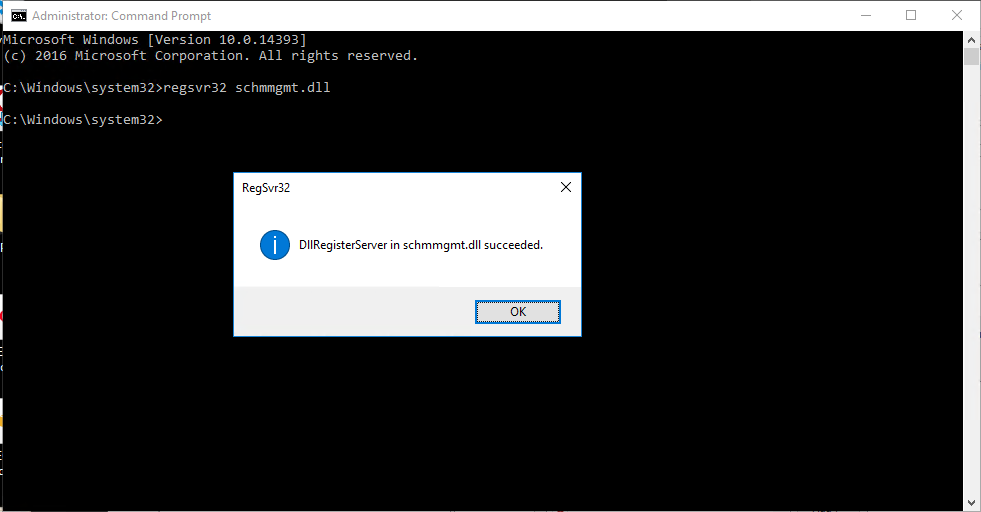
To get started, let’s open Command Prompt and run the following command:
Regsvr32 schmmgmt.dll
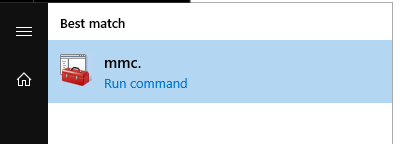
Next find and launch MMC.msc:
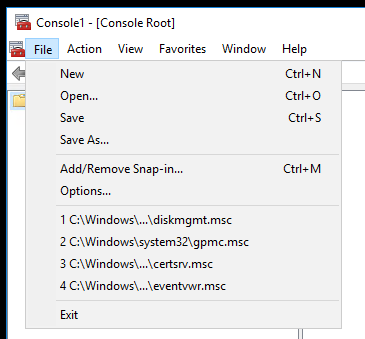
Click File > Add/Remove Snapin:
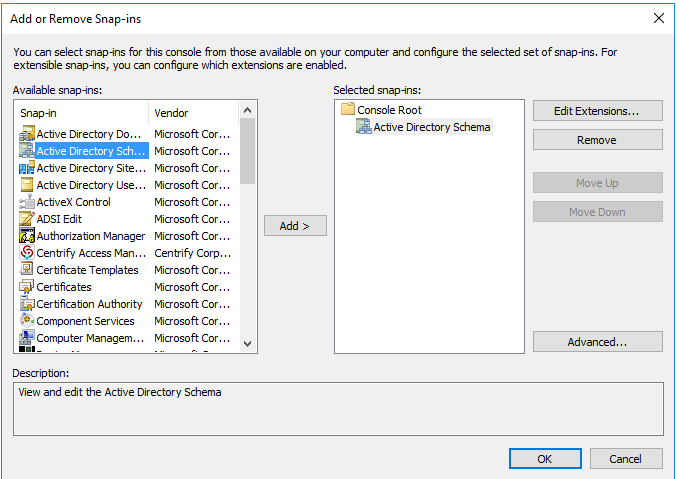
Add the Active Directory Schema snap-in, click Add, then click OK.
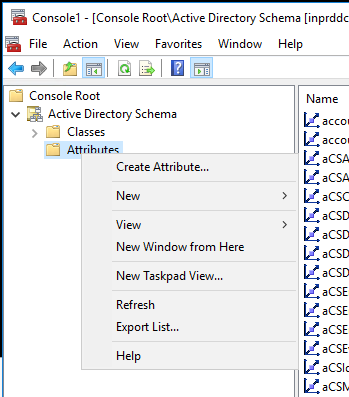
Click Attributes, then right-click and select Create Attribute:
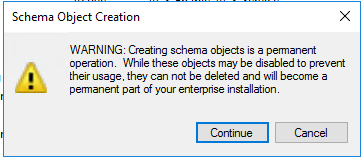
Acknowledge the Schema Object Creation alert by clicking Continue.
Type in the Common Name you want to use:
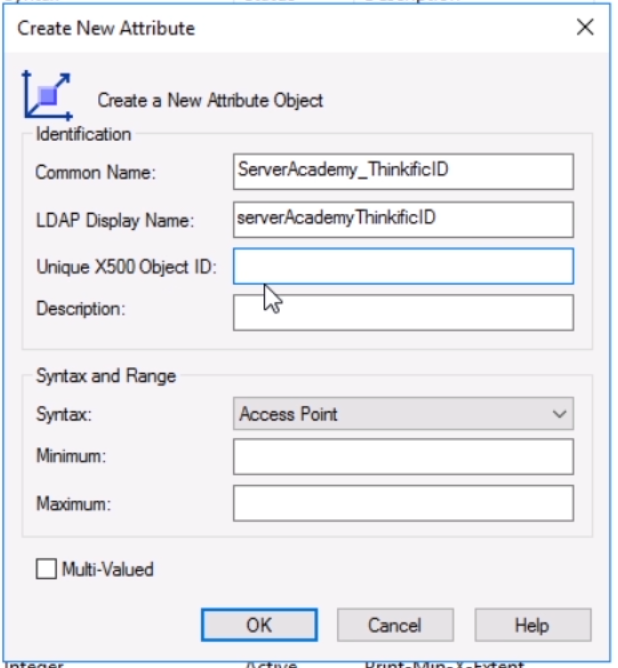
Next, we need to generate a unique code for Unique X500 Object ID. Thankfully we can run the following PowerShell script to generate the code:
#---
$Prefix="1.2.840.113556.1.8000.2554"
$GUID=[System.Guid]::NewGuid().ToString()
$Parts=@()
$Parts+=[UInt64]::Parse($guid.SubString(0,4),"AllowHexSpecifier")
$Parts+=[UInt64]::Parse($guid.SubString(4,4)…
No comments yet. Add the first comment to start the discussion.