
The Events Viewer Overview
**In this Video: **
- We will present an overview of the Windows Event Viewer.
- At the completion of this lecture you will gain valuable-work related knowledge and experience by utilizing and implementing the tools discussed in this lecture.
The Event Viewer has been vastly improved over the earlier versions of the Windows operating systems. In this lecture, you will become familiar with the new features of this event viewer. If you need to troubleshoot problems the logs and the events ID’s viewer is where you will be spending the majority of your time. If you want to be the best, learn how to use this event viewer.
To open the event viewer – Use Widows search, type event viewer
In the left panel we have:
- Event viewer
- Custom Views
- Windows logs
- Applications and Services Logs
- Subscriptions
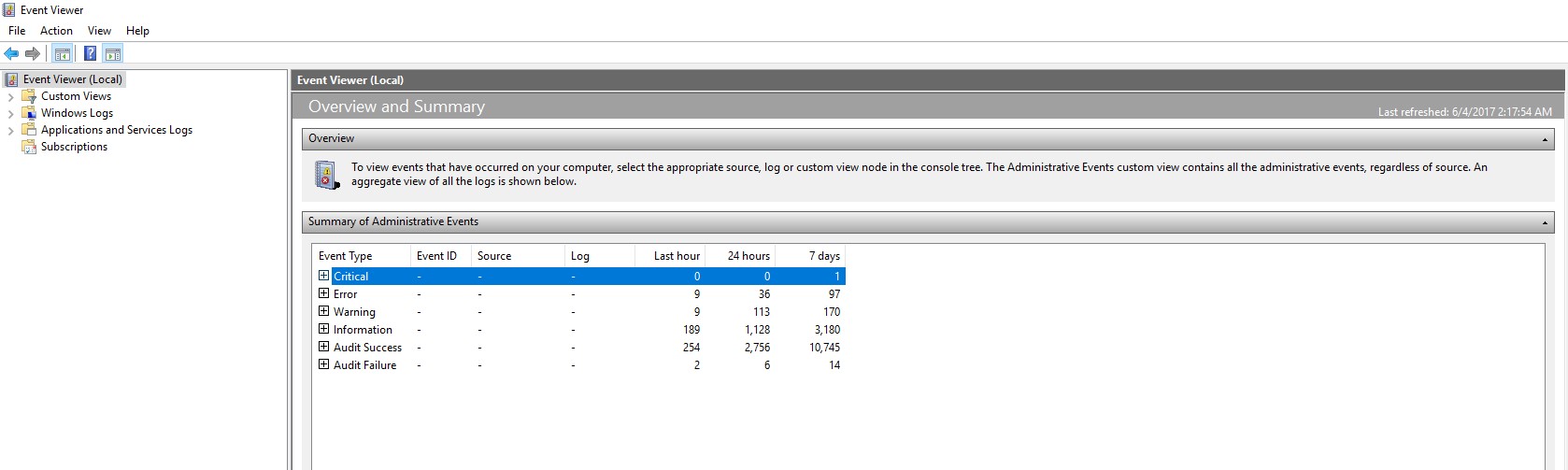
On the right, we have the Summary of Administrative Events , which is an overview of all event types. Also the Events that you may need to pay attention to right away will be in the summary.
For example, In this case, click the + sign by critical, double click kernel-power
(The kernel power event ID 41 error occurs when the computer is not shut down cleanly, server locked up)
Go back to the summary page, in this case, click the + sign by errors, double click event ID 404 DNS-Server-Service, double click the last error
Recently viewed nodes: \- which displays the last viewed log files
Log Summary: This summary displays the retention policy. This policy is based upon answers to the following question. When this log reaches a certain size what do you want to do?
- Overwrite events
- Archive events
- Clear logs manually
If you open windows logs, right click on the application log, then properties. You will see the default settings for the log size and the three choices,…
No comments yet. Add the first comment to start the discussion.