
Configuring Registry Settings with Group Policy
In this lecture, I am going to be showing you how you can use Group Policy to create Registry Settings.
We are going to create a Registry Setting that will allow us to right-click any file and open it with Notepad.
Open Server Manager > Tools > Group Policy Management.
Right-click instructorpaul.com and choose to Create a GPO in this domain, and Link it here...

Name the GPO Registry Settings and click OK.

Right-click on Registry Settings and choose Edit.
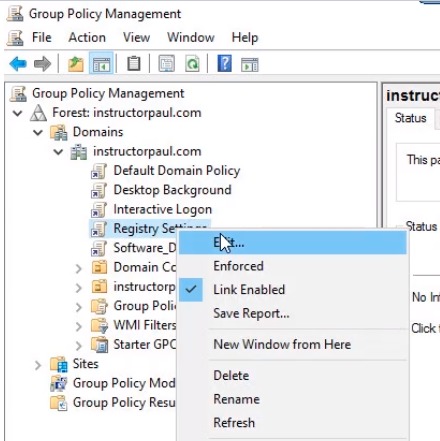
NOTE: We can configure the settings on a Computer basis or User basis.
Expand Computer Configuration > Preferences > Windows Settings > Registry. Right click on the right empty pane and choose New > Registry Item.

NOTE: Before we go any further, you should keep in mind editing your Registry is generally a bad idea if you don’t know exactly what you are doing. You can cause a lot of problems with your computers, and some of the issues are even irreversible and you most likely need to reformat and rebuild your computer. You should be testing in a lab environment and not in a production environment.
The New Registry Properties window will appear. Edit the following:
Action: Create
Hive: HKEY_CLASSES_ROOT
Key path: *\shell\Open with Notepad\command
Value name: click Default check box
Value Type: REG_SZ
Value data: notepad.exe %1
Click on Apply and OK buttons.

We are ready to test it in our Domain Controller since we linked it to the…
No comments yet. Add the first comment to start the discussion.