
Configure User Roaming Profile Path with PowerShell
In this lecture, I am going to be showing you how you can use Windows PowerShell to configure or to set the Active Directory profile Path.
Open Windows PowerShell ISE and Active Directory Users and Computers.
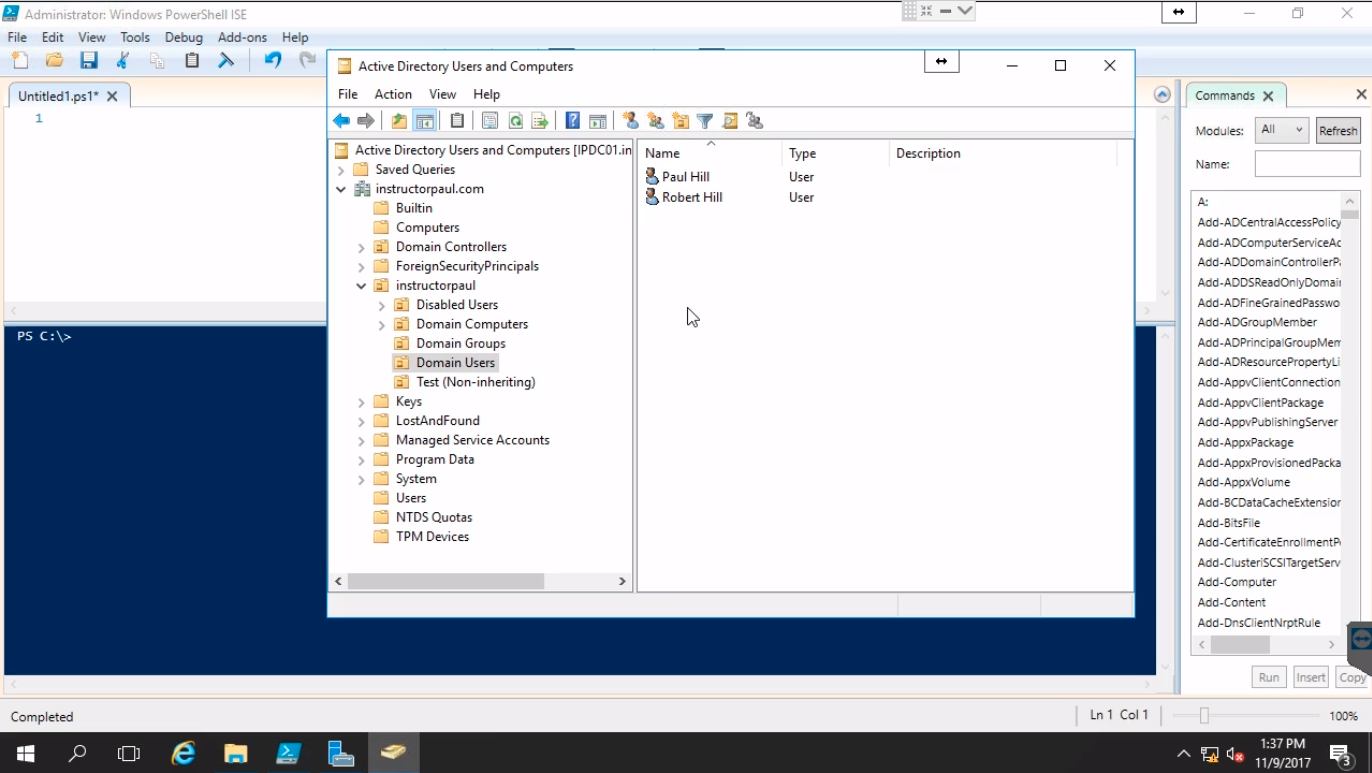
Here we can see under Domain Users we have two user accounts. We have our Paul Hill user account which is using a Roaming Profile and is part of the Roaming Profiles Users group. We will be testing with this account.
Steps:
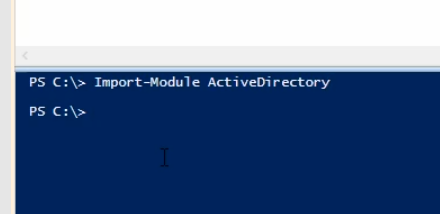
- A couple of ways of doing this, we need to first import the AD module: Import-Module ActiveDirectory
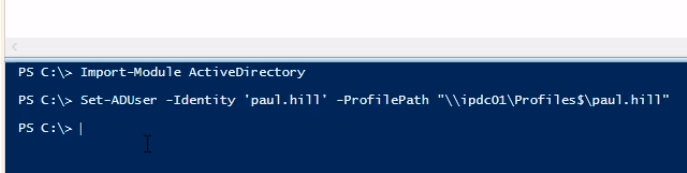
- Type the command: Set-ADUser -Identity ‘paul.hill’ -ProfilePath “\\\ipdc01\profiles$\paul.hill”
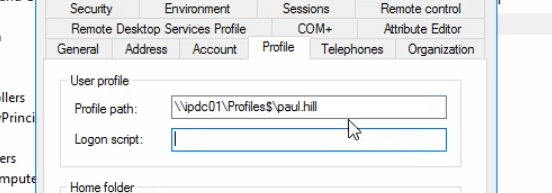
- We can open our user account and see under Profile in AD it has now worked.
- What if we have 5000 user accounts that we just have added to the Roaming Profiles Users group?
Doing this via a Script:
- Let's script this out(Importing the AD module)
NOTE: Do as many comments as possible using the # So that we remember what our script does.
We can do this on group membership, as they are part of the Roaming Profile Users Security Group.
So we will get the list of users, and then push our configuration from there.
Add Robert Hill user account manually to the Roaming Profile Users group and let's run it :
![Graphical user interface, text, applicationDescription automatically generated](https://zrftqtvkikjkbtk…
No comments yet. Add the first comment to start the discussion.