
Registering an AWS Account
In this lecture, we are going to create an EC2 instance on Amazon Web Services.
So, what I am going to do is to open my preferred web browser and I am going to use the Edge web browser.
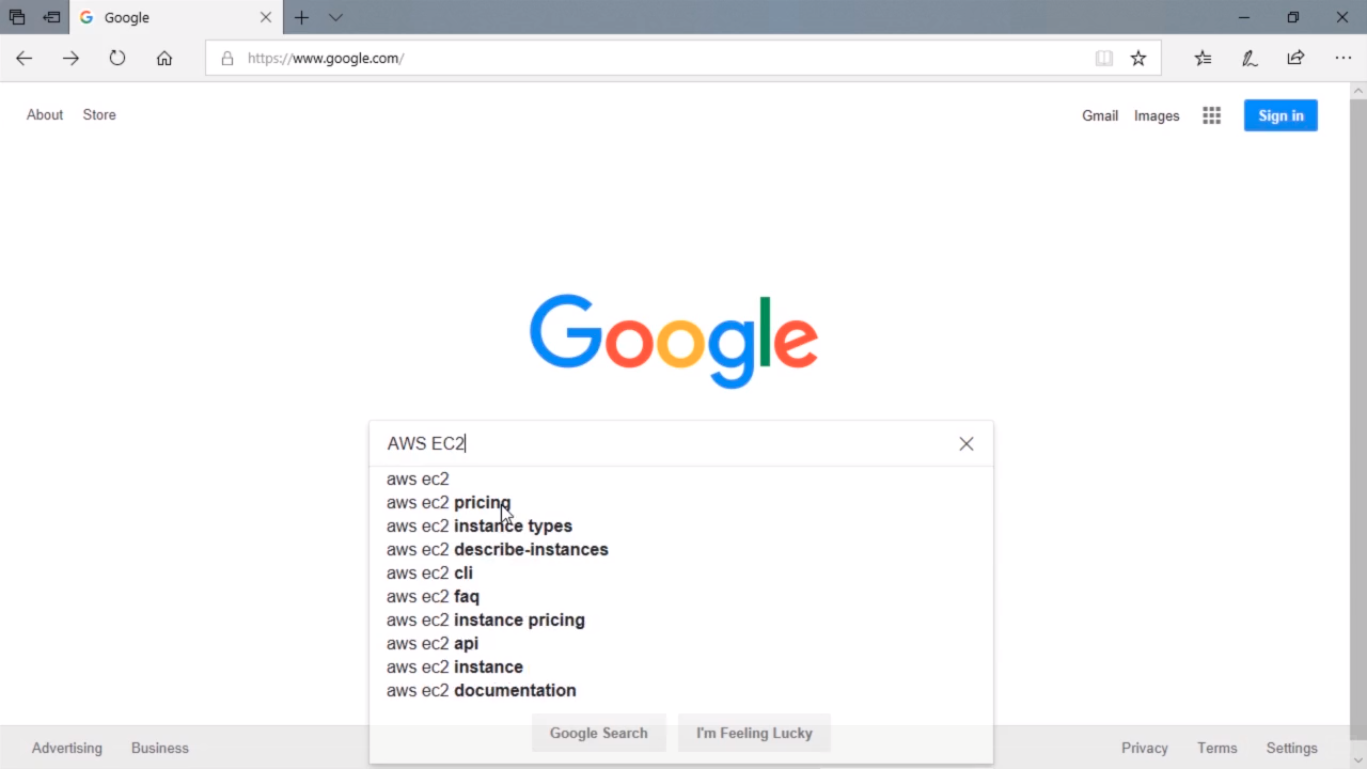
Here I am at https://www.google.com. What I am going to do is I am going to Google for AWS EC2 and press Enter.
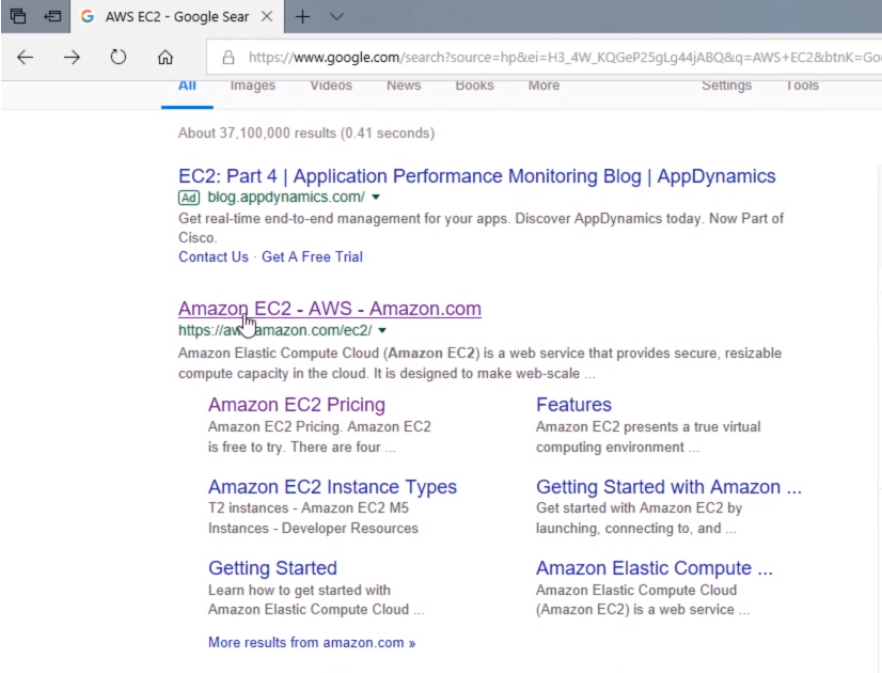
Now, this will bring us to the search results and we can look for a couple of these different pages like Pricing, Features, Getting Started, etc.
I am going to click on the first link that takes me to https://aws.amazon.com/ec2/.
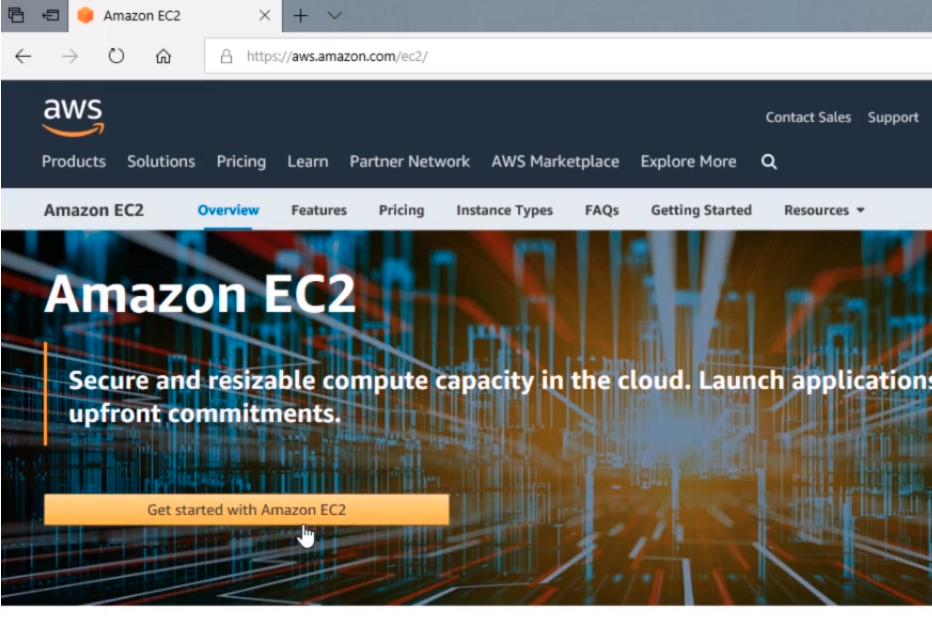
Next, we are going to see this button here on the header banner that says Get Started with Amazon EC2.
Now, keep in mind that this page may change from time to time but the process generally is going to be the same just google Amazon EC2 and it will take you to the page where you have to click the button to get started or register.
So what I am going to do is click this button.
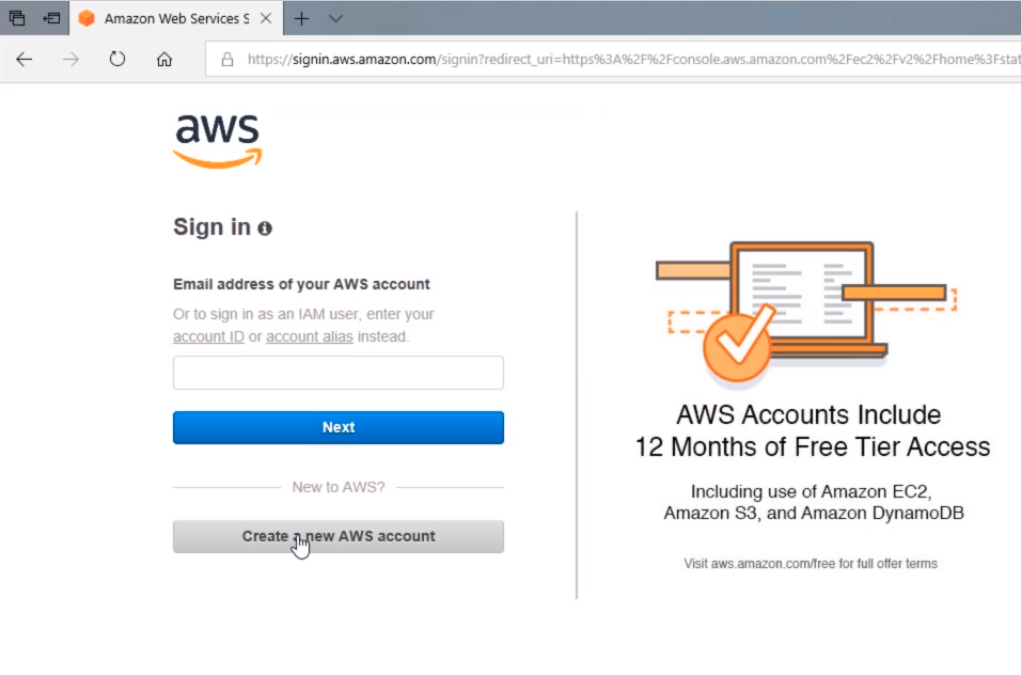
And, from the next page, I am going to create a New AWS Account because I do not have one already.
So now I am going to type my email which is going to be paul@instructorpaul.com. For the password, I am going to create a password really quick and I am going to confirm the password. And, I am going to create an AWS account name which, if we highlight the informational icon, is just an alias for our account. We can change it later in our account settings. I will call it InstructorPaul and I am going to click Continue.
![](https://zrftqtvkikjkbtkfalgp.supabase.co/storage/v1/object/public/lesson-images/dc0eec815e21967f.pn…
No comments yet. Add the first comment to start the discussion.