
How to Create Virtual Machines with VirtualBox
In this lecture, I am going to show you how you can create Virtual Machines with VirtualBox.
I have the Oracle VM VirtualBox Manager application open and what I am going to do is just click on New on the top left-hand corner.
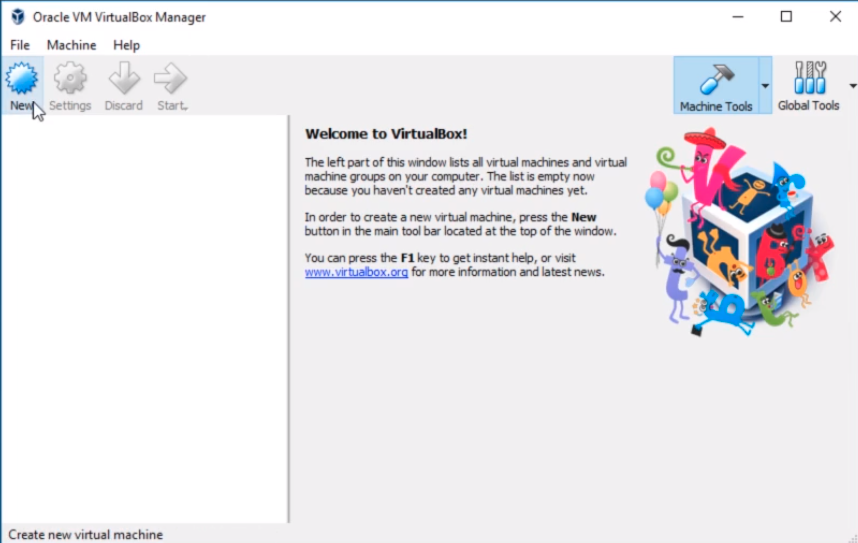
Once we click that we are going to get a new window named Create Virtual Machine. I like to use the Expert Mode so I am going to click that button.
What this does is you get the same options but it reduces the number of pages that we have to select.
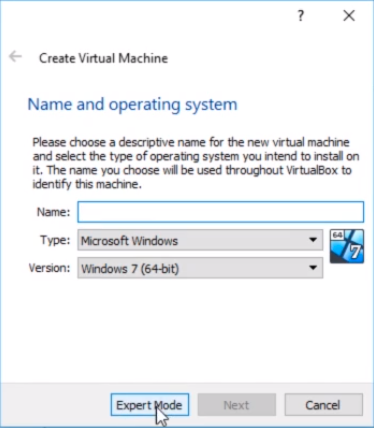
First, we are going to select a name for the Virtual Machine and we will call this one Windows Server 2016.
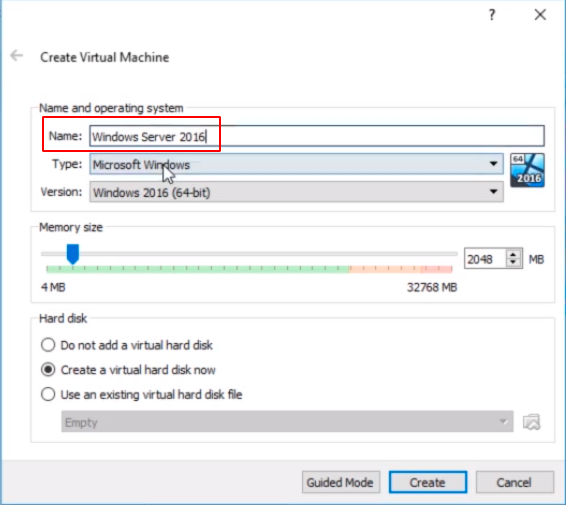
Next, we need to choose the Type. This will depend on the type of Virtual Machine that you are going to create. I am going to create a Windows Virtual Machine, but if you want to do Linux you can do that or choose any other of the available types.
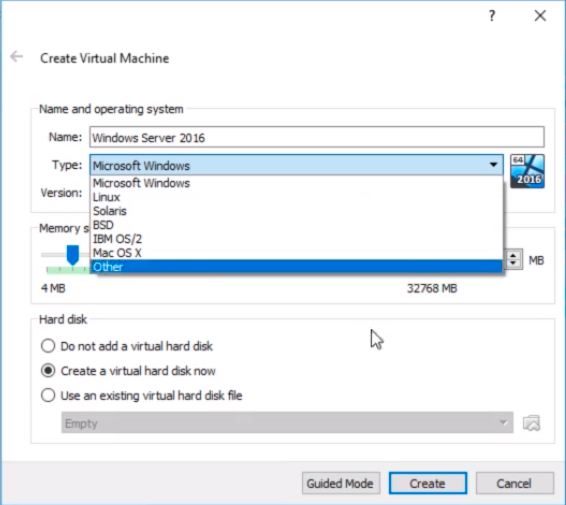
Now, we need to select the version. I can see that automatically selected Windows 2016 (64-bit).
This is a 64-bit option so if you have only 32-bit versions available it could mean that you don’t have virtualization enabled in your BIOS or it could mean that you don’t have a 64-bit Operating System or a 64-bit processor which would be required to install Windows Server 2016.
Now, you can install Windows Server 2019 which was just released by selecting Windows 2016 (64-bit). So if you find something that’s pretty close to what you are trying to install usually you will be fine selecting that version.
![](https://zrftqtvkikjkbtkfalgp.supabase.co/storage/v1/object/public/lesson-images/6a605082412e22…
No comments yet. Add the first comment to start the discussion.