
Downloading and Installing VirtualBox
In this lecture, we are going to download and install VirtualBox.
First, open your preferred Web Browser and navigate to https://www.google.com.
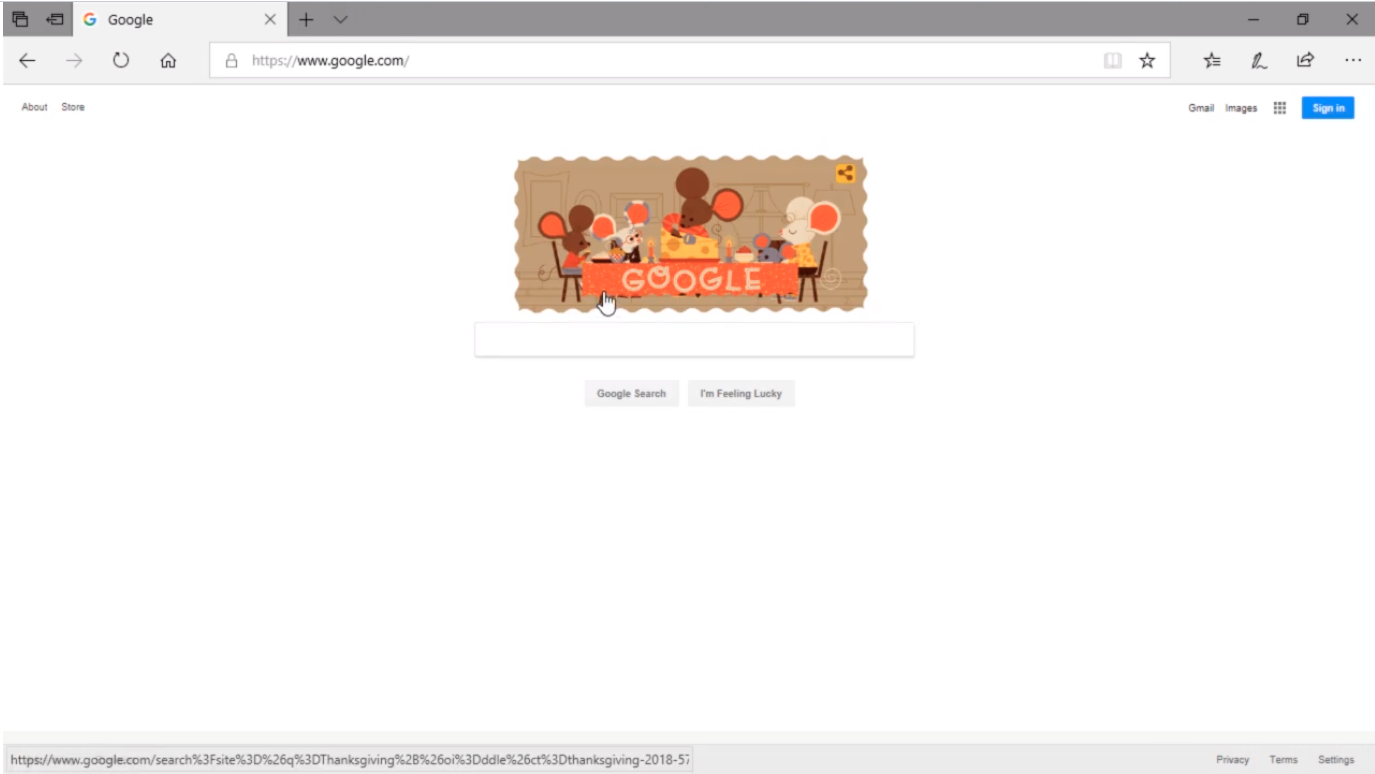
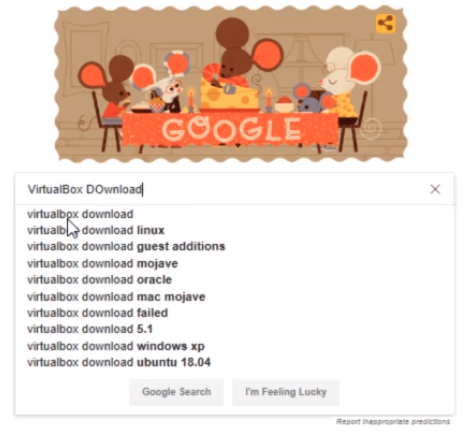
Once in Google.com search for VirtualBox download and press Enter.
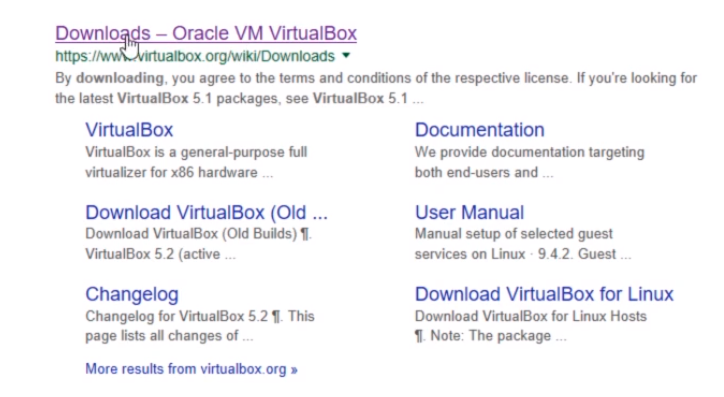
From the search results select the Downloads - Oracle VM VirtualBox link that reads https://www.virtualbox.org/wiki/Downloads.
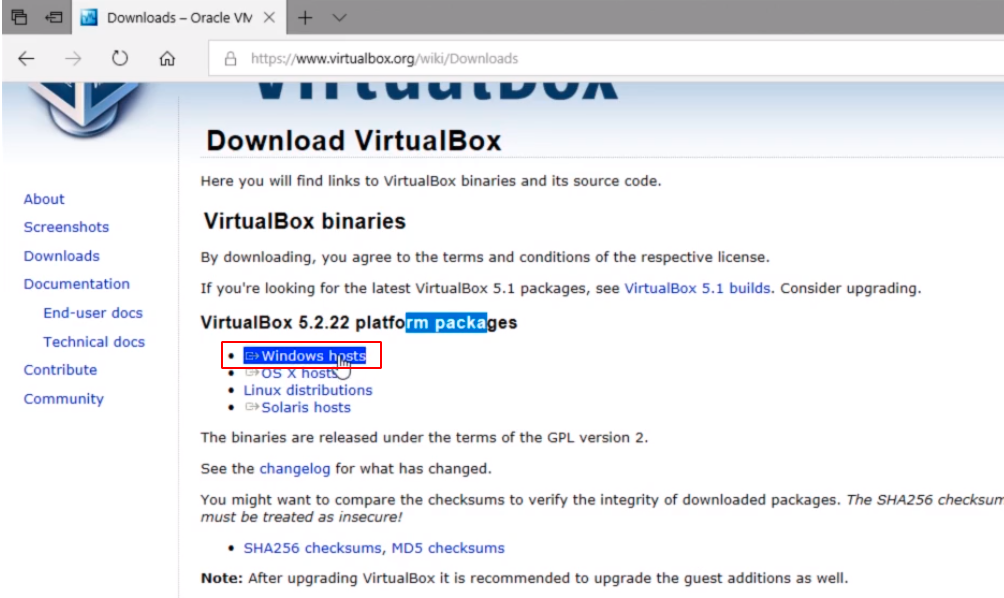
Choose from the download section VirtualBox for your OS platform. In my case, we are selecting Windows because that’s what I use for my Host Base OS.
If you have a different platform you are covered since VirtualBox runs on all the operating systems.
Click on the Run button at the bottom of the Web Browser screen.

The download will start and when the download is complete we are going to launch the installation.
The download is complete and the installation is started.
Click on the Next button to start the wizard.
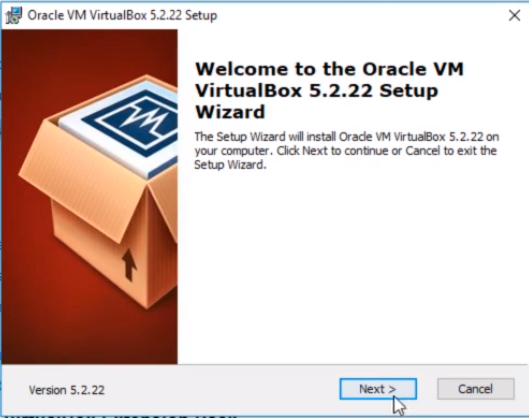
We can leave all these settings at default. There’s no reason for us to change any of these settings so we just click Next.
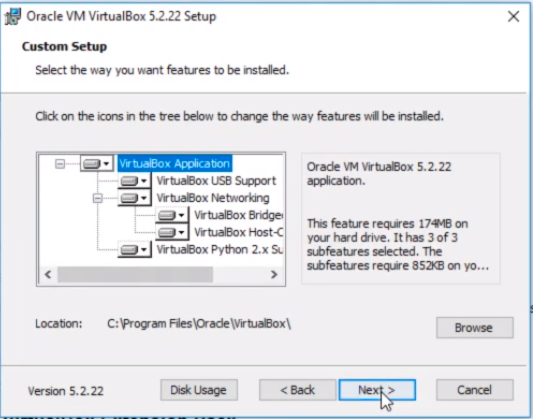
If you want to uncheck one or more of the options checked like not creating a shortcut on the Desktop you can do so. Again I am going to leave the default settings configured and I am going to click on Next.
No comments yet. Add the first comment to start the discussion.