
Creating an AWS EC2 Instance
In this lecture, we are going to create an EC2 instance in AWS.
So I have logged into the Dashboard and what I am going to do is click on Services and under Compute click on EC2.
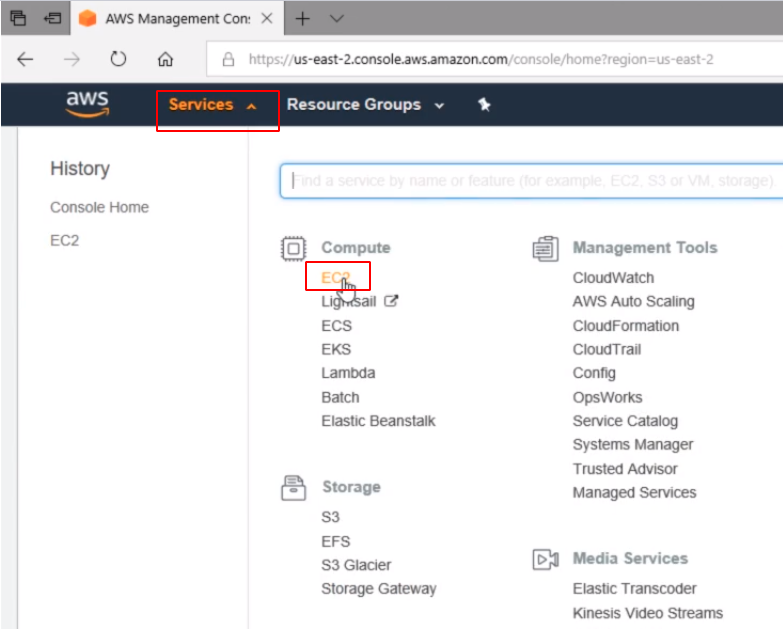
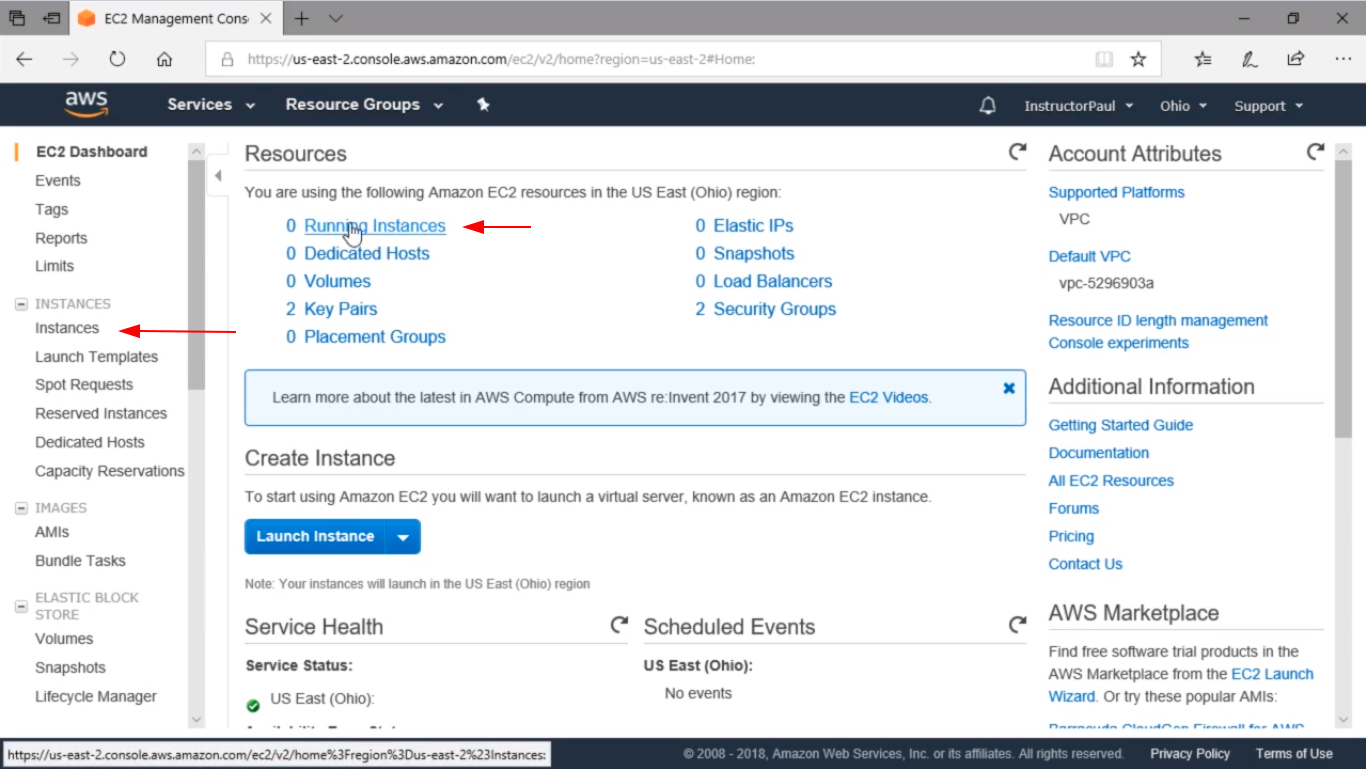
Here I can see I have 0 Running Instances, 0 Dedicated Hosts, and you’ll notice I have 2 Key Pairs, and 2 Security Groups. You are not going to have all these they all will say 0. Just ignore those values just because I’ve created a couple of VMs before under this account but don’t worry about any of that.
What you are going to do is click either Running Instances or we could choose Instances from the left menu pane.
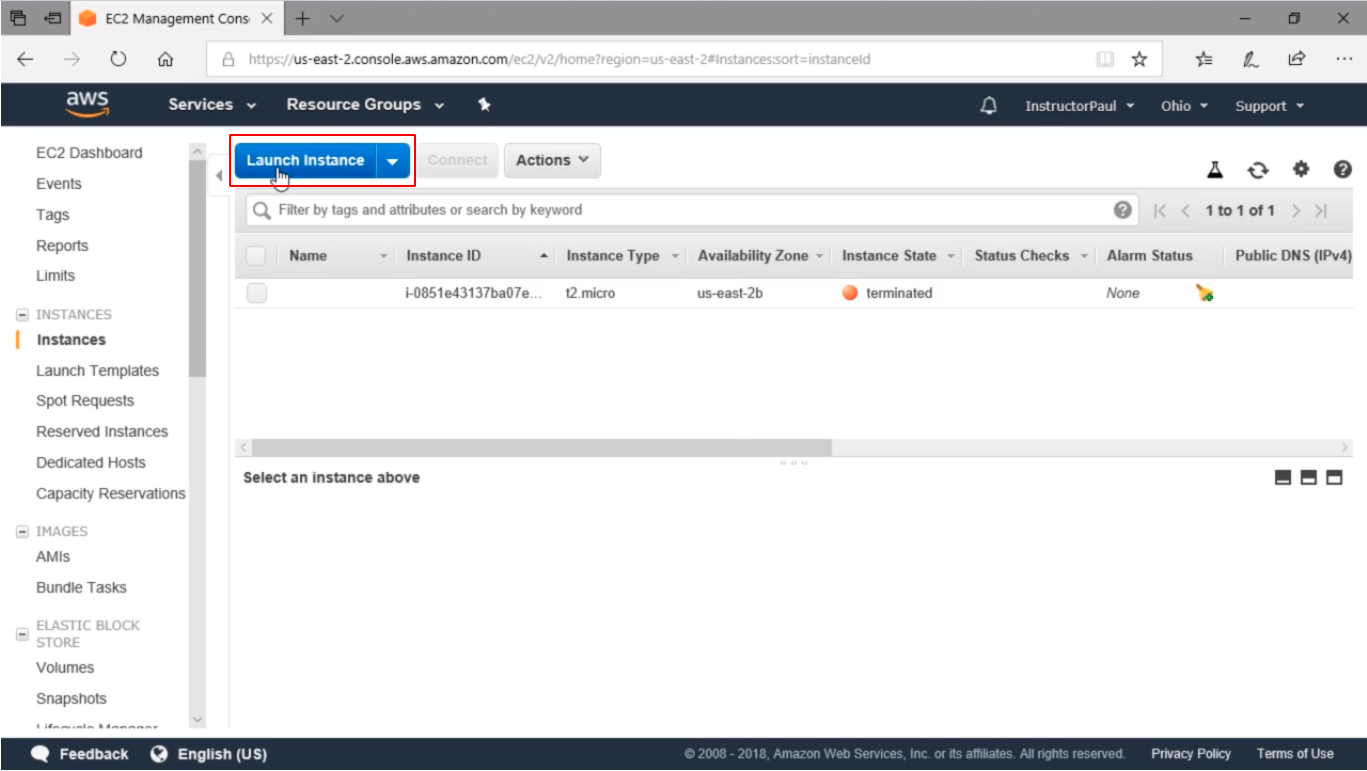
And here is an instance where you can see that I have terminated. So, you are going to see nothing in the results more than likely unless you created an Instance before.
What you are going to do now is click this Launch Instance blue button and we are going to make a new instance.
Here we have QuickStart, My AMIs, AWS Marketplace, and Community AMIs. What we are going to do is click on QuickStart and on the search box we're going to search for Windows and press Enter.
Here we can see all types of AMIs, which are Amazon Machine Images, and these are just to help us get up and running really fast with AWS.
Here we can choose Server 2012 R2 Base or just 2012, we have 2008 and all the way back to 2003. We also have Servers with Containers, Servers with SQL Server installed. These are just setups so we can just click the Select button and get a new server set up in a matter of minutes, and it is really fast and it is really nice.
What we are going to do is just choose Windows Server 2016.
No comments yet. Add the first comment to start the discussion.