
How to use the Vim editor
In this lesson, you will learn how to use the Vim editor, an improved version of the vi editor, commonly used in Unix and Linux systems. Vim stands for Vi IMproved and offers a robust set of features that make it a powerful tool for text editing and programming.
Vim or vi?
Sometimes, you can type vi, but you'll actually start the Vim. You can verify that by taking a look at your vi command as shown in the example below, which shows that my vi command actually starts vim:
Starting Vim
To begin with, depending on the Linux distro you're using, you can start the Vi / Vim editor with the vi or vim commands:
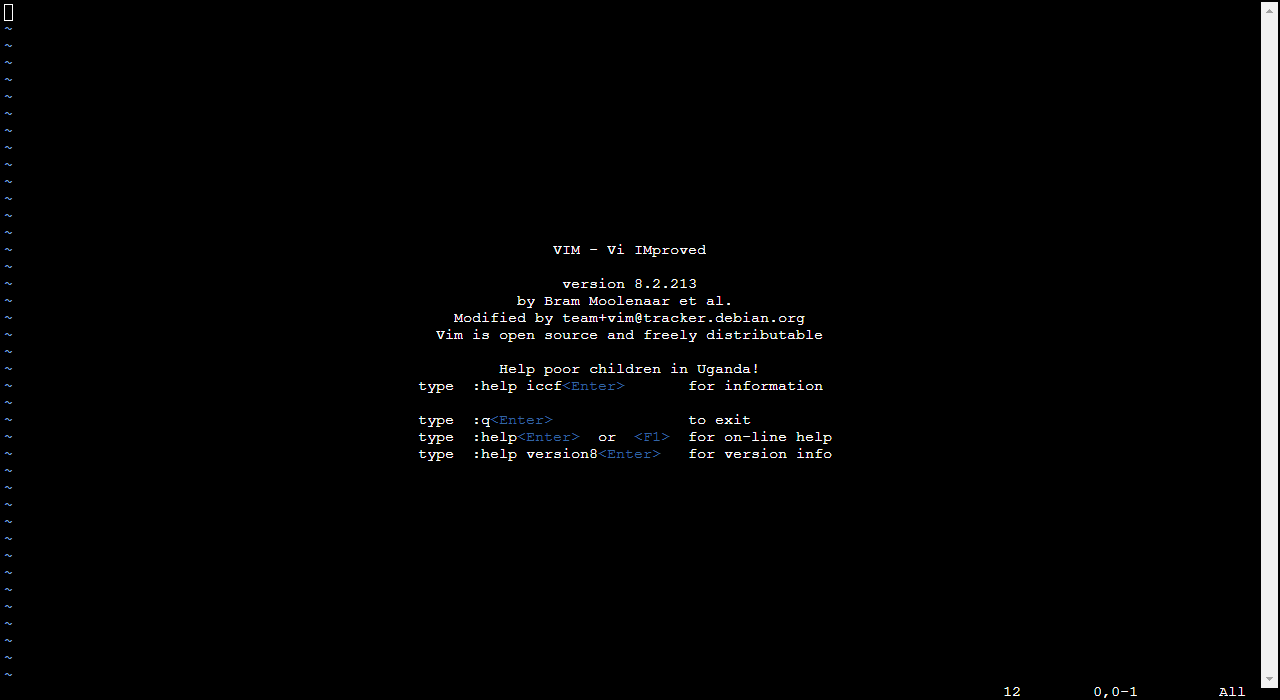 The Vim welcome screen
Exiting Vim
As shown on the welcome screen, to exit the Vim editor, you need to first be in command mode. Press the esc key to ensure you are in command mode. Next, type :q and press enter.
__
If you receive a message highlighted in red like No write since last change (add ! to override), then you need to type :q! to exit without saving changes you may have made.
 No write since last change (add ! to override)
Creating a new file with Vim
Now that you understand that, you'll want to open a file in Vim. Use the following command to either create a new file or open an existing one:
vi filename
Alternatively, if you want to open a file in read-only mode, you can use:
vi -R filename
Or:
view filename
Modes in Vim
Vim has two pr…
No comments yet. Add the first comment to start the discussion.