
Downloading and Installing Python on Windows
We can download Python from the official website python.org.
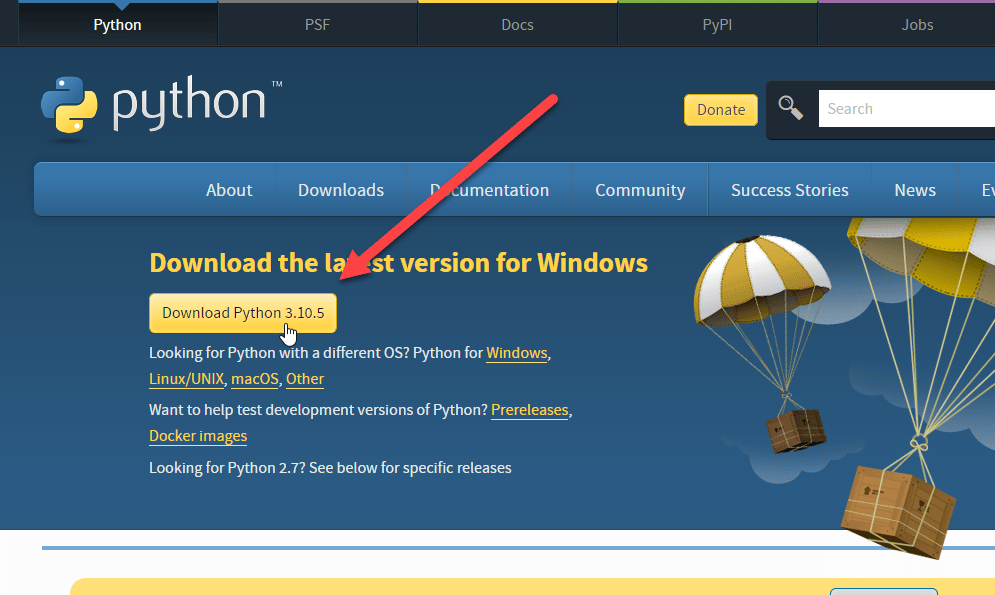 Python Download
Note that you will most likely see a different version listed here. You should download the latest version or an earlier version if you prefer. The exact version you download here isn't too important.
Once the download completes, launch the installer. Be sure that enable Add Python 3.10 to PATH as this is what will allow you to run this version of Python by typing "python" in your command prompt:
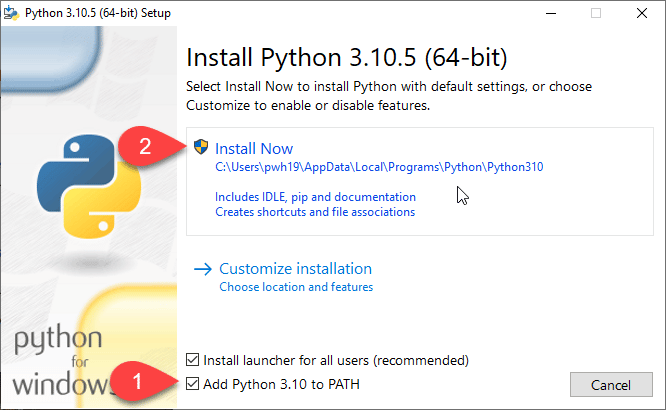 Install Python 3.10.5
Once you enable that checkbox, click Install Now. You will receive a prompt to provide administrator access. Click yes.
Once the installation is finished you will see a screen similar to this:
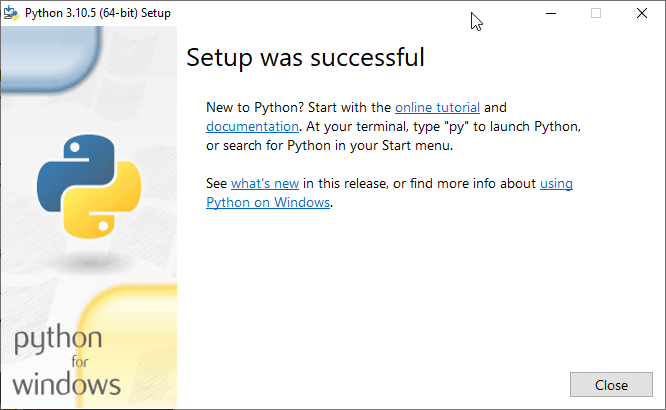 Python Installation Successful
Click Close. Now launch Command Prompt :
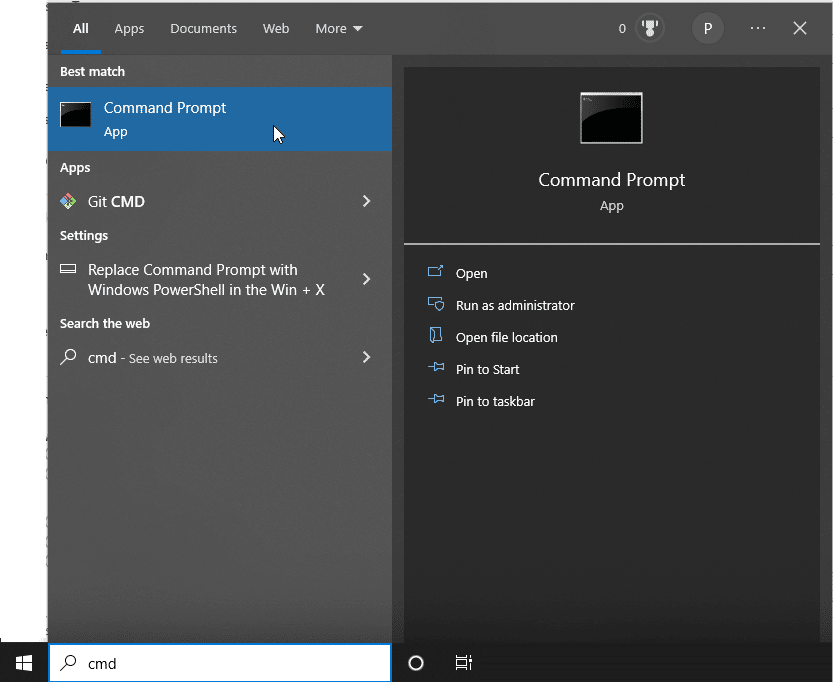
Type python and press Enter :

This should return output like that below:
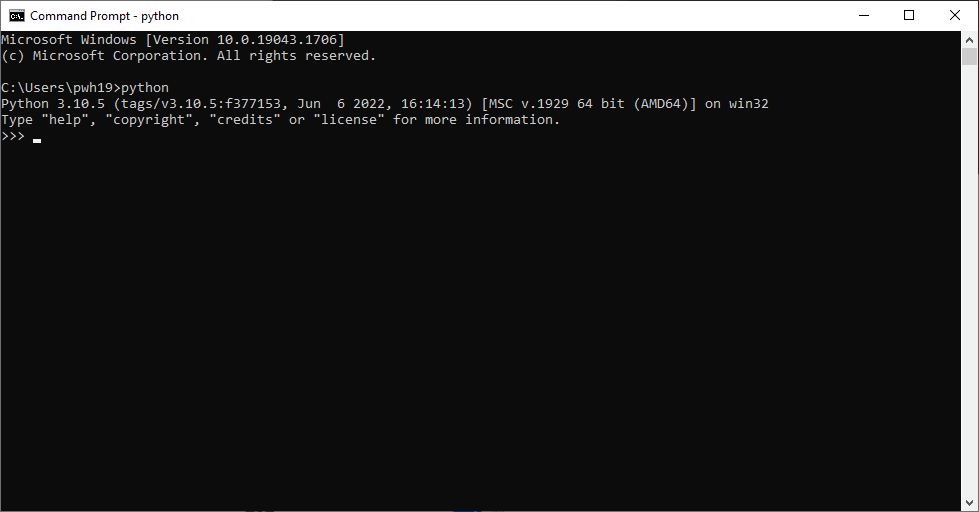 Python
If instead your computer opens the Microsoft Store asking you to install python then we need to remove the built-in windows alias. We obviously don't want to install this version but we want to use the version that we just installed.
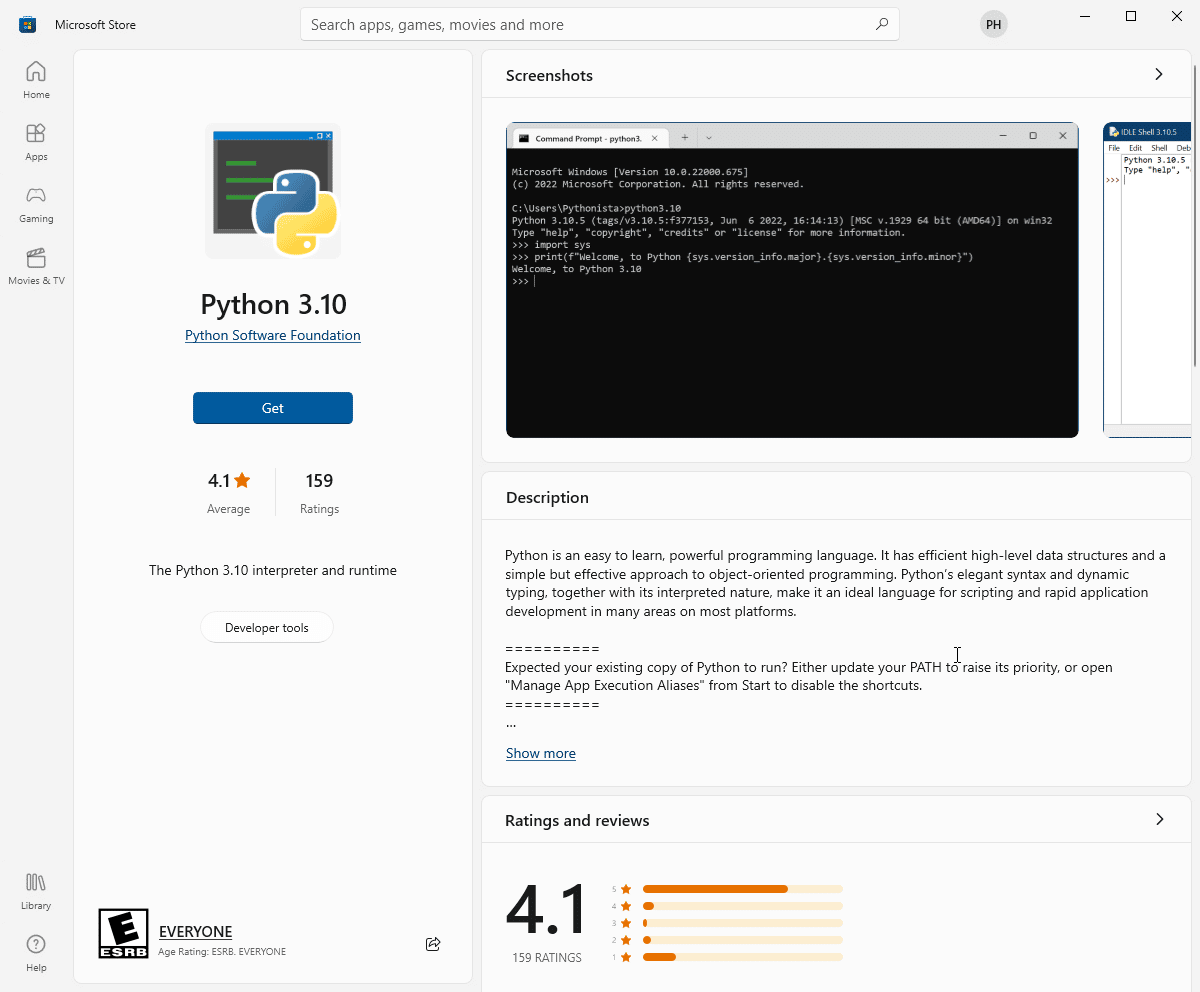 Python 3.10 Windows Store
Click the Windows button and search for **Manage a…
No comments yet. Add the first comment to start the discussion.