


This downloadable lab includes the list of tasks below that are designed to enhance your IT skills and knowledge through practical application. Of course, this is a downloadable lab so you are free to experiment and try whatever you want!
Use the tasks below as a guide to practice and improve your IT skillset!
How do the Downloadable Labs work?
Downloadable labs run on your host computer and have no restrictions or time limits. You just need to install VirtualBox (or your preferred hypervisor software) and import the VM OVA files. Once you've imported the VMs, power them on and follow the instructions to complete the lab.
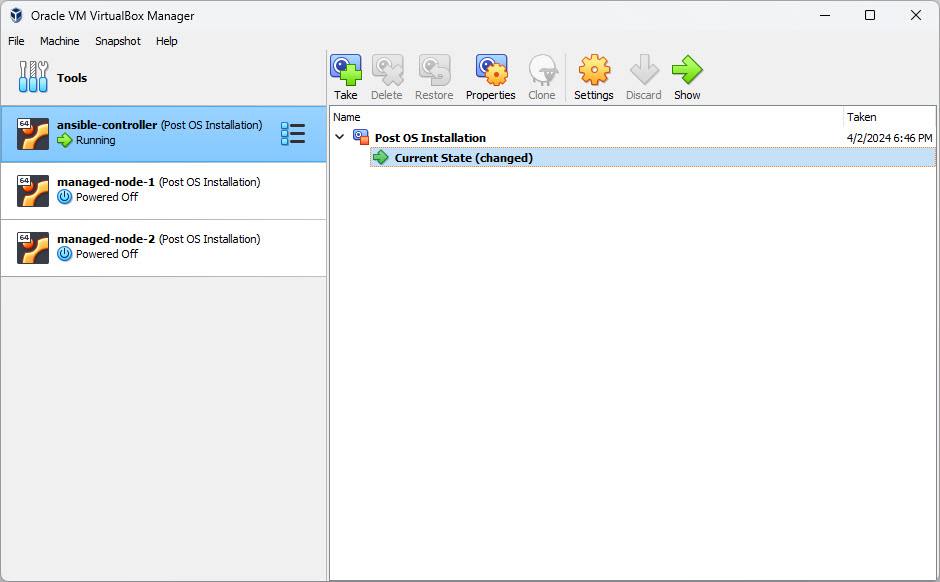
Note that our offline labs do not include automated evaluations, so it's up to you to make sure you do everything correctly. Some labs will have instructions for validating that all steps were completed correctly.
How to Import this Lab into VirtualBox
When you download the lab ZIP archive, you first need to extract the zip file. Once that is done, you will have a folder with any number of *.ova files in the extracted folder. You should import each of these into VirtualBox, then set their network adapters to use Bridged Network adatpters. See the instructions below for more details.
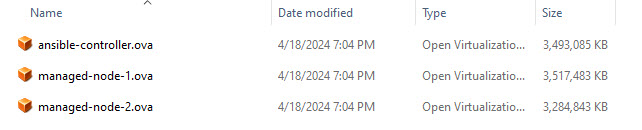
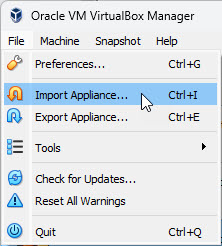
Once you have downloaded and extracted the OVA file, you need to import each OVA file into VirtualBox by clicking File > Import Appliance in the VirtualBox user interface:
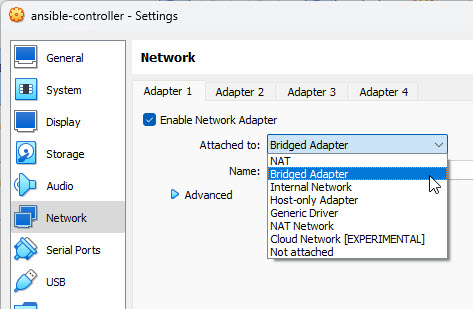
Continue with the default settings for the import. Once that is complete, configure each VM to use a Bridged Network Adapter. This means the VM will be accessible by your host computer if you want. Of course, you are free to use any other type of networking configuration you'd like, but Bridged will be the easiest to work with.
After this is complete, power on each VM and begin completing the instructions or doing whatever you want! The cool thing about downloadable labs is that there is no time limit or restrictions on what you can do. Happy labbing!

Lab Author


Unlock ALL Labs and Courses!
Practice on REAL servers, learn from our video lessons, interact with the Server Academy community!